25 Operation (under Launcher source)
BenQ Launcher home screen features six main components:
Navigating the BenQ Launcher home screen
1. From the BenQ Launcher home screen, press / / / to select the desired function and press
OK.
2. Follow on-screen instructions for further operations.
Inputting text
Various menus within BenQ Launcher may require that you input text. You may either connect a
keyboard to the USB 1 or USB 2 or USB 3 port at the rear of the projector or follow the steps
below:
1. Select the text field where you want to input text.
2. Press / / / to navigate the keyboard, and press OK to select the letter/key/symbol you want
to enter into the text field.
3. Press the back button at anytime to exit out of the keyboard.
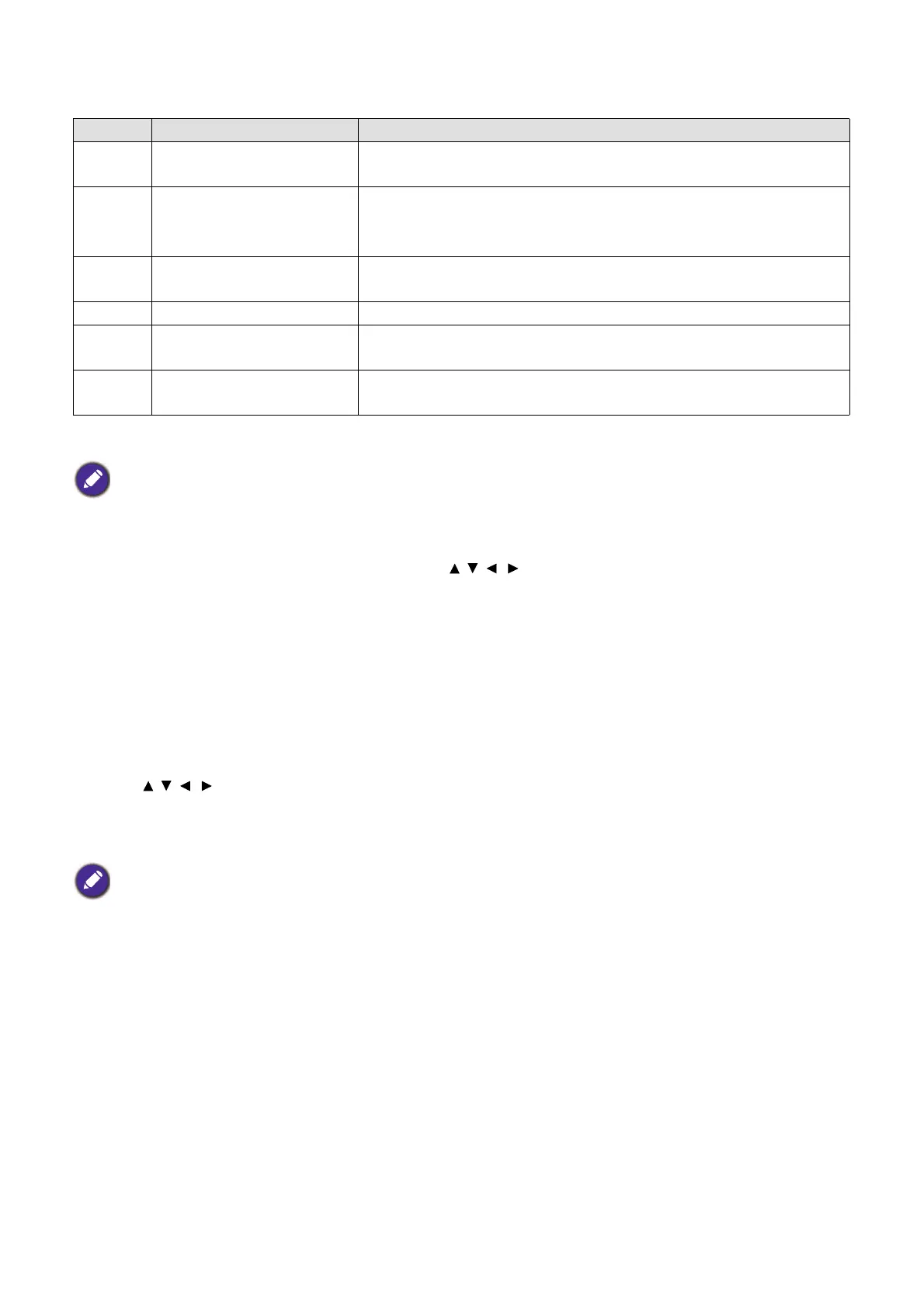
No. Component Description
1 Status Bar Icons that display the time, Bluetooth, wireless status, and
device name.
2 Main Menu Shortcuts to instructions on how to project wirelessly, start a
video conference, and access files stored on File Manager. See
Using the Main Menu on page 26 for more information.
3 Sidebar A menu of quick navigation buttons. See Using the sidebar on
page 26 for more information.
4 User account Allows you to manage your account settings.
5 Toolbar Buttons for the input source, all apps, and Settings menu. See
Using the Toolbar on page 27 for more information.
6 Quick Settings Settings for Windows desktop mode, Internet, Bluetooth,
Connect, and Auto Launch.
Press the down button to access the Source menu, App shortcuts, Settings menus and Information.
Actual keyboard types may vary based on your language preference setting.






 To Next Page