27 Operation (under Launcher source)
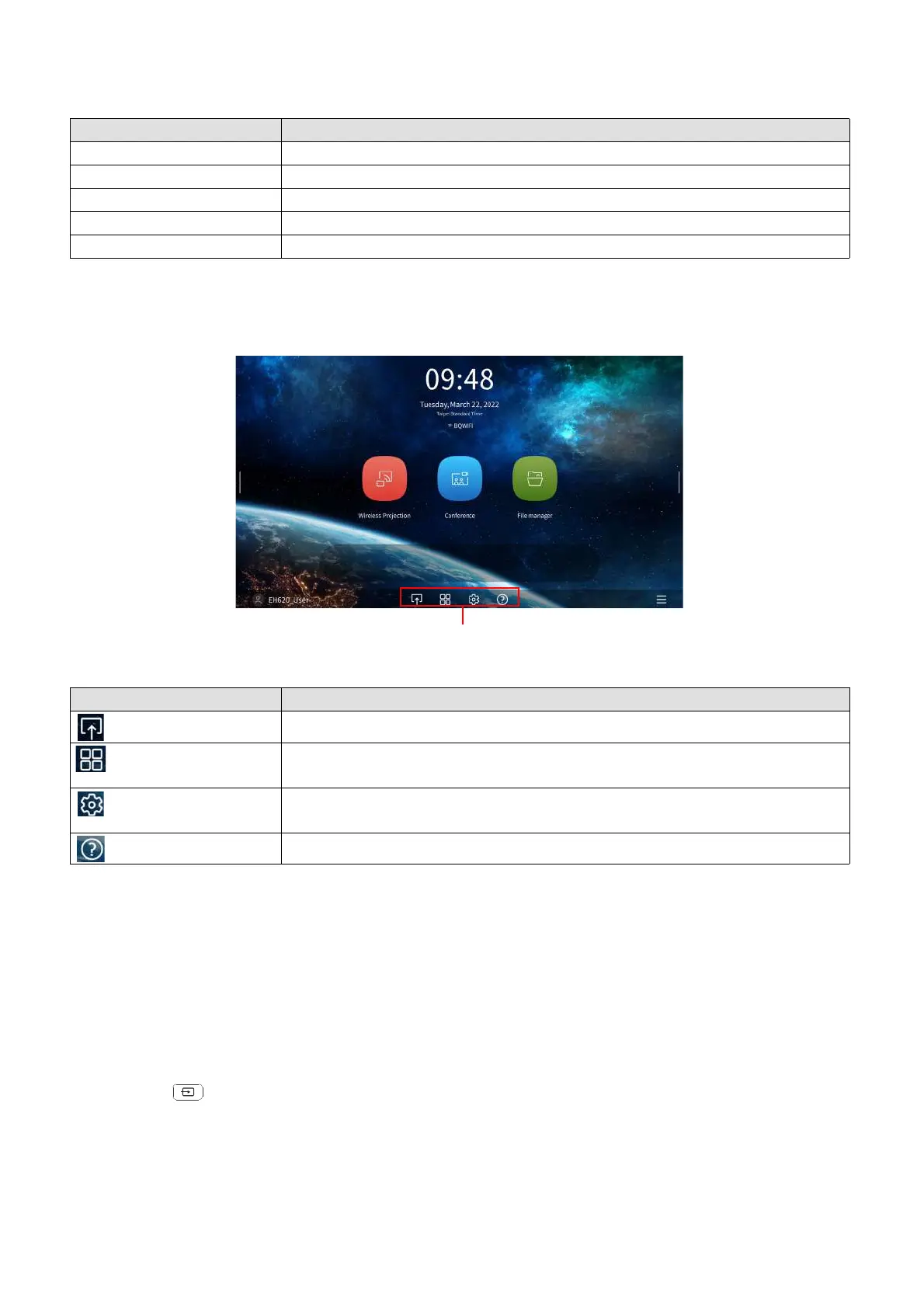
The following buttons are included in the sidebar:
Using the Toolbar
The tool bar features buttons to access the input source menu, the all apps menu, and the Settings
menu.
Switching input signal
When HDMI 1, HDMI 2 or PC/YPbPr is selected in the source menu, the projector will exit the
BenQ Launcher interface to project video from the input source (e.g. a Blu-Ray/DVD player, set-top
box, or PC). The projector will remain outside of the BenQ Launcher interface as long as the HDMI
1, HDMI 2 or PC/YPbPr input source is selected or (depending on Auto Source settings) until the
projector is powered off and back on again.
As a result, anytime the user wants to wirelessly cast their device’s screen, they must return to the
BenQ Launcher interface. To return to BenQ Launcher:
1. Press the (SOURCE) button or the LAUNCHER button on the remote control.
2. Select BenQ Launcher in the source menu.
Button Description
Home Select to return to the BenQ Launcher home screen.
Volume Select to display volume adjustment bar.
TaskView Select to edit the recently used files on Windows.
Source Select to switch the input source.
Update Select to set update notification.
Button Description
Select to open the input source menu.
Select to open the all apps menu. See All Apps on page 37 for more
details on the all apps menu.
Select to open the Settings menu. See About the Settings menu on page
36 for more information on the Settings menus
Select to open the Info menu to display user manual QR code and videos.









 To Next Page