8 Introduction
Overview
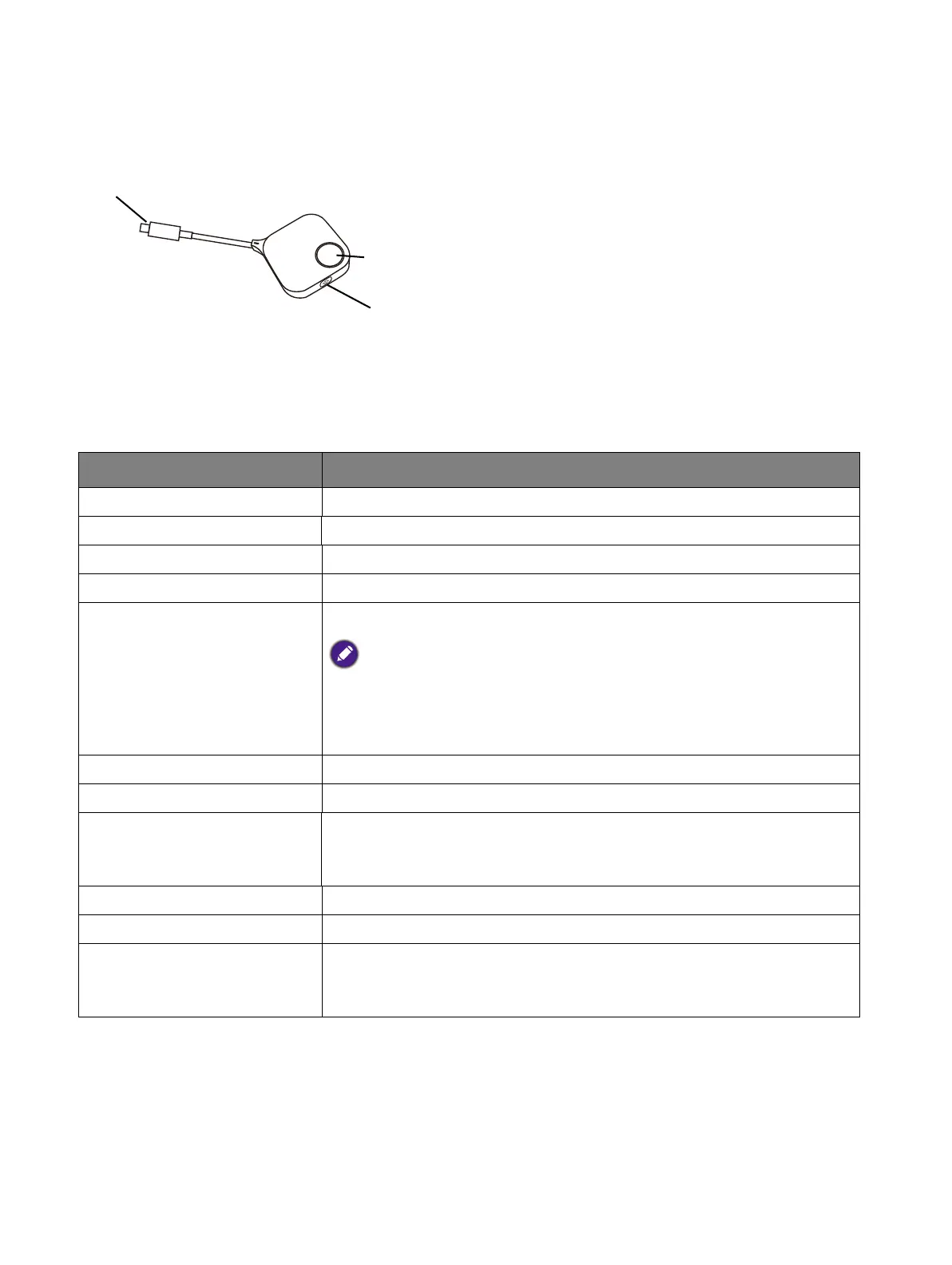
Button
LED indicator for the Button
Please refer to the table below for detailed indicator and status descriptions for the Button.
1. Present key with LED indicator
Press to start or stop presenting.
2. Split-screen key
Press to toggle between enlarged view or regular
view during split-screen presentations.
3.
USB-C connector
Connect to a computer or laptop.
LED Behavior Status description
Off The Button is powered off.
Solid white The Button is in standby mode.
Flashing green The Button is in the process of connecting to the Wireless Adapter.
Solid green The Button is connected and ready to present.
Breathing green
The Button is waiting for approval to present.
The InstaShare 2 app on BenQ Smart Displays allows you to configure
presentations to require approval before a button can begin presenting.
When this setting is enabled, the LED on the button will exhibit this
behavior once the present key on the Button is pushed until approval is
granted.
Flashing blue The Button is in the process of pairing.
Solid blue The Button is presenting.
Breathing blue
The Button is currently unable to present (e.g. the Button is in do-
not-disturb mode, max. number of presenters has been reached,
etc).
Flashing red The Button is unable to connect to the Wireless Adapter.
Quick flashing red The Button has not been activated.
Breathing red
The Button is inserted into its device but the USB Type-C port is
not transmitting a signal (the USB Type-C port does not support
ALT mode)


 To Next Page