Need help?
Do you have a question about the BenQ PointWrite PW30U and is the answer not in the manual?
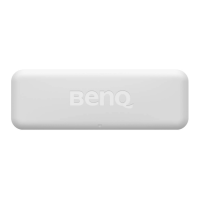
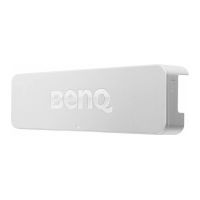
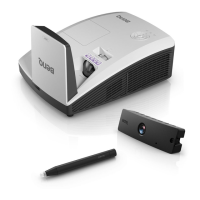
The BenQ PointWrite (PW30U) is an interactive whiteboard sensor designed to transform any flat surface into a virtual interactive whiteboard when used with a compatible BenQ projector. This device enables scalable interactive functionality, allowing users to write and annotate digitally on a projected surface.
The PointWrite module serves as the core component for interactive functionality. When connected to a compatible BenQ projector and a PC, it allows users to interact with the projected image using specialized PointWrite pens. The system supports both "Pen Mode" for pen-based interaction and "Finger Touch Mode" when paired with an optional BenQ PointWrite Touch module, enabling simultaneous pen and finger input. This versatility makes it suitable for various interactive scenarios, from presentations to collaborative learning environments.
To ensure optimal interactive quality, several setup and environmental considerations are crucial. The PointWrite system requires a flat, non-reflective projection surface. Semi-glossy or matte walls are recommended, and if a textured wall is used, attaching a dry-erase board is advised for smoother digital ink writing. Glossy surfaces are discouraged as they can increase external light intensity and lead to interference, potentially affecting writing performance. Similarly, non-smooth surfaces or those with protruding objects should be avoided. Environmental conditions also play a role; direct sunlight on the projection area should be avoided, and infrared devices like microphones should be kept away from the screen's front side to prevent interference. Reflective accessories such as watches or necklaces should also be removed.
The PointWrite Pen acts as a wireless mouse, offering four primary actions:
The system supports multi-user interaction, allowing up to 10 pens to be used simultaneously, making it ideal for group activities. It also supports multiple operations, with up to 2 units of PointWrite modules working together.
Before initial use, a set-up driver must be installed on the PC for configuration settings. This involves downloading the driver from the BenQ Display Website and following on-screen instructions. Once installed, the PointWrite icon will appear on the desktop, and the installation folder will be created in the C: directory. Subsequent users can simply plug the USB cable to connect to the PC and begin interacting without needing to reinstall the driver.
Connecting the PointWrite to a PC is done via a mini USB cable, with the mini-B end plugging into the projector and the type-A end into the PC. It's important to verify that the PointWrite device is recognized by the computer in the "Device Manager." A 5-meter USB cable is provided, and a USB repeater cable can be used if extended length is required.
The PointWrite Configuration Setting window guides users through the setup process. Key settings include:
After calibration, the PointWrite pen can be used as a mouse, or users can launch BenQ's exclusive annotation software, QWrite™, for writing and annotation. To maintain interactive quality, it's advised to adjust the projector's input signal (computer output signal) to match the projector's native resolution. If the computer's output signal changes when switching PCs due to graphic card limitations, users should reinstall the set-up driver and redo the PointWrite Calibration.
The PointWrite Pen requires AAA batteries for operation. When installing batteries, it's crucial to ensure correct polarity to avoid damage. To conserve battery power, the pen automatically powers off if the pen nib is pressed for more than 30 seconds. The pen tip is also replaceable. To remove a worn tip, users can hold it with their fingers, shake, and pull it out. A new tip can then be gently pushed into place.
 General
| Connectivity | USB |
|---|---|
| Calibration | Automatic |
| Connection | USB |
| Technology | Infrared |
| Max Projection Size | Up to 100" |
| Response Time | 0.016 seconds |
| Function | Interactive presentation and annotation |
| Compatibility | BenQ Interactive Projectors |

 To Next Page