Operation24
Using the quick install
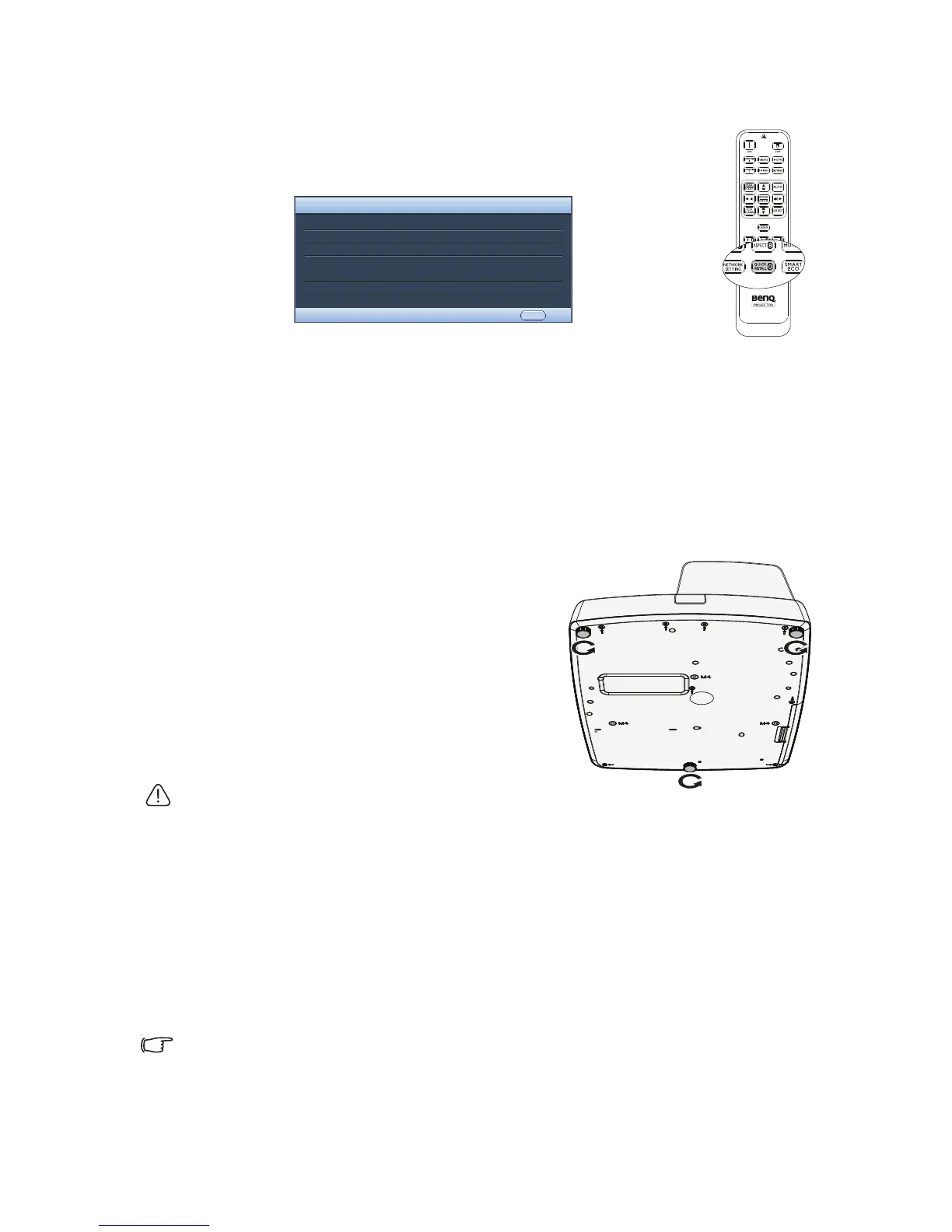
The projector provides a hot key to set Projector Installation, Te s t
Pattern, and Keystone quickly.
Press Quick Install on the remote control and press ▲/▼ to select:
• Projector Installation: See
"Positioning your projector" on page 16
.
• Test Pattern: See
"Using the test pattern" on page 40
.
• Keystone: See
"Correcting keystone" on page 25
.
Adjusting the projected image
Adjusting the projection angle
The projector is equipped with 3 adjuster feet. These adjusters change the image height
and projection angle. To adjust the projector:
Screw adjuster foot to fine tune the horizontal
angle.
To retract the foot, hold up the projector then
slowly lower the projector. Screw the adjuster foot
in a reverse direction.
If the projector is not placed on a flat surface or the
screen and the projector are not perpendicular to
each other, the projected image becomes
trapezoidal. To correct this situation, see
"Correcting keystone" on page 25 for details.
• Do not look into the lens while the lamp is on. The strong
light from the lamp may cause damage to your eyes.
• Be careful when you press the adjuster button as it is close to the exhaust vent where hot air comes from.
Auto-adjusting the image
In some cases, you may need to optimize the picture quality. To do this, press AUTO on
the projector or remote control. Within 3 seconds, the built-in Intelligent Auto
Adjustment function will re-adjust the values of Frequency and Clock to provide the best
picture quality.
The current source information will be displayed in the upper left corner of the screen for
3 seconds.
• The screen will be blank while AUTO is functioning.
• This function is only available when PC signal (analog RGB) is selected.


 To Next Page