EasyManua.ls Logo

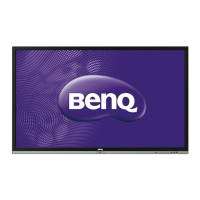
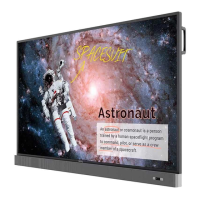
BenQ RP553K - User Manual

BenQ RP553K
60 pages
Print Icon
To Next Page IconTo Next Page
Loading...
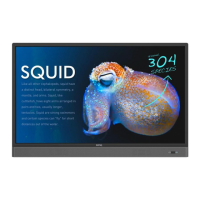
RP553K/RP653K
LCD Monitor
User Manual

Other manuals for BenQ RP553K

Questions and Answers

  • M
    Mrs. Amanda HernandezAug 9, 2025
    Why does my BenQ Monitor have no picture?
    • U
      uthomasAug 9, 2025
      If your BenQ Monitor displays no picture, please check the following: Ensure the display is turned on by checking the power indicator. Verify that the signal source device is also turned on. Check all cable connections to ensure they are firmly connected. Confirm that the computer, DVD, or Blu-ray disc player is set to a supported output resolution.
  • M
    Miranda HarveyAug 13, 2025
    How to fix no sound on BenQ Monitor?
    • C
      Clinton MillerAug 13, 2025
      If there is no sound from your BenQ Monitor, make sure that the mute function is turned off on both the display and the input source device. Also, check that all cables are firmly connected.
  • A
    Amber WongAug 18, 2025
    What to do if the computer input image looks strange on BenQ Monitor?
    • M
      Mary NguyenAug 18, 2025
      If the computer input image on your BenQ Monitor looks strange, try these steps: First, make sure you've selected a supported output resolution on your computer. Next, use the Auto Tune function, found in the Picture menu, to automatically optimize the display. If Auto Tune doesn't fully resolve the issue, manually adjust the image using the Clock, Phase, Horizontal Position, and Vertical Position functions.
  • S
    Susan OwensAug 23, 2025
    Why does the displayed image on my BenQ Monitor look blurry or grainy?
    • F
      fernandezchristinaAug 23, 2025
      If the displayed image on your BenQ Monitor looks blurry or grainy, try using the Default function, located in the Setting menu, to match the output signal's image resolution to the display's native resolution. If the result is still unsatisfactory, use the EDID 1.4 or EDID 2.0 functions to manually adjust the resolution.
  • J
    Juan TaylorAug 29, 2025
    What to do if the BenQ Monitor remote control does not work?
    • K
      Kenneth SellersAug 29, 2025
      If the remote control for your BenQ Monitor isn't working, try these steps: First, ensure the batteries are correctly oriented and not dead. Then, make sure you're within range and pointing the remote directly at the monitor's sensor, without any obstructions. Also, avoid strong fluorescent light or direct sunlight on the sensor. Finally, check for nearby devices emitting infrared signals that could cause interference and turn off their infrared function.
  • G
    ggreenSep 2, 2025
    How to unlock the control panel buttons on a BenQ Monitor?
    • B
      bryantchristopherSep 2, 2025
      If the control panel buttons on your BenQ Monitor aren't working, it's possible they're locked. To unlock them, refer to the Keypad Lock function, located in the Setting menu, and try again.

Summary

Safety Information

Safety Warnings and Precautions

Key precautions for safe installation, operation, and handling of the display and its accessories.

LCD Panel Care and Safety

Guidelines for protecting the sensitive LCD screen from damage and ensuring optimal viewing quality.

Remote Control and Battery Safety

Instructions for proper use, handling, and battery management of the remote control.

Getting Started

Display Setup and Mounting

Step-by-step guidance for physically installing and setting up the display unit.

Connectivity and Input Sources

Connecting Audio;Video Signals

Instructions for connecting external audio and video sources via VGA.

Connecting Digital and Mobile Inputs

Guidance on connecting HDMI devices and MHL-compatible mobile phones/tablets.

Connecting Multimedia and Touch Modules

Instructions for using USB drives for media and connecting touch functionality to a PC.

Power and OPS Module Connection

Steps for connecting the power supply and installing an optional OPS module.

Basic Operations and System Navigation

Turning Display On;Off and Initial Setup

Procedures for powering the display on/off and completing the initial system setup.

Sidebar Menu Navigation

How to access and use the sidebar menu for quick access to functions and settings.

On-Screen Display (OSD) Menu

Troubleshooting

Common Problems and Solutions

A troubleshooting guide for addressing typical issues encountered with the display.

BenQ RP553K Specifications

General IconGeneral
Display Size55 inches
Aspect Ratio16:9
Touch TechnologyInfrared
Contrast Ratio1200:1
Viewing Angle178°/178°
Response Time8 ms
RAM2 GB
Storage16 GB
Panel TypeIPS
ProcessorQuad-core
VESA Mount400 x 400 mm
Resolution3840 x 2160
Brightness350 cd/m²
Operating SystemAndroid
Speakers2 x 10W
ConnectivityHDMI, USB, LAN, RS232
Power Consumption150W
Dimensions (W x H x D)89.9 mm
Multi-TouchYes, up to 20 points

Related product manuals