EasyManua.ls Logo

BenQ CP6501K - User Manual

BenQ CP6501K
117 pages
Print Icon
To Next Page IconTo Next Page
Loading...
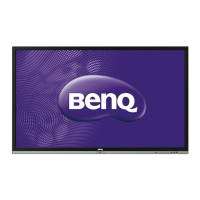
CP6501K/CP8601K
Interactive Flat Panel
User Manual

Other manuals for BenQ CP6501K

Questions and Answers

  • M
    Megan TranSep 4, 2025
    How to remove vertical lines on a BenQ Monitor?
    • S
      Samantha GravesSep 4, 2025
      If the BenQ Monitor's background has vertical lines or streaks, select automatic correction in the menu. If the issue persists, adjust the clock and phase position in the menu.
  • R
    richardsonrobertaSep 18, 2025
    Why does only one speaker have sound on my BenQ Monitor?
    • T
      Tara PierceSep 18, 2025
      If only one speaker on your BenQ Monitor has sound, adjust the sound balance in the menu. Check if the computer sound control panel is set up for only one sound channel. Also, verify that the audio line is connected correctly.
  • T
    Thomas Sutton MDSep 16, 2025
    Why does my BenQ Monitor have image but no sound?
    • R
      Robert BishopSep 16, 2025
      If your BenQ Monitor has an image but no sound, check if the mute button is pressed. If so, un-mute it. Then, press VOL+ or VOL- to adjust the volume. Finally, check if the audio line is connected correctly.
  • S
    stevenreyesSep 14, 2025
    How to fix horizontal stripes on a BenQ Monitor?
    • A
      Angela JonesSep 14, 2025
      If your BenQ Monitor shows horizontal or vertical stripes, or image dithering, check that the signal wire is securely connected. Also, check if other electronic equipment or power tools are placed near the monitor.
  • J
    Justin RobertsSep 13, 2025
    Why does my BenQ Monitor have no picture and no sound?
    • S
      Sandra KellySep 13, 2025
      If your BenQ Monitor has no picture and no sound, verify that the device is powered on. Check that the signal wire is properly connected and that the INPUT setting corresponds to it. If you are in internal computer mode, ensure that the internal computer is started.
  • J
    Jennifer WilliamsSep 12, 2025
    How to correct touch positioning on a BenQ Monitor?
    • K
      Kathy MoranSep 12, 2025
      If the touch positioning is not correct on your BenQ Monitor, ensure the driver is properly installed and perform a correction. Also, verify that the active pen, if used, is facing the screen.
  • E
    Eric DiazSep 9, 2025
    Why is the touch function not working on my BenQ Monitor?
    • J
      Jennifer BeasleySep 9, 2025
      If the touch function is invalid on your BenQ Monitor, check whether the touch driver is installed and running. Also, make sure the size of the touched article is comparable to your finger.
  • V
    vdavisSep 7, 2025
    How to fix 'Display format that is not supported' on a BenQ Monitor?
    • H
      hwilliamsonSep 7, 2025
      If your BenQ Monitor displays the message 'Display format that is not supported', select automatic correction in the menu. Alternatively, adjust the clock and phase position in the menu.
  • K
    kleeSep 5, 2025
    Why is the color incorrect on my BenQ Monitor?
    • M
      matthew04Sep 5, 2025
      If the BenQ Monitor image lacks color or the color is incorrect, check if the VGA cable is properly connected and of good quality. If the connection is good, adjust the chromaticity and brightness or contrast in the menu.
  • A
    Angela TownsendAug 20, 2025
    How to fix a BenQ Monitor with no picture?
    • D
      Diane Oconnell MDAug 20, 2025
      If your BenQ Monitor displays no picture, verify the following: Ensure the display is powered on by checking the power indicator. Confirm the signal source device is also on. Check all cable connections to ensure they are firmly connected. Verify that the computer's output resolution is supported (refer to Supported input signal resolution on page 113). Lastly, check the DVD or Blu-ray disc player's output resolution against supported resolutions (refer to Supported input signal resolution on page 113).

BenQ CP6501K Specifications

General IconGeneral
Display Size65 inches
Brightness350 nits
Contrast Ratio1200:1
Response Time8 ms
Viewing Angle178°/178°
Operating Temperature0°C to 40°C
Storage Temperature-20°C to 60°C
Power Consumption220W
Standby Power Consumption<0.5W
Weight32 kg
VESA Mount400 x 400 mm
Built-in SpeakersYes
Resolution3840 x 2160
ConnectivityHDMI, USB, LAN
Display TypeLED

Related product manuals