EasyManua.ls Logo

BenQ IL4301 - User Manual

BenQ IL4301
74 pages
Print Icon
To Next Page IconTo Next Page
Loading...
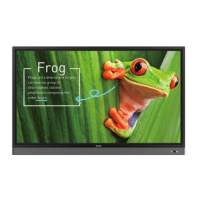
IL4301 / IL5501
Interactive Flat Panel
User Manual

Other manuals for BenQ IL4301

Questions and Answers

  • E
    Elizabeth SmithSep 3, 2025
    What to do if BenQ Monitor remote control doesn't work?
    • J
      John JohnsonSep 4, 2025
      If the remote control for your BenQ monitor isn't working, first check if the remote control function has been locked. If so, unlock it. Then, verify the battery orientation and replace dead batteries if needed. Ensure you're within range and pointing the remote at the sensor, with no obstructions. Also, strong fluorescent lighting, direct sunlight, or nearby devices transmitting infrared signals might interfere with the signal.
  • H
    Holly HenrySep 18, 2025
    What to do if my BenQ Monitor has image but without sound?
    • C
      Christopher MorganSep 18, 2025
      If your BenQ monitor has an image but no sound, check if the mute button is pressed. If so, unmute it. Also, press the VOL+/VOL- buttons to adjust the volume. Finally, ensure that the audio line is connected correctly.
  • J
    jkennedySep 16, 2025
    What to do if the touch positioning is not correct on my BenQ Monitor?
    • T
      Tracy LeeSep 16, 2025
      If the touch positioning on your BenQ monitor isn't accurate, check that the driver is properly installed and perform a correction. Also, ensure that the touch pen is facing the screen.
  • E
    emma73Sep 14, 2025
    What to do if my BenQ Monitor touch function is invalid?
    • M
      Mary ShieldsSep 14, 2025
      If the touch function on your BenQ monitor is invalid, verify that the touch driver is installed and running. Also, ensure that the size of the touched item is comparable to your finger size.
  • T
    Timothy HartmanSep 12, 2025
    What to do if my BenQ Monitor display format is not supported?
    • J
      Jeffrey WilsonSep 12, 2025
      If your BenQ monitor displays a message that the format is not supported, try selecting automatic correction in the menu. If that doesn't work, adjust the clock and phase position in the menu.
  • M
    Michael LarsonSep 12, 2025
    Why does my BenQ Monitor show signal out of range?
    • R
      rbestSep 12, 2025
      If your BenQ monitor displays a 'signal out of range' message, verify that the display settings are configured correctly. Ensure the resolution is set to the optimal resolution. You may also need to adjust the line and field synchronization in the menu.
  • H
    howarddaisySep 9, 2025
    What to do if the BenQ Monitor control panel buttons do not work?
    • E
      elizabethtaylorSep 9, 2025
      If the control panel buttons on your BenQ monitor aren't working, check if they've been locked. If so, unlock them and try again.
  • W
    wendy52Sep 7, 2025
    What to do if my BenQ Monitor remote control failure?
    • J
      jspencerSep 7, 2025
      If your BenQ monitor's remote control fails, check for obstructions between the remote and the receiving window. Also, verify that the battery is correctly inserted and replace the battery if necessary.
  • G
    gutierrezjefferySep 5, 2025
    What to do if my BenQ Monitor has no picture and no sound?
    • M
      Melanie PonceSep 5, 2025
      If your BenQ monitor has no picture and no sound, ensure the device is powered on. Check that the signal wire is properly connected and that the input corresponds correctly. If you're in internal computer mode, verify that the internal computer is started.
  • M
    Matthew SmithAug 20, 2025
    What to do if my BenQ Monitor has no picture?
    • J
      jennifer22Aug 21, 2025
      If your BenQ monitor isn't displaying a picture, make sure the display and the signal source device are turned on. Check the power indicator and try turning on the device again. Also, ensure all cable connections are secure. It's also possible that you've selected an unsupported output resolution on your computer, DVD, or Blu-ray player.

BenQ IL4301 Specifications

General IconGeneral
Operating Hours24/7
Panel TechnologyIPS
VESA Mount200 x 200 mm
Screen Size43 inches
Brightness500 cd/m²
Viewing Angle178° horizontal / 178° vertical
Response Time8ms (GtG)
OrientationPortrait / Landscape
Operating Temperature0°C to 40°C
Storage Temperature-20°C ~ 60°C
Standby Power Consumption0.5W
Input PortsHDMI, USB, RJ-45
Built-in Speakers2 x 10W

Related product manuals