EasyManua.ls Logo

BenQ RP653 - User Manual

BenQ RP653
86 pages
Print Icon
To Next Page IconTo Next Page
Loading...
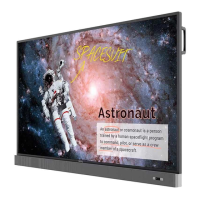
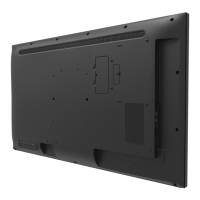
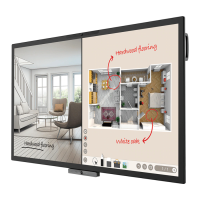
RP653 / RP703 / RP750 / RP750K
Interactive Flat Panel
User Manual

Other manuals for BenQ RP653

Questions and Answers

  • S
    Sandra CarterSep 9, 2025
    What to do if my BenQ Interactive whiteboard has no picture and no sound?
    • A
      Ashley SteinSep 10, 2025
      If your BenQ Interactive whiteboard has no picture and no sound, first, check if the machine is started. Next, verify that the signal wire is well plugged in and that the INPUT corresponds to it. If you are in internal computer mode, check whether the internal computer is started.
  • S
    Sharon RodriguezAug 22, 2025
    Why is the touch positioning not correct on my BenQ Interactive whiteboard?
    • T
      Thomas HarrisAug 22, 2025
      If the touch positioning is not correct on your BenQ Interactive whiteboard, check whether the driver is properly installed and make a correction. Also, make sure the touch pen is facing the screen.
  • E
    Edgar HansonAug 25, 2025
    How to fix no picture on BenQ Interactive whiteboard?
    • K
      ktranAug 25, 2025
      If your BenQ Interactive whiteboard shows no picture, verify these: * Ensure the display and the signal source device are turned on. * Check all cable connections to ensure they are firmly connected. * Confirm that the output resolution selected on your computer, DVD, or Blu-ray player is supported. Refer to the manual for supported resolutions.
  • J
    justinchavezAug 26, 2025
    What to do if there is no sound on BenQ Interactive whiteboard?
    • M
      Matthew WilkinsAug 26, 2025
      If there's no sound on your BenQ Interactive whiteboard, check if the mute function is enabled on the display or the input source device. If it is, turn it off or increase the audio volume. Also, ensure all cable connections are secure.
  • D
    Douglas HuffmanAug 27, 2025
    Why is the remote control not working on my BenQ Interactive whiteboard?
    • S
      Scott SmithAug 27, 2025
      If the remote control for your BenQ Interactive whiteboard isn't working, try these steps: * Unlock the remote control function if it's locked. * Verify the batteries are correctly oriented and not dead. * Ensure you're within range and pointing the remote at the sensor. * Remove any obstacles between the remote and the sensor. * Check for strong lighting or infrared-emitting devices nearby that may cause interference.
  • D
    Debra ThomasAug 29, 2025
    Why does the computer input image look strange on my BenQ Interactive whiteboard?
    • G
      gjamesAug 29, 2025
      If your BenQ Interactive whiteboard's computer input image looks strange, ensure you've selected a supported output resolution on the computer. You may need to refer to the manual for supported resolutions. Also, use the Auto Adjust function to optimize the display. If the result is not satisfactory, manually adjust the image using the Phase, Horizontal Pos. and Vertical Pos. functions.
  • S
    silvaantonioSep 18, 2025
    Why is there no sound from VGA output on BenQ Interactive whiteboard???
    • D
      Darrell PattersonSep 18, 2025
      If there is no sound from the VGA output on your BenQ Interactive whiteboard, check whether you have connected an external device with a headphone cable.
  • J
    Jennifer FrazierSep 12, 2025
    How to fix horizontal or vertical stripes or image dithering on BenQ Interactive whiteboard?
    • J
      Jacob RogersSep 12, 2025
      If your BenQ Interactive whiteboard displays horizontal or vertical stripes, or the image is dithering, ensure the signal wire is well connected. Also, check whether other electronic equipment or power tools are placed around the machine, as they may cause interference.
  • E
    Erica IrwinSep 8, 2025
    How to resolve 'Display format that is not supported' on BenQ Interactive whiteboard?
    • M
      michaelgoldenSep 8, 2025
      If your BenQ Interactive whiteboard displays a 'Display format that is not supported' message, select automatic correction in the menu. If that doesn't work, adjust the clock and phase position in the menu.
  • G
    Gwendolyn MillerSep 5, 2025
    How to remove vertical lines or streaks on BenQ Interactive whiteboard background?
    • J
      jeffreyjonesSep 5, 2025
      If the background of your BenQ Interactive whiteboard has vertical lines or streaks, select automatic correction in the menu. If that doesn't work, adjust the clock and phase position in the menu.

Summary

Safety and Precautions

Essential Safety Instructions

Critical safety guidelines for operating and handling the display.

Getting Started

Display Installation and Mounting

Step-by-step instructions for physically setting up and mounting the display.

Display Components and Features

Input;Output Terminal Layout

Diagram and description of all input and output ports on the display.

Basic Operations

Touch Screen Usage Guide

Guidelines and gestures for interacting with the touch screen interface.

Product Specifications

Supported Input Signal Resolutions

List of compatible video resolutions and input sources for the displays.

Troubleshooting Guide

Resolving Picture and Sound Issues

Solutions for common display and audio problems.

Remote Control and Button Malfunctions

Troubleshooting steps for issues with the remote control and panel buttons.

BenQ RP653 Specifications

General IconGeneral
BrandBenQ
ModelRP653
CategoryDigital Signage
LanguageEnglish

Related product manuals