Connection 23
Connecting the touch module
The touch module of the display supports easy Plug-and-Play operation. There is no need
to install additional drivers on the computer.
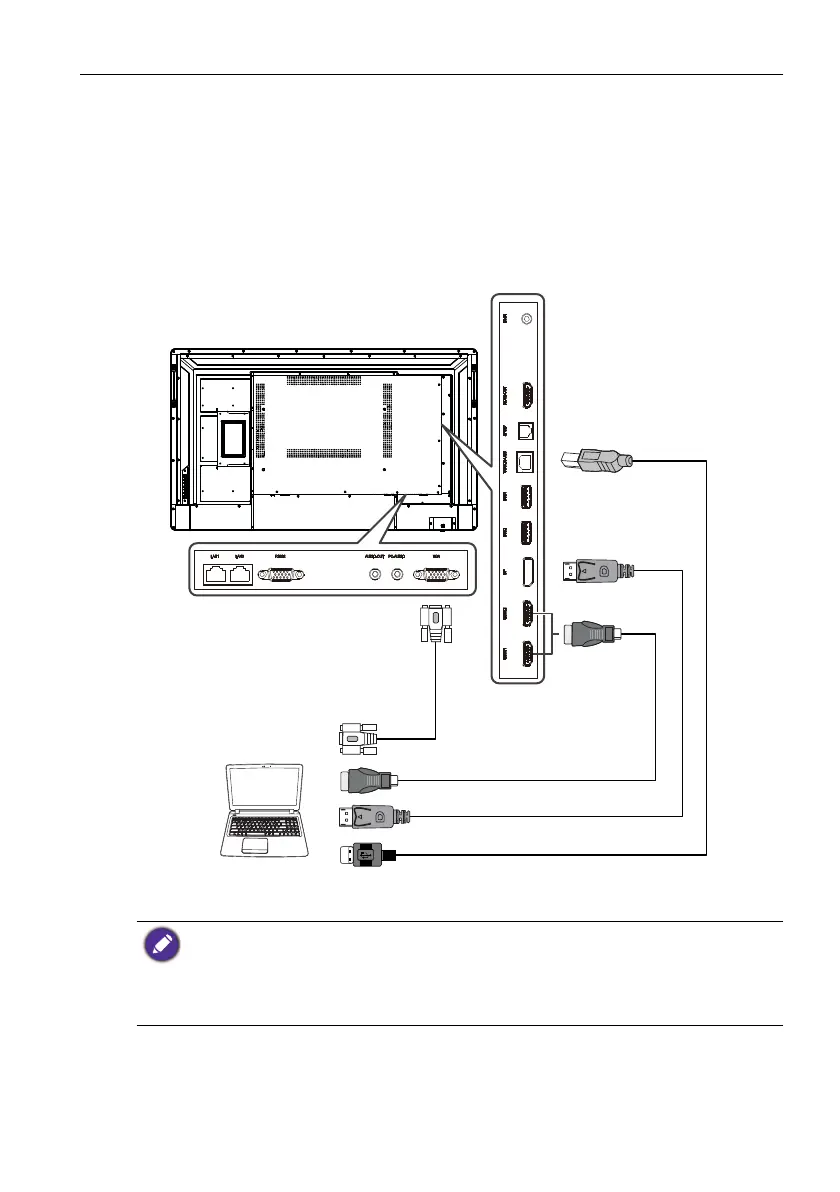
1. Connect the TOUCH-USB port on the display to the USB port of a computer using
the supplied USB cable and then connect the VGA, HDMI1, HDMI2, or DP port on
the display to the VGA, HDMI or DP output port on the computer using the corre-
sponding cables.
2. Press INPUT on the remote control and then select the interface through which the
display is connected to a computer.
• Avoid blocking the touch screen frame (where sensors are located) when initiating the touch
module.
• It is highly recommended that you connect the display to the PC or laptop directly. Avoid
connecting the display to a face plate device which may cause failures in touch operations.
• If any ghost image occurs, please try to un-plug and then re-plug all USB cables. If the failure
image still exists, use another USB type B to A cable.
D-Sub (15-pin)
cable
USB cable
HDMI cable
DP cable
Computer


 To Next Page