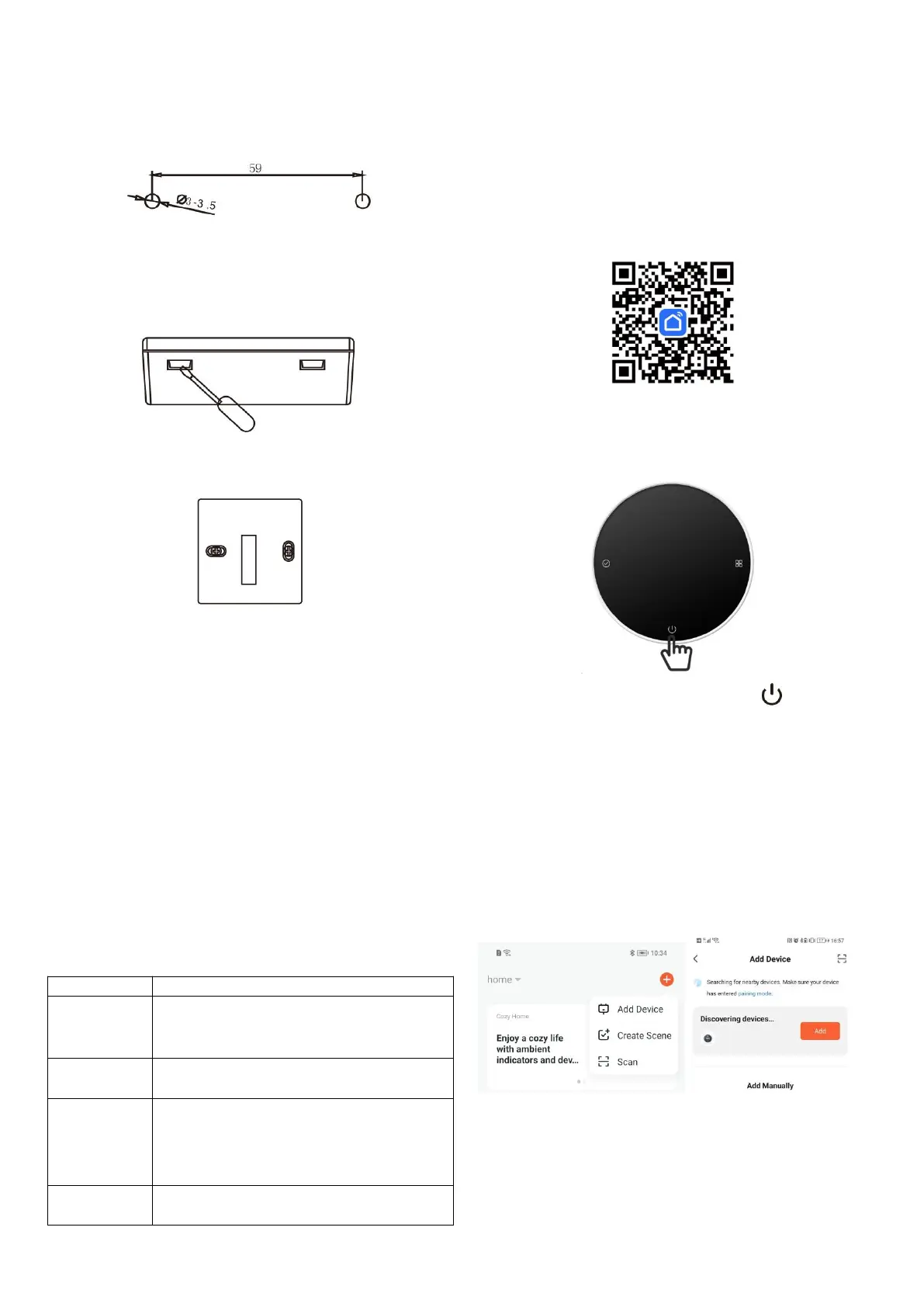
Installation Method
1. Install an expansion screw sleeve with a spacing of 59mm on the
wall.
2. Use a screwdriver to separate the upper cover and the lower cover,
pursuant to the wire direction, pass the wire through the back cover to
the wiring duct, and leave about 20cm long as per the actual situation.
3. Fix the bottom shell to the wall, and finally fix the wire, and cover the
front shell on the bottom shell.
Inspection Steps
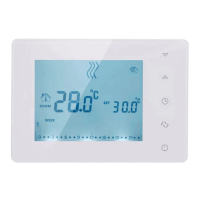
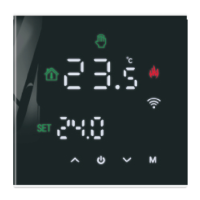
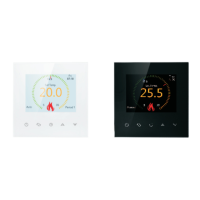
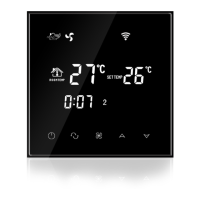
Install the intelligent touch screen thermostat in a place where it is easy
for the user to view the screen and adjust the temperature set point.
The thermostat is located in a place that can represent the overall
ambient temperature of the room. Avoid installing the thermostat near
hot and cold sources, such as vents, heaters, outdoors, etc.
Common Faults Handing
1. Check whether the battery is installed
backwards.
2. Inspect whether the boot key is valid LCD
displays.
Whether the rear shell installation is deformed, it
can be loosened and reinstalled.
Display is
normal, but
there is no
output
1. Check whether the boundary between the main
control board
and the power board is damaged.
2. Check whether the output is connected to the
wrong wire.
Temperature
displays error
Calibrate the panel temperature display via the first
item of advanced options.
WiFi Connection
Smart Life App Download
For IOS system: Login in App Store, search “ Smart Life "or " Tuya
Smart", you can download it on your iphone.
For Android System: Login in Google Play, search“Smart Life", or "
Tuya Smart" ,you can download it on your phone.
Or scan below code to download:
Thermostat Setting
In the POWER OFF state, press and hold the button for 5
seconds. When the WIFI icon is displayed on the screen, you can start
the configure on your phone.
Connection with phone
Open”Smart Life "or“Tuya Smart" on your phone.
Be sure to turn on your phone' s Bluetooth.
Only 2 4G status configuration can be added for WIFI access on mobile
phones (the name and password can only use numbers and letters,
not symbols),
Click the Add Device button in the upper right corner, or click Add
Device.



 To Next Page