EN - 16
iPod/iPhone Operations
This unit supports only the following iPod/iPhone models:
· iPhone 5
· iPhone 4S
· iPhone 4
· iPod touch (5th generation)
· iPod touch (4th generation)
· iPod classic
· iPod nano (7th generation)
· iPod nano (6th generation)
· iPod nano (5th generation)
“Made for iPod,” and “Made for iPhone” mean that an electronic accessory has been designed to
connect specically to iPod, or iPhone, respectively, and has been certied by the developer to
meet Apple performance standards.
Apple is not responsible for the operation of this device or its compliance with safety and
regulatory standards. Please note that the use of this accessory with iPod or iPhone may affect
wireless performance.
iPhone and iPod are trademarks of Apple Inc., registered in the U.S. and other countries.
Accessing iPod mode
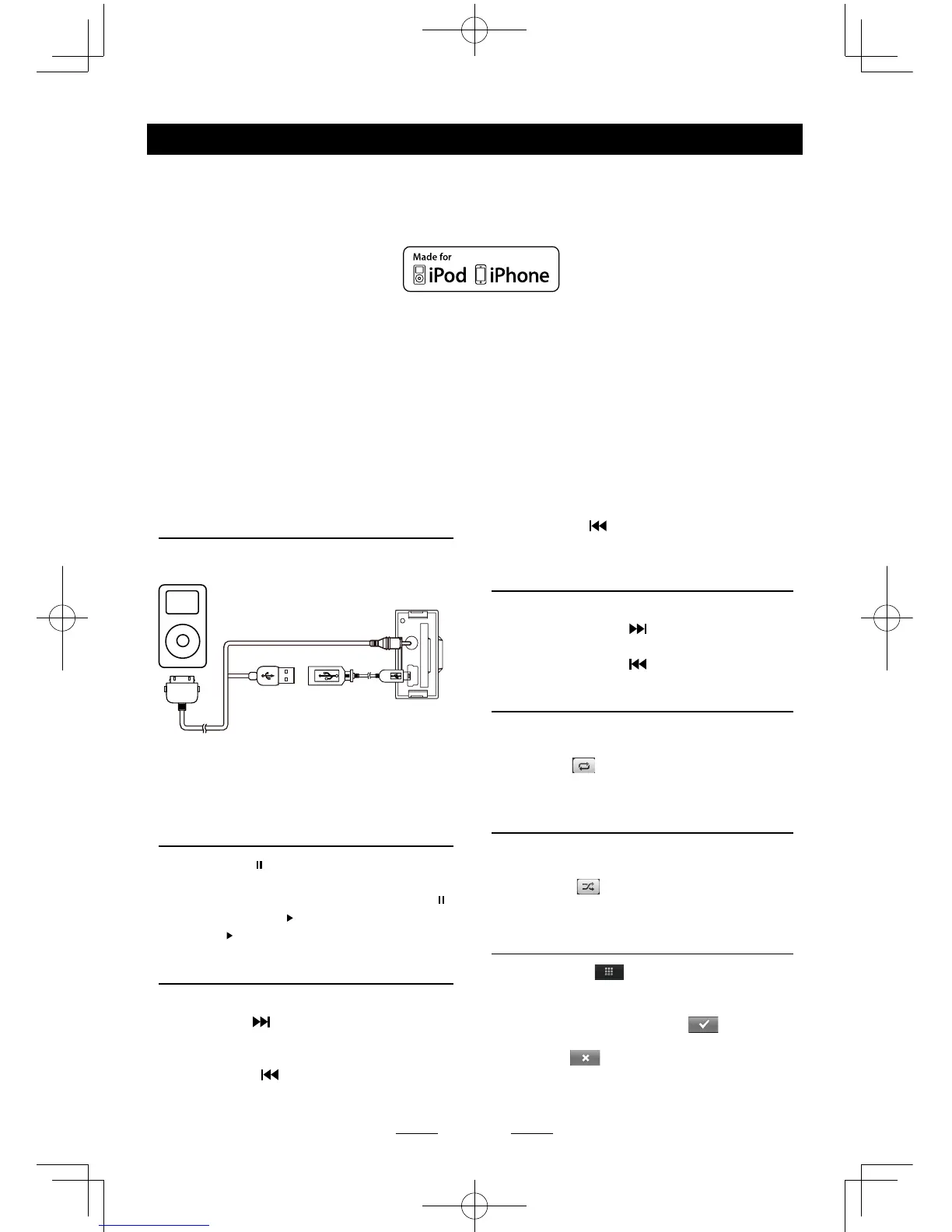
Connect an iPod or iPhone to the USB
connector via an iPod cable.
Touch [iPod] on the main menu to enter iPod
menu.
If [iPod] isn’t on the current menu, slide the
bottom bar left or right to nd it.
Pausing play
1. Touch the [ ] button on the bottom of the
screen to pause play.
“PAUSE” appears in the display, and [ ]
button becomes [
] .
2. Touch [ ] button to resume play.
Selecting a track
Track-up
Touch the [ ] button to move to the
beginning of the next track.
Track-down
1. Touch the [
] button to move back to
the beginning of the current track.
2. Touch the [ ] button twice to move back
to the beginning of the previous track.
Fast forward/Fast reverse
Fast forward
Touch and hold the [ ] button .
Fast reverse
Touch and hold the [ ] button .
Repeat play
This function allows you to play the track
repeatedly.
Touch the [
] button to select Repeat one
or Repeat all.
Random play
This function allows you to play all tracks
recorded in a random order.
Touch the [
] button to perform random
play.
Search function
1. Touch the [ ] button to enter search
menu.
2 Input number by touching buttons on
the screen, then touch [
] to begin
searching.
Touch [ ] button to delete inputted
number.



 To Next Page