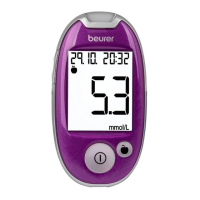
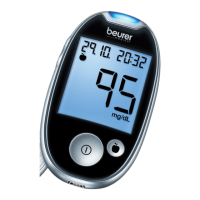
Beurer GL44 mmol/L 29
6.6 Reset to basic settings
1
The blood glucose monitor must be switched o.
2
Remove the battery compartment lid.
3
Press the ‘RESET’ button for 1 second. All settings and measured values are subsequently
deleted.
4
Close the battery compartment lid again.
5
The blood glucose monitor is now in the settings mode.
6.7 Transferring measurements to a PC
The GL44 blood glucose monitor includes a PC interface [5] that enables you to transfer measured
values saved on the device to a PC (for the position of the port, see page 10). Beurer blood glucose
software is available as a free download at www.beurer.com. This software enables you to evaluate
your measured values, add insulin doses and print results. The software helps you and your GP to
better monitor your blood glucose level.
For more information, please read the instructions for use of the blood glucose diary software (also
available to download).
There you will find all the information required for the data transfer and a detailed description of the
software.
The GL44 monitor is also compatible with Diabass and SiDiary.
Note
•
An eective evaluation is only possible if you have correctly set the date and time (see page 14).
•
During data transfer, no measurements can be taken.
•
The measurements remain saved on the blood glucose monitor after they have been transferred to
the PC.
Important
Use only the USB cable provided for data transfer. Otherwise you may damage your blood glucose
monitor or PC.
Preparation
•
Position the blood glucose monitor near to your PC.
•
Connect the GL44 monitor to your PC using the USB cable provided.
•
Install the blood glucose diary software on your PC as described in the instructions for use of the
software.


 To Next Page