VoIP/(802.11g) ADSL2+ (VPN) Firewall Router
Chapter 4: Configuration
99
Example: Configuring your Router to Dial-in to the Server
Currently, Microsoft Windows operation system does not support L2TP incoming service. Additional
software may be required to set up your L2TP incoming service.
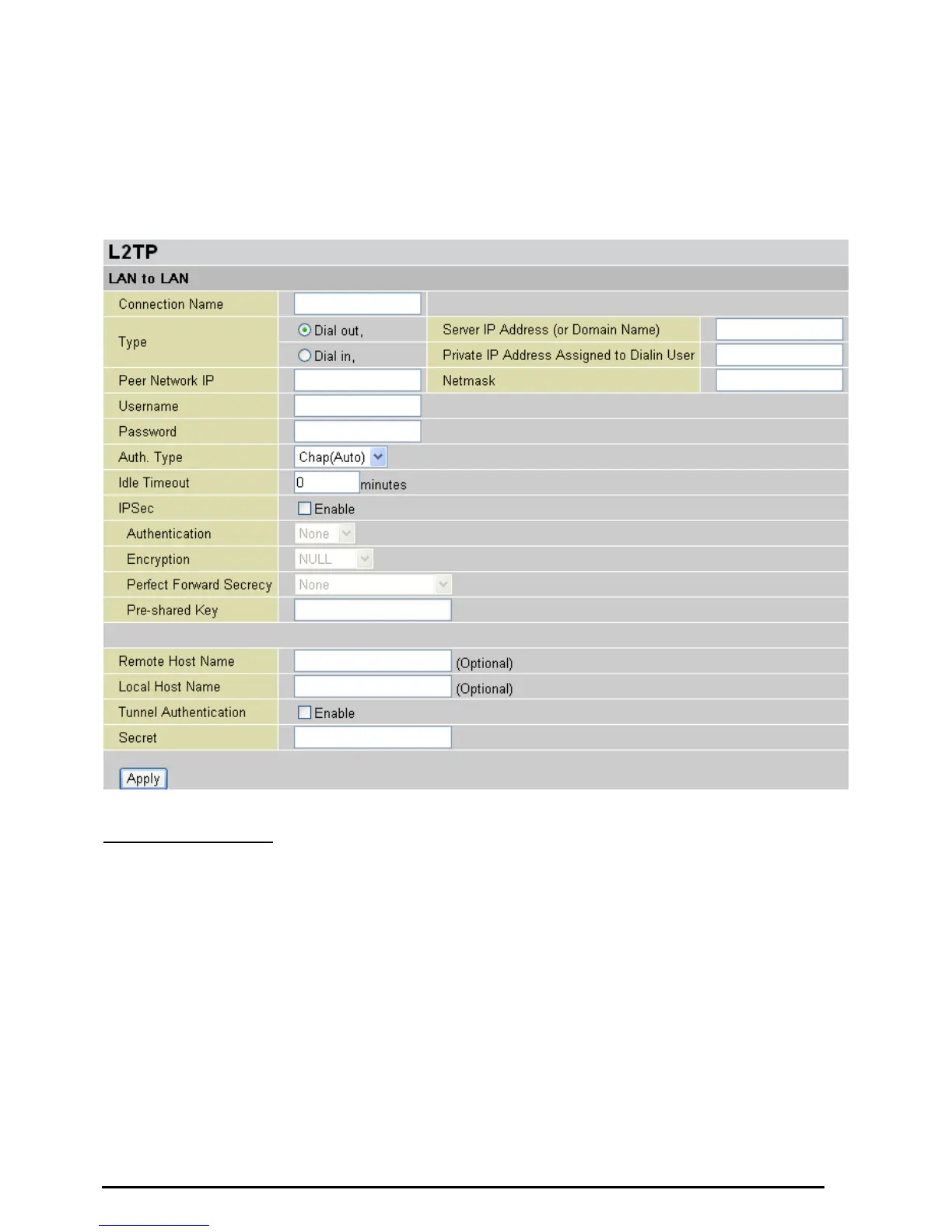
L2TP Connection - LAN to LAN
L2TP VPN Connection
Connection Name: User-define description of the connection.
Type: Check Dial Out if you want your router to operate as a client (connecting to a remote VPN server,
e.g. your office server), check Dial In operates as a VPN server.
~ When configuring your router establish the connection to a remote LAN, enter the remote Server
IP Address (or Hostname) you wish to connection to.
~ When configuring your router as a server to accept incoming connections, enter the Private IP
Address Assigned to Dial in User address.
Peer Network IP: Enter Peer network IP address.
Netmask: Enter the subnet mask of peer network based on the Peer Network IP setting.
Username: If you are a Dial-Out user (client), enter the username provided by your Host. If you are a
Dial-In user (server), enter your own username.
Password: If you are a Dial-Out user (client), enter the password provided by your Host. If you are a
Dial-In user (server), enter your own password.





 To Next Page