• Name: Optional, touch the pop-up <Keypad> to enter the name. Touch <OK> to continue.
•
A/V Biofeedback Options:
T
ouch <A/V Biofeedback> to enter biofeedback options from
the Audio/Visual Biofeedback Options screen.
• <Back>: Go back one screen.
• <Next>: Advance to the next screen.
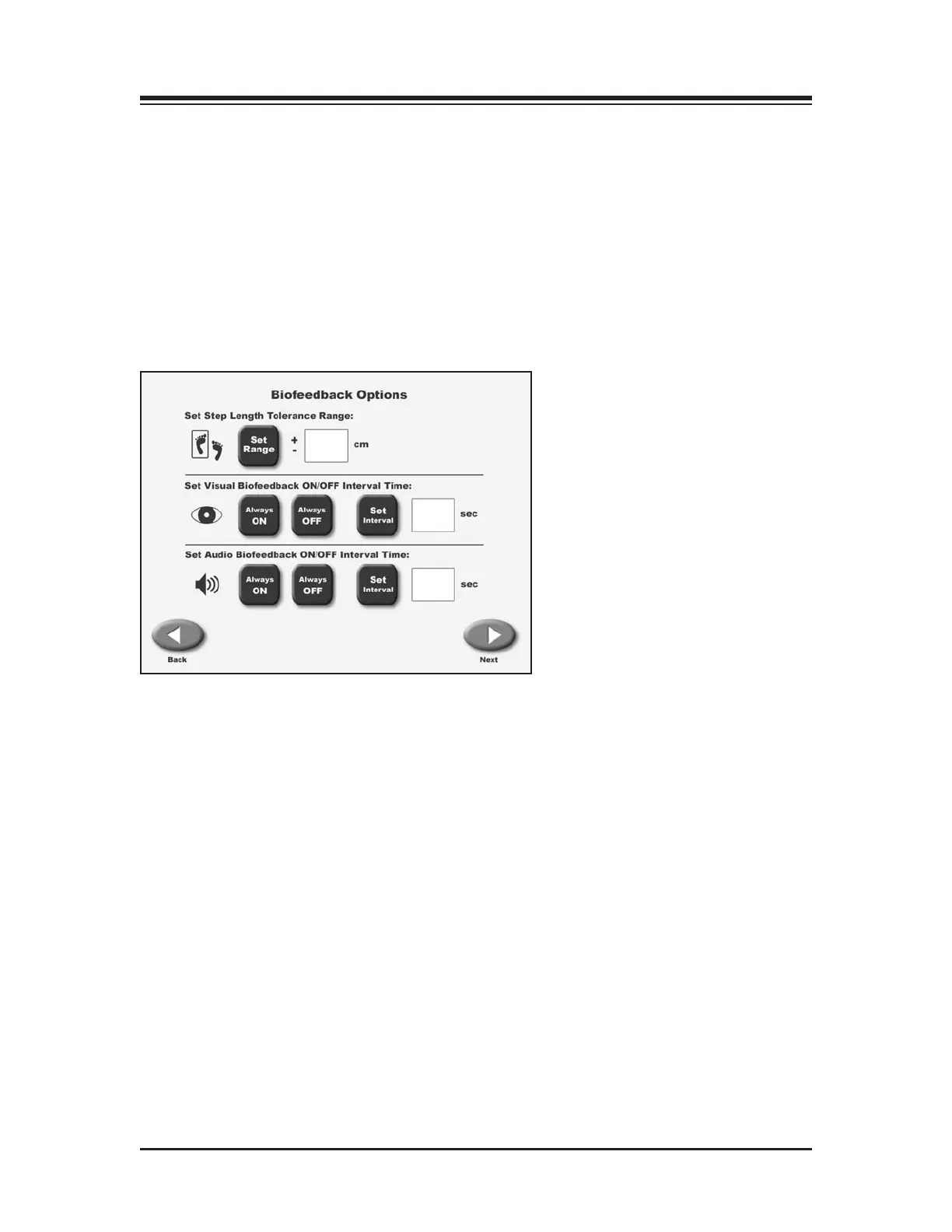
The AUDIO/VISUAL BIOFEEDBACK SCREEN
(See Figure 4.3.)
Figure 4.3. The Audio/Visual Biofeedback screen.
The Audio/Visual Biofeedback screen (A/V) is accessed from the Gait Training User Information
screen by touching the <A/V> icon. At this screen, biofeedback parameters can be entered or set.
A brief explanation of each parameter and function follows.
Audio/Visual Biofeedback Screen Parameters and Functions
•
Set Step Length Tolerance Range:
T
ouch <Set Range> and then use the pop-up keypad to change
the value.
•
Set Visual Biofeedback ON/OFF Interval Time:
T
ouch <ON>, <OFF> or <Interval> and enter the
desired feedback time via the pop-up keyboard.
• Set Audio Biofeedback ON/OFF Interval Time: Touch <ON>, <OFF> or <Interval> and enter the
desired feedback time via the pop-up keyboard. The audio tone is not a metronome tempo. The
audio tone is timed to be in sync with when the target box is to appear. Tone is also based on
your last footfall. You can get a tone without a footfall. After a while due to the rhythmic nature
of walking, the tone falls into a seemingly real-time tempo.
Once you have set/entered the desired parameters on the A/V screen, touch <Next> to return to
the Patient Setup Information Screen.
CONTENTS
— 4-3 — GAIT TRAINING MODE


 To Next Page