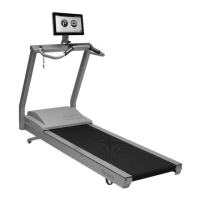
Patient Management functions include the ability to delete an individual patient file, multiple
patient files, print a stored exercise report, print a stored patient histogram and export patient
d
ata. A description of each feature follows.
Deleting Patient Files
To Delete An Entire Page of Patient Files:
1. Touch the <Delete Page> icon. The system will ask if you are sure you want to delete the
selected files. Touch <Yes>. The selected files are deleted and the system returns to the Patient
Management screen.
To Delete A Single Patient File:
1. Touch to highlight the patient file to delete. The Stored Patient Exercise screen should now be
displayed showing the selected patient file.
2. Touch <Delete> to delete the selected patient file. The system will ask if you are sure you want
to delete the selected file.
3. Touch <Yes>. The selected file is deleted and the system returns to the Patient Management
screen.
Printing Stored Patient Files and Histograms
1. To Print a Stored Patient File or Histogram:
2. Touch to highlight the patient file to print. The Stored Patient Exercise screen should now be
displayed showing the selected patient file.
3. Touch <Print Record> to print out the patient file, or touch <Print Histogram> to print out a
patient histogram. After printing, the system returns to the Stored Patient Exercise screen.
Exporting Patient Footfall Data
The Export Patient Data function allows patient footfall data from a stored test to be exported in
CSV format.
To Export A Patient Data File:
1. Connect a RS-232 cable to the Auxiliary Com Port on the back of the display panel, and to
your computer or laptop.
NOTE: You will need to use a Terminal Emulation Program, such as Windows Hyperterminal, to
export the data. Set your program to accommodate the follwing:
• Baud Rate: 19,200
• Data Bits: 8
• Parity: 0
• Stop Bits: 1
• Flow Contr
ol: 0
• Com Port: 1, 2, etc.
2. Touch to highlight the patient file to export. The Stored Patient Exercise screen should now be
displayed showing the selected patient file.
3. Touch <Export> to export the patient footfall data. After completing the export procedure, the
system returns to the Stored Patient Exercise screen.
CONTENTS
GAIT TRAINER 2 UTILITIES — 10-4 —


 To Next Page