Viotech 3200+ BIOS Manual
18
4 Boot Menu
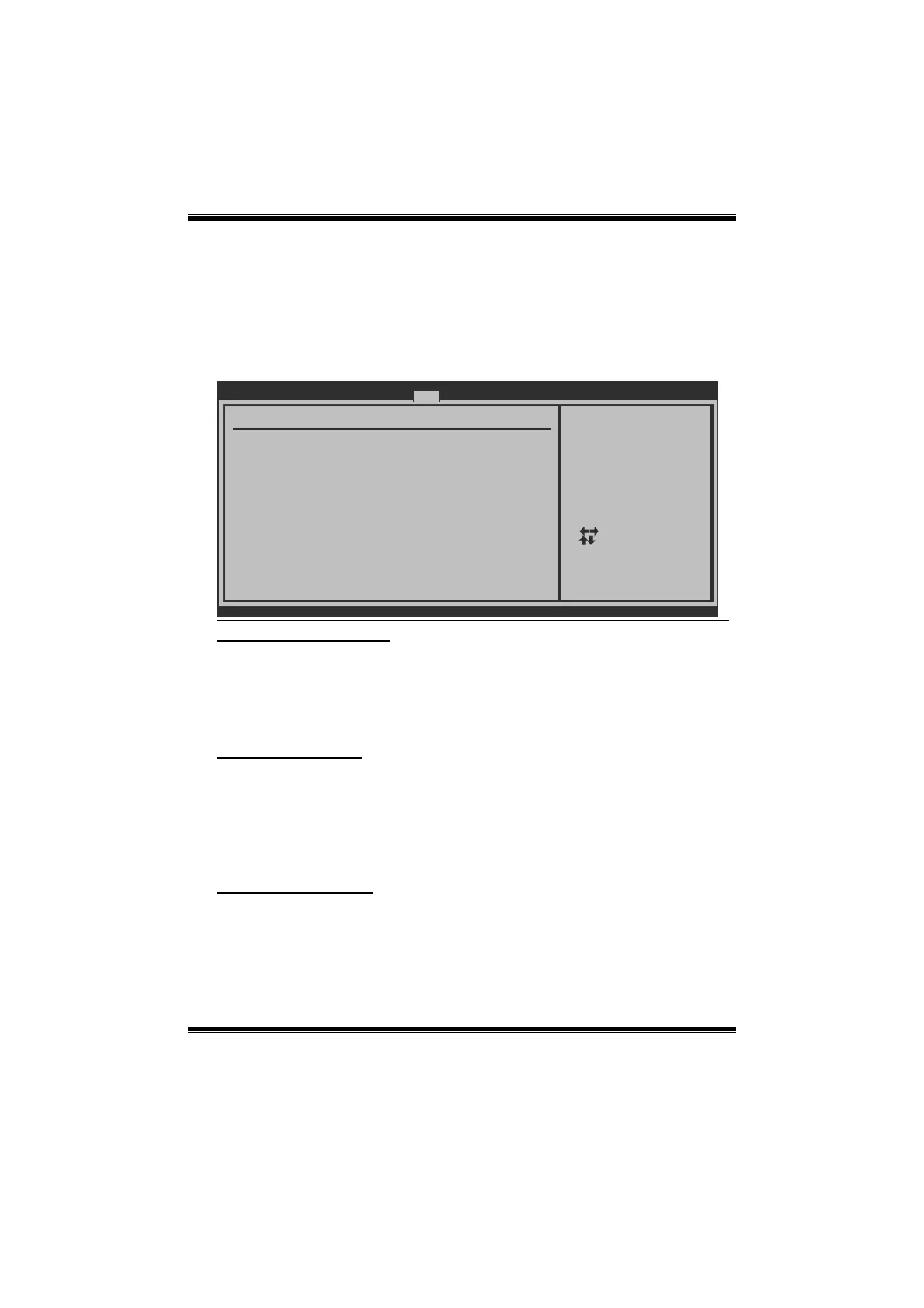
This menu allows you to setup the system boot options. (The screenshot below is
without any Hard Disk / CDROM / USB Drive / Bootable Add-in Cards etc.)
BIOS SETUP UTILITY
Main Advanced
PCIPnP Boot
Chipset
vxx.xx (C)Copyright 1985-200x, American Megatrends, Inc.
Select Screen
Select Item
Go to Sub Screen
General Help
Save and Exit
Exit
Enter
F1
F10
ESC
Specifies the
Boot Device
Priority sequence.
Boot Settings Configuration
> Hard Disk Drives
> Removable Drives
> CD/DVD Drives
Quick Boot [Enabled]
Full Screen LOGO Show [Disabled]
AddOn ROM Display Mode [Force BIOS]
Bootup Num-Lock [On]
Interrupt 19 Capture [Disabled]
BOOT SUCCESS BEEP [Enabled]
> Boot Device Priority
Exit
Boot Device Priority
Items in this sub-menu specify the boot device priority sequence from the available
devices. The number of device items that appears on the screen depends on the
number of devices installed in the system.
Options: Removable / Hard Disk / CDROM / Legac y LAN / Disabled
Hard Disk Drives
The BIOS will attempt to arrange the hard disk boot sequence automatically. You
can also change the booting sequence. The number of device items that appears on
the screen depends on the number of devices installed in the system.
Options: Pri. Master / Pri. Slave / Sec. Master / Sec. Slave / USB HDD0 /
USB HDD1 / USB HDD2 / Bootable Add-in Cards
Removable Drives
The BIOS will attempt to arrange the removable drive boot sequence automatically.
You c an also change the booting sequenc e. The numb er of device items that
appears on the screen depends on the number of devices installed in the system.
Optio ns: Zip 100 / USB-F DD0 / US B-F DD1 / US B-ZIP0 / US B-ZIP1 / LS120



 To Next Page