STEP 2. NDI® FIRMWARE UPDATE
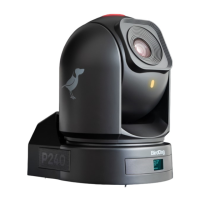
1. Please navigate to your PF120’s Web User Interface.
2. Log into the PF120 Web user interface, the default password is ‘birddog’.
3. Navigate to the SYSTEM Menu and select SYSTEM UPDATE.
4. When the popup dialogue window opens allowing you to select a file, navigate to the STEP 2 folder and select the .fw file that is
located within. Select this file and press UPDATE
Note. This process will take up to 5 minutes and will require the camera board to reboot – DO NOT power off the unit while this
process completes.
5. After the process reports as complete, please allow 2 minutes for the PF120 to reboot and then refresh your browser, you will
need to log in again to the Web User Interface.
The update process is now complete.
SUPPORT RESOURCES
BirdDog are committed to the success of all our users of the PF120 and other devices. We have a team of support engineers
located globally so access to timely assistance should be easy. This document should assist greatly in ensuring your camera is set
up correctly and for the greatest performance. Should you need further assistance please do not hesitate to reach out.
Email us at help@bird-dog.tv
This email address hits our team with priority and is received by support, the support ticketing system, engineering, and
management.


 To Next Page