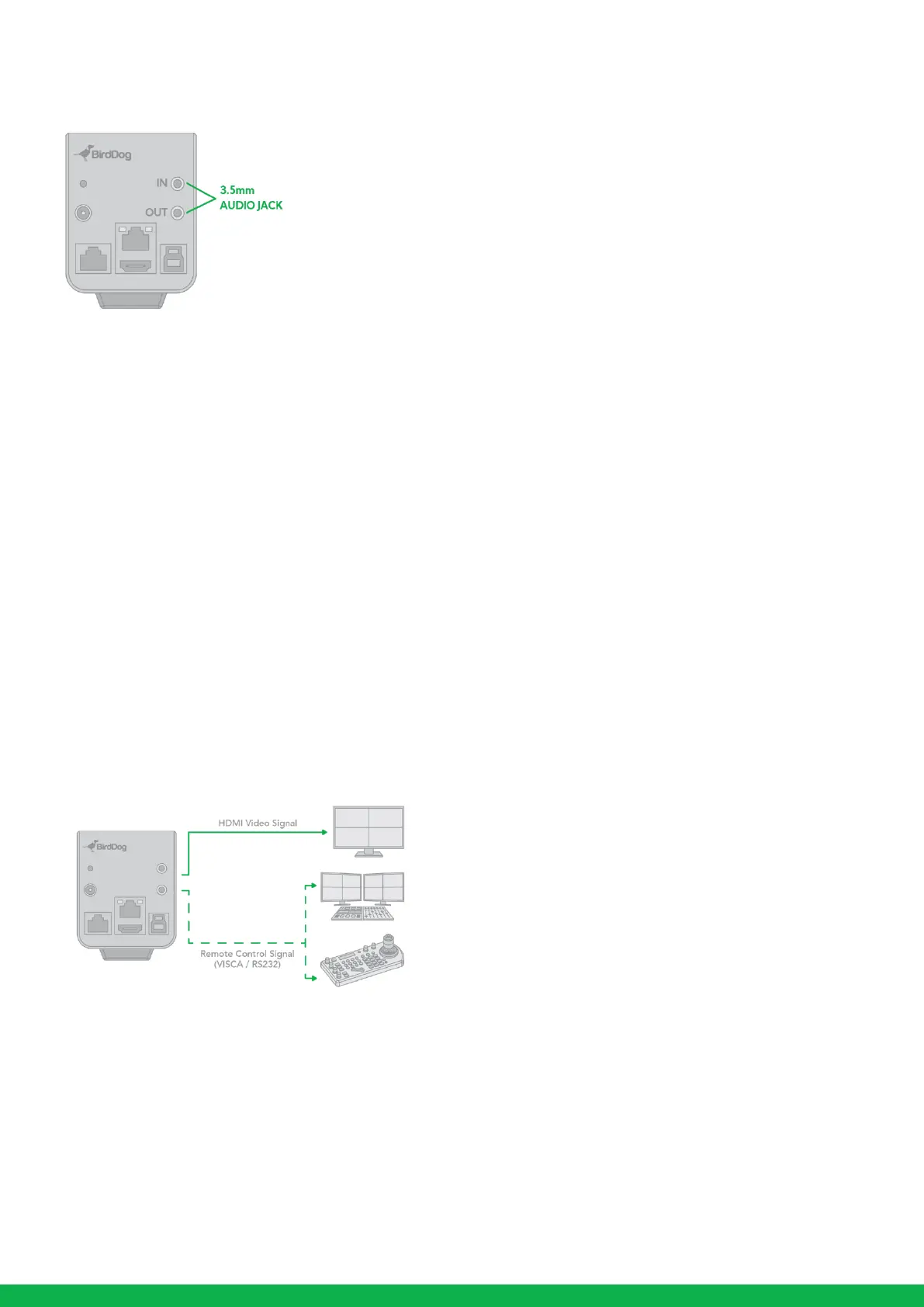
Audio IN / OUT
•
A microphone can be connected to the Audio IN port, which feeds audio into the camera.
•
A speaker can be connected to the Audio OUT port, which will output any audio that is captured on the Audio In port.
Camera control method and system configuration
This unit has multiple ways of controlling the camera and various system configuration capabilities using optional products. This
section describes the ways of controlling and typical system examples with the required components and usage of each system.
1. Use RS-232 (VISCA)
2. Use IP (VISCA/PELCO P/D)
3. NDI
®
Control
Use RS-232 (VISCA)
You can use RS-232 port to connect to optional controllers, such as joystick control keyboard, control PC station, to operate the
camera.
To perform zoom operations using the joystick of the control keyboard, and to perform the Preset operation using the control
buttons.
An application software that supports this unit is needed if you use PC station.
RS232 Connection
1. Set Baud Rate settings the same as Baud Rate setting on the keyboard you are using.
2. Set specific camera address that you want to control the camera for.
3. Reboot the camera.
4. Camera supports Daisy Chain connection up to 7 cameras.
5. Use the RJ45 to RS232 (VISCA) control cable. The controller must be VISCA compatible.
6. Or you can use CAT5/6 network cable (T-568B standard pinout) to make RS232 connection by following the pin
definition below:


 To Next Page