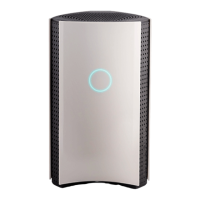
BOX displays its status through the LED positioned on the front lower side of the case.
The LED may have one of the following states:
• Teal and steady. BOX is performing its functions properly.
• Red and steady. In recovery.
• White and blinking. A firmware update is in progress.
• Red and blinking rapidly (one-second bursts). The BOX is malfunctioning. The same
behavior occurs when the on-demand Recovery process starts.
BOX needs to be permanently powered on.
The Bitdefender BOX app enables the administrator to manage the devices connected
to the BOX network and monitor the activity even when they are outside the house. For
more information about features and functionalities, refer to the section “Managing
BOX features” (p. 20).
1.2.1. Technical Specifications
3.5 x 3.5 x 1.1 inSize
3.24 oz./92 gWeight
whiteColor
iOS, AndroidManagement apps
802.11 b/g/n 2.4 GHzWi-Fi
100MbpsBandwidth
1.3. BOX Account and Subscriptions
A BOX account is required in order to install the Bitdefender BOX app and manage the
network. The BOX account is tied to the service subscription.
When purchasing Bitdefender BOX from the Bitdefender official website, a BOX account
is created automatically. In case of offline purchase, a BOX account can be created
during the setup process.
If you are already a Bitdefender customer, you can use the MyBitdefender account to
log in.
To find out the remaining number of days left on your BOX subscription:
on Android:
• Swipe right or tap the icon in the Bitdefender BOX app.
3The Basics


 To Next Page