3
1. 8 7 7. 8 7 7. 2 2 69 BLACKBOX.COM
NEED HELP?
LE AVE THE TECH TO US
LIVE 24/7
TECHNICAL
SUPPORT
1.8 7 7.87 7. 226 9
QUICK START GUIDE
HARDWARE INSTALLATION
1. Ensure that power is disconnected from the 4K60 HDMI Dual-Head KVM Switch.
2. Connect the HDMI cables and USB cables (male-A to male-B) from the computers to the respective ports on the KVM Switch.
3. Optionally connect audio cables from the computers to the respective ports on the KVM Switch.
4. Optionally connect RS-232 for control functions.
5. Connect the USB keyboard and mouse to the two USB ports with keyboard and mouse symbols.
6. Optionally connect speakers to the KVM Switch.
7. Optionally connect up to 2 USB peripheral devices such as printers or flash drives.
8. Connect the display monitors to the OUTPUT connectors on the KVM Switch.
9. Power on the KVM Switch.
FRONT-PANEL CONTROL
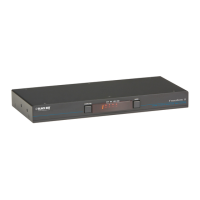
To switch ports using the front panel, press the Activity buttons to navigate between connected computers.
EDID learning is also done through the front-panel buttons by pressing both buttons simultaneously.
COMMANDS
TABLE QS-1. COMMANDS
COMMANDS HOTKEYS RS-232 CONTROL
Switch all devices (KVM, USB 2.0, and Audio) [CTRL] [CTRL] m [port #] [ENTER] //m [port #] [ENTER]
Switch KVM only [CTRL] [CTRL] c [port #] [ENTER] //c [port #] [ENTER]
Switch Audio only [CTRL] [CTRL] a [port #] [ENTER] //a [port #] [ENTER]
Switch USB 2.0 only CTRL] [CTRL] u [port #] [ENTER] //u [port #] [ENTER]
EDID Learning [CTRL] [CTRL] e [ENTER] //e [ENTER]
Same as front panel Activity button [CTRL] [CTRL] [up-arrow] n/a
Same as front panel Activity button [CTRL] [CTRL] [down-arrow] n/a
Reset [CTRL] [CTRL] r //r
Factory Default Reset [CTRL] [CTRL] f //f







 To Next Page