8
1. 8 7 7. 8 7 7. 2 2 69 BLACKBOX.COM
NEED HELP?
LE AVE THE TECH TO US
LIVE 24/7
TECHNICAL
SUPPORT
1.8 7 7.87 7. 226 9
CHAPTER 3: HARDWARE INSTALLATION
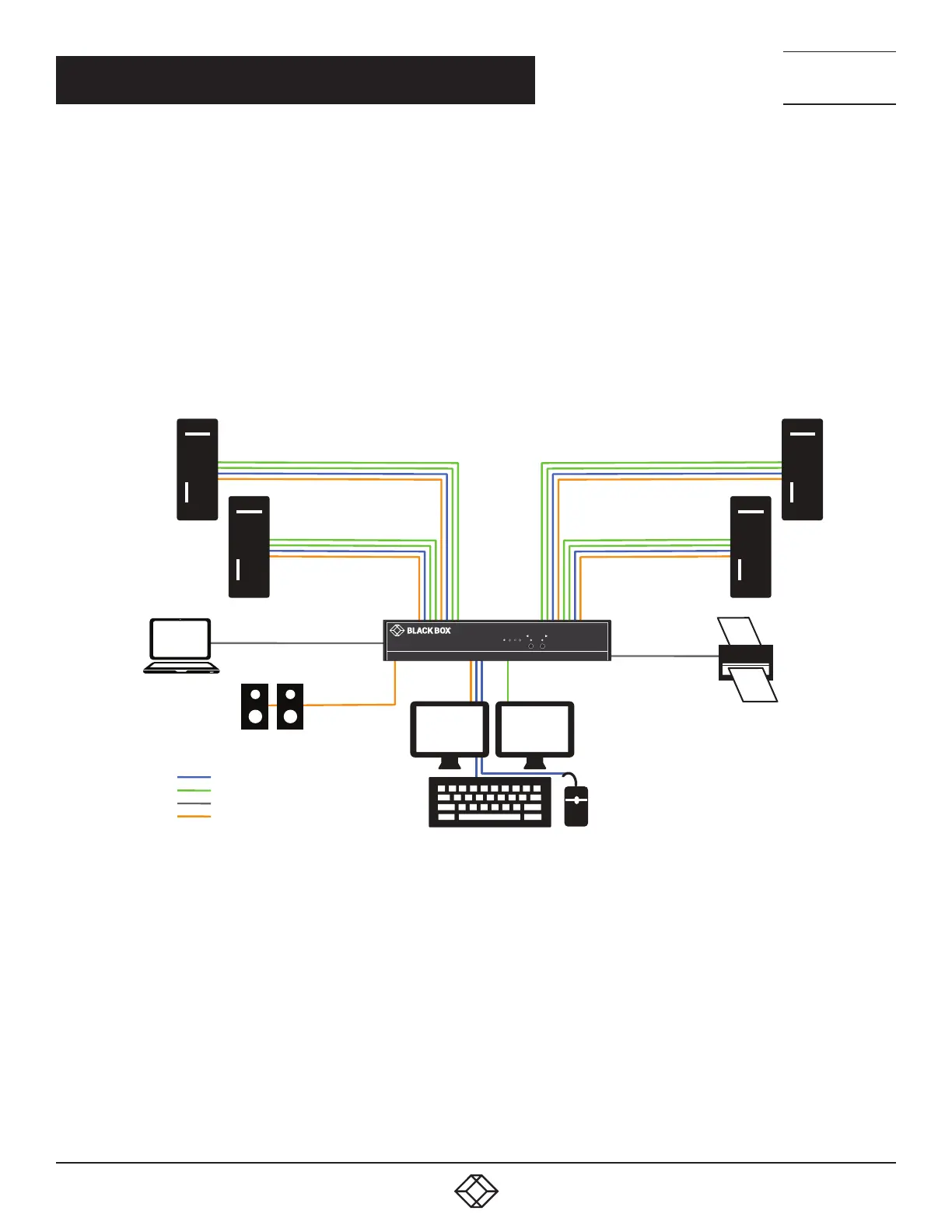
1. Ensure that power is disconnected from the KVM Switch.
2. Connect the HDMI cables and USB cables (male-A to male-B) from the computers to the respective ports on the KVM Switch.
3. Optionally connect audio cables from the computers to the respective ports on the KVM Switch.
4. Optionally connect RS-232 for control functions.
5. Connect the USB keyboard and mouse to the two USB ports with keyboard and mouse symbols.
6. Optionally connect speakers to the KVM Switch.
7. Optionally connect up to two USB peripheral devices such as printers or flash drives.
8. Connect the display monitors to the OUTPUT connectors on the KVM Switch.
9. Power on the KVM Switch.
COMPUTER
13
2
4
4 Port Dual Head Ultra 4K-60 KVM Switch
ACTIVITY
USB
HDMI
RS-232
Stereo Audio
Speakers
Laptop for
RS-232 control
Computers
Computers
Printer
Monitors
Mouse
Keyboard
HD6224A
FIGURE 3-1. TYPICAL INSTALLATION







 To Next Page