G.SHDSL NTU
4
2. Configure the IP address
The LB510A is shipped with a factory-configured IP address assigned to the
Ethernet
LAN port (green outline). The address is
192.168.200.10/24
. In most
cases, you must change the address to be on the same subnet as your PC, as
described in the procedures below. If you are not sure which IP address to use for
your installation, contact your network administrator.
2.3 Connect a PC and log in
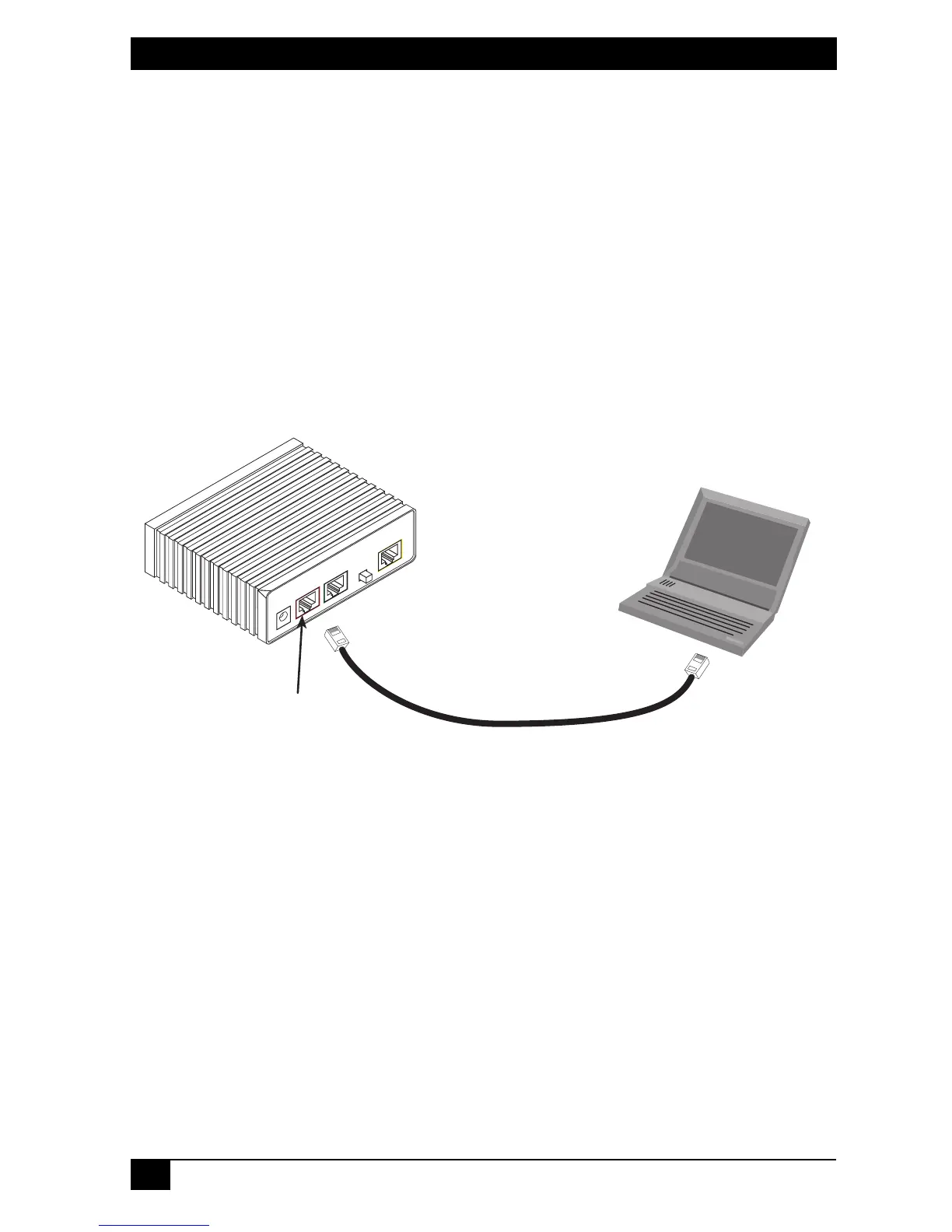
1. Using the included combination RS232/Ethernet cable and DB9-RJ45
adapter, connect a PC’s serial port to the LB510A’s
Console
port (red out-
line) (see Figure 1).
Figure 1.
Connecting the LB510A to the PC’s serial port
2. Start a HyperTerminal session on the PC using the settings:
9600 bps, 8 data bits, no parity, 1 stop bit, no flow control
3. Log in to the LB510A using the factory-default login (
superuser
) and pass-
word (
superuser
):
Login:
superuser
Password: *********
Login successful
MDI-X
LineEthernet
Power
Console
Connect to Console port
Serial port
PC with
terminal emulator



 To Next Page