Airplay (iPhone)
Suppoed by the following devices: iPhone 5 and above, iPad 2 and above, iPod Touch (5th
generation and above).
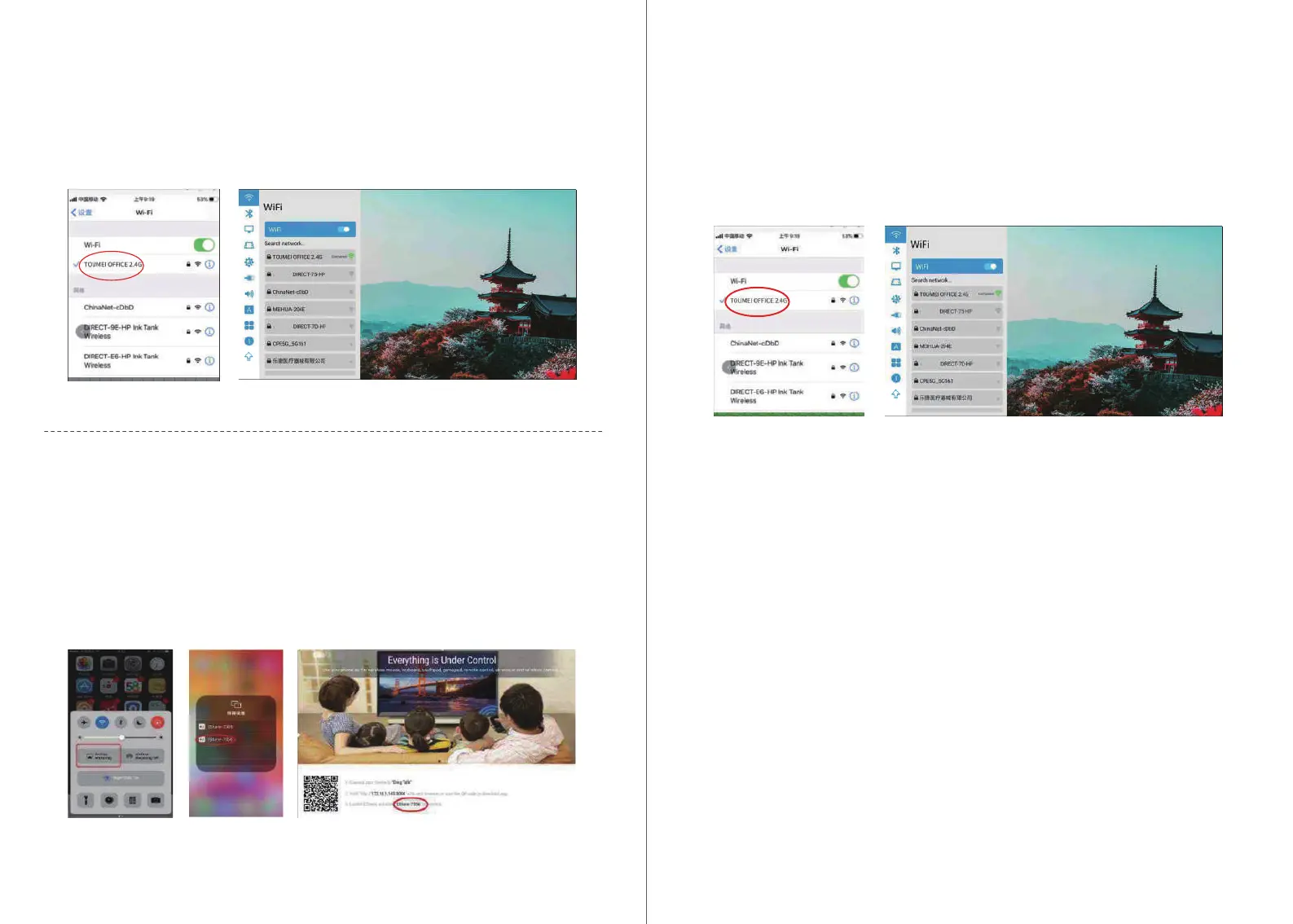
1.Connect your iPhone and projector to the same --WIFI-- network (5G rst).
iPhone AirPlay mirror operation guide
2.Click to open the projected Airplay, and then Eshare-**** will be displayed in the lower left
corner.
3.Slide your nger from the bottom of the iPhone screen to the top, bringing up a new menu,
and open the iPhone control center (Slide from the top down for iPhone X).
4.Click AirPlay Mirroring and the device list will automatically search for the projected devices
within the same network.
5.From the device list, click the name of the projected device you want to connect to
(Eshare-****) to successfully cast the screen.
Airplay (iPhone)
1.For use without having a LAN or wi available, rst turn on "Settings" -- "Personal Hot spot"
- "Allow others to join" on the iPhone, select and turn on.
2.Click "Settings" of the projector -- turn on "WIFI", search for the hotspot name of iPhone, and
nd and connect.
3.Swipe your iPhone from the bottom up and open the iPhone control center (Slide from the
top down for iPhone X).
4.Click "AirPaly Mirroring"a and the device list will automatically search for the internal projec-
tion device in the same network.
5.From the device list, click the name of the projected device you want to connect to
(Eshare-****) to successfully cast the screen.
Use mobile hotspot for AirPlay mirror operation guide
0706


 To Next Page