78 TFT DISPLAY
Operating instructions
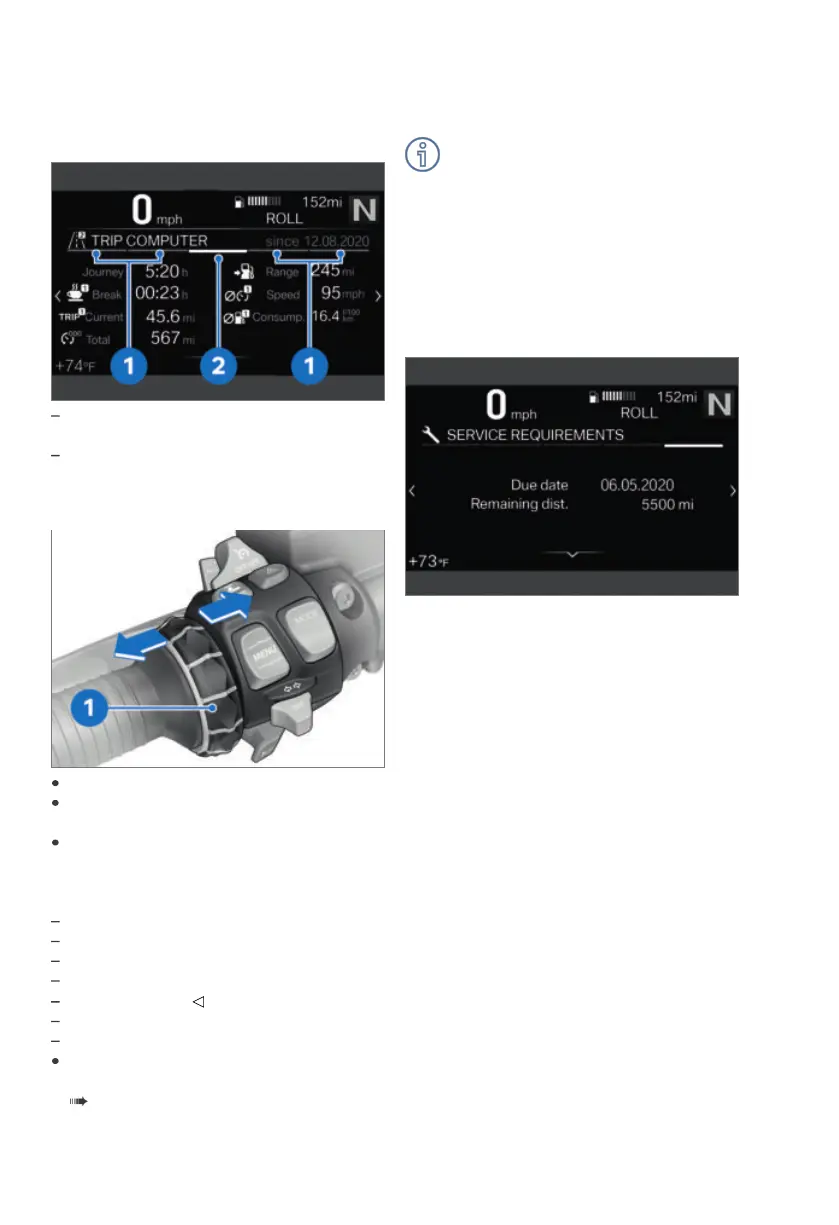
Operating instructions 1: Tabs that show
how far to the left or right you can scroll.
Operating instructions 2: Tab that shows
the position of the current menu window.
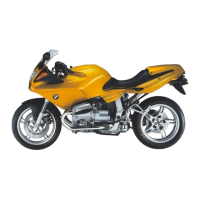
Browsing through menu windows
Go to the My vehicle menu.
To browse to the right, briefly push the
Multi-Controller 1 to the right.
To browse to the left, briefly push the
Multi-Controller 1 to the left.
The following screens are included in the My
vehicle menu:
MY VEHICLE
ONBOARD COMPUTER
TRIP COMPUTER
with tire pressure monitor (TPM)
OE
TIRE PRESSURE
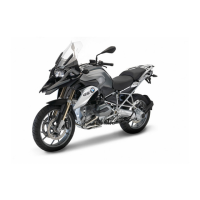
SERVICE REQUIREMENTS
CHECK CONTROL MESSAGE (if present)
Further information on the Check Control
messages can be found in the Displays
( 23) chapter.
Check-Control messages are dynami-
cally added to the menu screens in the
My vehicle menu as additional tabs.
On-board computer and travel on-board
computer
The ONBOARD COMPUTER and TRIP COM-
PUTER menu windows show the vehicle and
journey data, e.g. average values.
Service requirements
If the time remaining until the next service
is less than a month, or if the next service is
due within 700 mi (1000 km), a white CC
message is displayed.


 To Next Page