16
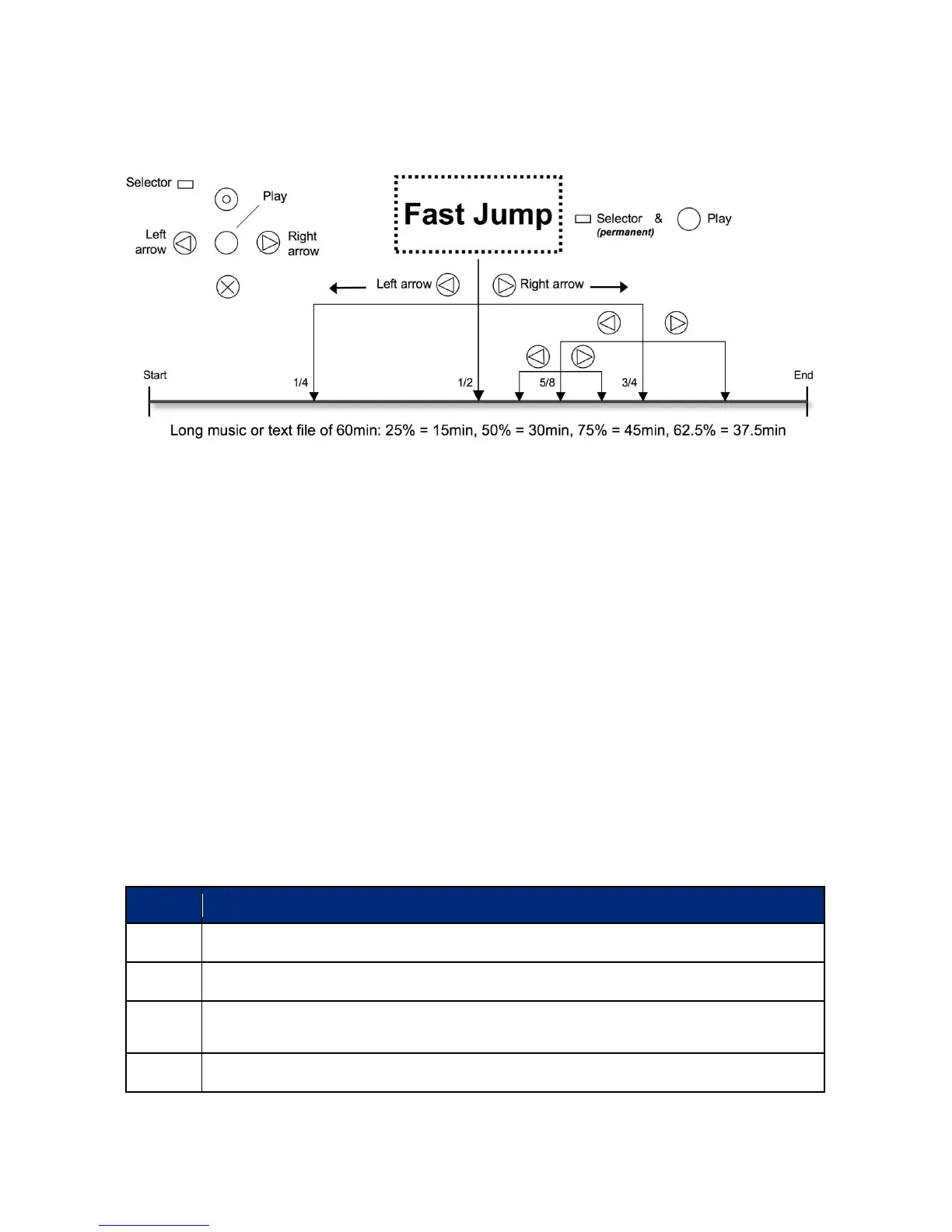
Note: Fast Jump only works while playing a file. If no file is played, it activates the key combination
"Selector" and "Play" quick access to a particular folder, such as "Setting up a shortcut to a folder" as
previously described.
4.1.1.6. Set and delete audio bookmarks
To set an audio bookmark, press during playback the "Rec" button for 2 seconds. Your M312 Ace confirms
the operation with the announcement "Audio Bookmarked" and calls the corresponding number of the
bookmark. Audio bookmarks may be used in any compatible files, such as text files, music tracks and radio
recordings. you can retrieve Your stored audio bookmark in the "Local Settings". Under "Audio
bookmark", move with the arrow keys to scroll through the set bookmarks. Each audio bookmark entry
contains a number, file information, and a brief preview of the reading position. When you reach the
desired audio bookmark, press "Play" or "Selector" to leave the "Local settings". If you then press "Play",
playback will start from the position of the last selected audio bookmark. A total of 12 bookmarks can be
set in the application "Audio". To delete a set audio bookmark in the "Local Settings", keep "Mode"
pressed and tap "play".
New audio bookmarks are stored on the lowest free position number. Once you've created audio
bookmarks from 1 to 7 and now delete the bookmark in position 2, the next audio bookmark you create,
will asume position 2.
4.1.2. Play music
Audio includes a high-quality music player for the following formats:



 To Next Page