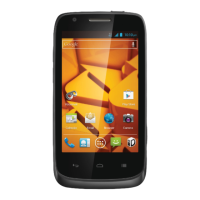
Home Screen Layout
Your Home Screen extends beyond the initial screen. Swipe the screen left to display additional screens.
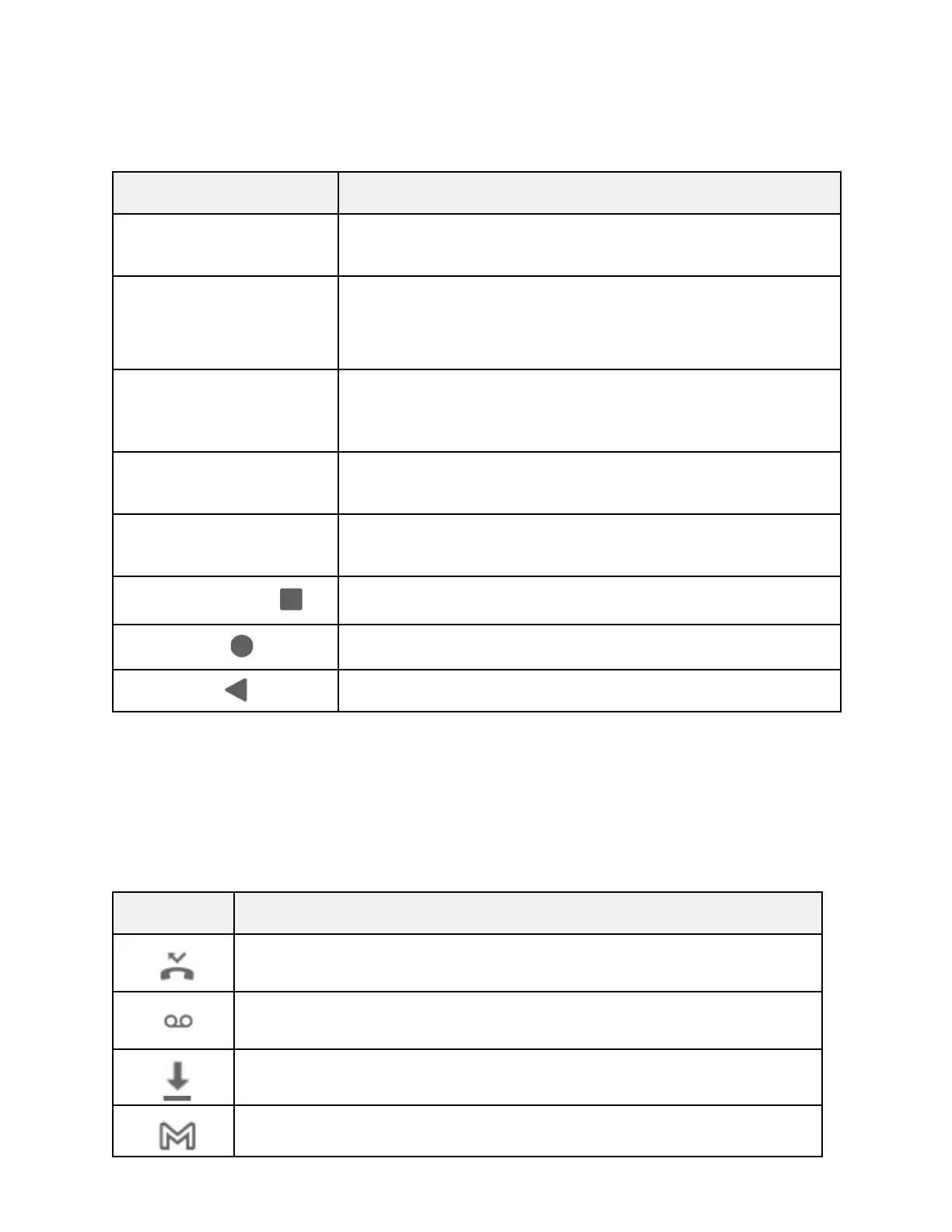
The status bar displays icons to notify you of your phone’s status (on
the right side) and notifications (on the left side).
The notification area of the status bar (on the left) displays
notifications for incoming messages, missed calls, application
updates, and more. Pull down the status bar to display the notification
panel.
The status area of the status bar (on the right) displays phone and
service status information such as signal strength, battery status, Wi-Fi
and data connectivity, and ringer status.
Application icons are shortcuts to favorite applications. You can add
and remove these shortcuts as you wish.
Long press any blank space on the Home Screen, and select
Widget to add your favorite widgets on the Home Screen.
Tap to display a list of recently used applications.
Tap to display the Home Screen from any other screen.
Tap to return to the previous screen.
Status Bar
The Status Bar at the top of the Home Screen provides Notification alerts on the left side and Phone and
Service Status information on the right side. To view the notification panel or access the Quick Settings panel,
pull down the status bar from the top of the screen.
Main Notification Icons



 To Next Page