COMPETINO Manual
- 5 -
The graph can then be changed as follows:
F2: Zoom in: The map scale is gradually increased to approx. 0.5-1.0km. Thus, individual
circles during climbing periods are clearly recognizable (this is also dependent on the
recording interval).
F1: Zoom out: The map scale is gradually decreased until the screen display is optimized.
Enter: Moves from each graph back again to the screen optimized graph.
ESC: Back to the Flight Memory. All other keys cause the track in the current selection to
be redrawn.
Arrow keys (Pan): With these the plotted area can be shifted up, down, left and right. This
function is only enabled in Flight Memory mode. During flight, the actual position is in the
center of the map. If the position reaches a border, the map pans automatically.
*Note: As the picture takes a few seconds to build up (depending on the amount of data)
“Wait” or “Ready” appears on the status line. If a zoom or pan key is touched during this
process, then it will be broken off and will start over again with new values. You can thus
obtain the desired graph quickly. Even past flights can be graphed as long as they are still in
the memory.
During flight, touching the ESC key briefly will toggle between the different displays.
‘Vario’ and ‘ALT’ appear digitally under the map. For Competition Routes, the cylinders of
the waypoints, WP names, and a thin dotted line to the next WP are also displayed. During
the flight the Zoom In/Out functions are accessible.
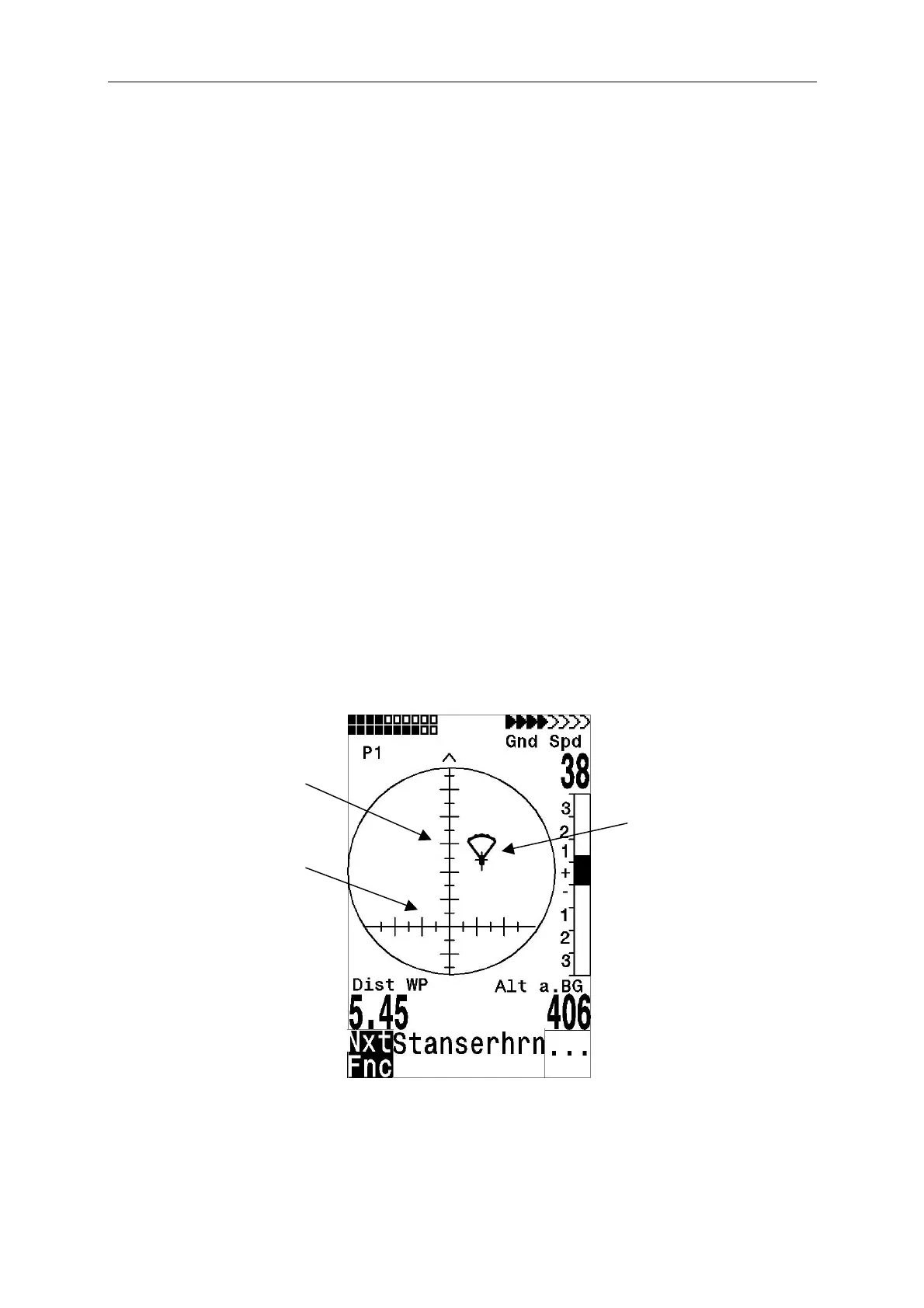
2.5 Final Glide Screen
Example: The above pilot has to turn left 22 degrees in order to fly on to target
His best glide ratio is 7 (Basic Settings). He is moving 406 m above the the best glide path
because the requested glide ratio to target now is only 4,6
On the Final glide screen as well as with the main screen by pressing shortly key ► you can
flip through the different screen pages with their user defined areas. Which means that up to
9 different results can be displayed per screen.
No of received
satellites
Glide Ratio Scale
1 step = 0,5 GR
Deviation from
Flight direction
1 step= 10°
User selected field
User selected field
User selected field
Analog Vario
Requested L/D = 4,6
The cross hair center
shows the best glide
path to goal (here 7)


 To Next Page