8
Remote Control Sensor: Receive the signals from remote control
Setup: Press to access the setup menu*
Up: Moves up in the menus*
OK: Press to make selections in the menus or setting modes*
Down: Moves down in the menus*
EXIT: Return to the previous menu or stop the playback under the Music mode*
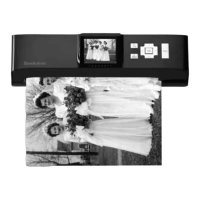
SCAN Press to scan a photo*
Photo feed slot: Where you insert your photo for scanning
POWER/Standby button: Press to power on the unit Press and hold for
3-4 seconds to turn off Red light: Standby mode, Green light: power is on
Mini USB connector: Connects to a PC or a PictBridgeTM Printer
USB A-type connector: Connects to a USB flash drive
DC-IN: Connects to the supplied AC power adapter (12V, 083A)
Scanner output slot: Releases the photo after scanning
SD/MMC/MS/xD card slot: Accommodates an SD, MMC, MS or xD card
CF card slot: Accommodates a CF type I card
Speaker: Plays sound files
*Buttons may be used directly on the Digital Frame with Scanner itself,
or the remote
1
2
3
4
5
6
7
8
9
10
11
12
13
14
15
16


 To Next Page