EasyManua.ls Logo

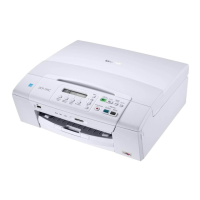
Brother DCP DCP-375CW - User Manual

Brother DCP DCP-375CW
118 pages
Print Icon
To Next Page IconTo Next Page
Loading...
USER’S GUIDE
DCP-375CW
Version 0
USA/CAN

Table of Contents

Questions and Answers

  • B
    brendabradySep 12, 2025
    What does ‘Device Busy’ mean on my Brother DCP DCP-375CW All in One Printer?
    • J
      Jacob MckeeSep 12, 2025
      If your Brother All in One Printer displays ‘Device Busy’, make sure the machine is not showing an error message on the LCD.
  • E
    ericalongAug 25, 2025
    Why is the print quality poor on my Brother All in One Printer?
    • J
      Jonathan WilsonAug 25, 2025
      To resolve poor print quality on your Brother All in One Printer, first, check the print quality settings. Ensure the paper type setting in the menu matches the paper you're using. Make sure you are using Genuine Brother Innobella™ Ink. Also, ensure your ink cartridges are fresh; ink may clog if the expiration date has passed or if the cartridge has been in use for over six months, or if the ink cartridge may not have been stored properly before use. The recommended environment for your machine is between 68°F to 91°F (20°C to 33°C).
  • B
    baileydianeAug 25, 2025
    Why is my Brother All in One Printer printing blank pages?
    • M
      Michelle CooperAug 26, 2025
      If your Brother All in One Printer is printing blank pages, try cleaning the print head. Also, make sure you are using Genuine Brother Innobella™ Ink.
  • M
    Marilyn RobertsSep 23, 2025
    What does 'Wrong Paper Size' mean on Brother All in One Printer?
    • K
      Kayla HermanSep 23, 2025
      If your Brother All in One Printer displays 'Wrong Paper Size', check that the Paper Size setting matches the size of paper in the tray. Load the correct size of paper, and then press Black Start or Color Start.
  • A
    Amy LucasSep 12, 2025
    How to print images from FaceFilter Studio on Brother DCP DCP-375CW?
    • D
      dvelazquezSep 12, 2025
      To print images from FaceFilter Studio with your Brother All in One Printer, you must install the FaceFilter Studio application from the CD-ROM supplied with your machine. Also, before you start FaceFilter Studio for the first time, you must make sure your Brother machine is turned on and connected to your computer.
  • W
    wattsthomasSep 17, 2025
    What does 'Cover is Open' mean on Brother DCP DCP-375CW All in One Printer?
    • C
      Calvin WalkerSep 17, 2025
      If your Brother All in One Printer shows 'Cover is Open', lift the scanner cover and then close it again.
  • J
    James LeeSep 5, 2025
    Why is the print speed too slow on my Brother DCP DCP-375CW?
    • L
      Linda SimonSep 5, 2025
      If the print speed of your Brother All in One Printer is too slow, try changing the printer driver setting. The highest resolution needs longer data processing, sending and printing time. Try the other quality settings in the printer driver Basic tab. Also, set the borderless feature off because borderless printing is slower than normal printing.
  • S
    Sara ButlerSep 5, 2025
    Why is True2Life® not working properly on my Brother All in One Printer?
    • M
      michelecarrSep 5, 2025
      If True2Life® is not working properly on your Brother All in One Printer, ensure the image data is full color (at least 24 bit color data). True2Life® will not work with image data that is not full color in your application (such as 256 color).
  • R
    richardrandolphSep 18, 2025
    What does 'Clean Unable 46' mean on Brother All in One Printer?
    • D
      Donald HaleSep 18, 2025
      If your Brother All in One Printer displays 'Clean Unable 46', the ink absorber box or flushing box will need to be replaced. Contact Brother Customer Service or a Brother Authorized Service Center to have your machine serviced.
  • T
    Tonya CarlsonAug 30, 2025
    Why does printing appear dirty or ink seems to run on my Brother DCP DCP-375CW All in One Printer?
    • J
      Jason McdonaldAug 30, 2025
      If your Brother All in One Printer's printing appears dirty or the ink seems to run, make sure you are using the recommended types of paper and Genuine Brother Innobella™ Ink. If you are using photo paper, make sure that you have set the correct paper type; if printing from your PC, set the Media Type in the printer driver's Basic tab.

Summary

Warranty Information and Disclaimers

Disclaimer of Warranties (USA and Canada)

Legal notice about warranty limitations for USA and Canada.

USA One-Year Limited Warranty

Details of the USA one-year warranty coverage, what's covered, and what's not.

Canada One-Year Limited Warranty

Details of the Canada one-year warranty coverage and service procedures.

General Information and Setup

Loading Paper and Documents

Step-by-step instructions for loading paper, envelopes, and postcards.

Copying Functions

Making Copies

Guide to making single/multiple copies, adjusting quality, size, and layout.

Direct Printing and PhotoCapture

PhotoCapture Center Operations

Printing and scanning photos directly from memory cards without a PC.

Appendix: Safety and Legal

General Safety and Location Guidelines

Important safety instructions, warnings, and advice on choosing a location.

Machine Safety Precautions

Detailed safety measures for operating and handling the machine.

Appendix: Troubleshooting and Maintenance

Troubleshooting Printing Issues

Solutions for common printing problems like no output, poor quality, or jams.

Appendix: Product Specifications

Brother DCP DCP-375CW Specifications

General IconGeneral
Scanning Resolution1200 x 2400 dpi
FunctionsCopying, Printing, Scanning
Printing TechnologyInkjet
Max Printing Resolution6000 x 1200 dpi
Media TypePlain paper, photo paper
Media SizesA4 (210 x 297 mm), A5 (148 x 210 mm), B5 (176 x 250 mm)
ConnectivityUSB, WiFi
Wireless Protocol802.11b/g
Supported Operating SystemsWindows, Mac OS

Related product manuals