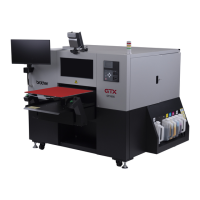
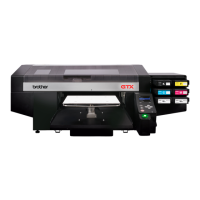
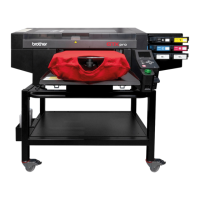
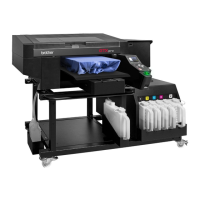
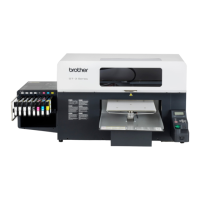
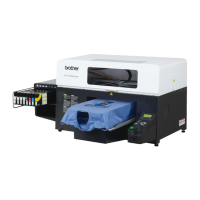
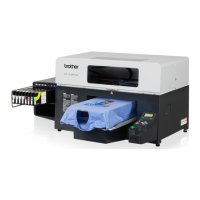
The Brother GTX600 Series is a direct-to-garment (DTG) printer designed for high-quality textile printing. It offers a range of features for precise operation, user customization, and comprehensive maintenance to ensure optimal performance and longevity.
Function Description
The GTX600 is primarily used for printing designs directly onto garments. It utilizes a bulk ink system, which allows for continuous printing and reduces the frequency of ink cartridge changes. The printer is equipped with multiple printheads and a platen system that holds the garment during the printing process. It supports both CMYK and white ink, enabling vibrant and opaque prints on various fabric colors.
Usage Features
Platen Height Adjustment: The printer offers precise control over platen height, which is crucial for accommodating different garment thicknesses and ensuring optimal print quality.
- 8 Levels of Platen Height: Users can select from 8 predefined platen height levels (A to H), consistent with the GTX Series.
- Customizable Heights: Two additional custom height settings ("CUSTOM 1" and "CUSTOM 2") can be defined by the user through the "Height User Menu." These custom settings allow for fine-tuning the platen height to specific garment requirements.
- Adjustment Method: Platen height can be adjusted via the control panel menu or through the printer driver using the latest version of Graphics Lab.
- Measurement: The height is measured from the nozzle surface to the top of the platen surface. An additional height of up to 1.35 inches (34.3 mm) can be added from position A.
- Power-On Setting: Upon installation, the height is set to Position A. Subsequently, it defaults to the previous setting used.
Obstacle Detection: The GTX600 incorporates two types of sensors to prevent damage and ensure print quality.
- Obstacle Sensor: This sensor detects any physical obstacles for the printheads. If an obstruction is detected, the printing process stops to prevent damage to the printheads.
- Platen Too Low Sensor (EDP - Excessive Dropping Prevention): This sensor checks if the platen is set too low. Setting the platen too low can lead to ink mist generation and poor print quality. If the sensor beam encounters the receiver on the other side of the platen, it indicates the platen is too low, and the print will stop to prevent blurry printing and excessive ink mist. The error code for this situation is 2072.
Refilling Inks & Cleaning Solution: The printer uses a bulk ink system, requiring specific procedures for refilling.
- Bulk Delivery: Ink and cleaning solution are delivered in bulk containers.
- IC Stick Activation: Refilling requires following a step-by-step procedure to activate the process with an "IC Stick."
- Automatic Detection: The printer automatically detects when ink is filled in any of the tanks.
- IC Stick Prompt: If the IC Stick is not in place, the printer will prompt the user.
- Offline Detection: Refills are detected even when the printer is off, once it's turned back on.
- Calibration: Ink tanks require calibration once a month.
- Cleaning Solution Compatibility: It is crucial to use GTX600 Cleaning Solution, as older GTX Series cleaning solutions are NOT compatible due to a different chemical formula. The new cleaning solution bottles also use an IC Stick.
White Ink Agitation & Sedimentation: White ink requires special handling to prevent sedimentation.
- Pre-Refill Agitation: Before refilling the bulk white ink tank, the white ink container must be agitated to remove sediments that settle at the bottom when the ink is idle. This is essential for consistent ink flow and to prevent damage to the ink delivery system.
- Agitation Methods: Agitation machines, such as gyroscopic mixers (5 minutes) or vibrating plates (up to 2 hours), are recommended.
- Settling Time: After agitation, allow the white ink to settle for 10 minutes to dissipate any foam.
- Sediment Check: Use a flashlight to view the sediment by turning the container upside down. Dark areas indicate solid material. If no sediment is visible, the ink is ready for refill. Bubbles can be distinguished from sediment by lightly shaking the container; bubbles move, while sediment does not.
- Container Handling: Bulk ink containers (18L, 20kg/44lbs) are heavy and require specialized tools like a hydraulic scissor lift for positioning and an agitation device for mixing.
- Agitation Frequency: White ink needs agitation every time before refilling. Containers must also be flipped 180° in the stock room once a week.
- Suggested Devices: Santint G48 Gyroscopic Paint Mixer (for high usage) or Bluefin Fitness 3D Vibration Plate (for low to intermediate usage) are suggested agitation devices.
Integrated Humidifier: The GTX600 includes an integrated humidifier to protect the printheads.
- Purpose: Humidification prevents the nozzle surface from drying out, which can lead to missing nozzles and printhead damage.
- Humidity Range: The humidifier operates to maintain optimal humidity (above 65%) for normal printing. If humidity drops below 50%, printing should stop to prevent printhead damage.
- Location: The humidifier is on the right side of the GTX600.
- Sensors: Three temperature and humidity sensors are located on the left, right, and outside of the printer. Humidity is distributed via soft pipes to the PH Capping area and Cleaning area.
- Water Supply: The humidifier requires a pure water supply, either from a direct line to pure water equipment or a water pipe with a regulator and ion filter. Unfiltered tap water should not be used. Water conductivity should be 10µS/cm or less, and pressure 40kPa (0.04MPa) or less.
- Humidification Schedule: The schedule can be set via the Maintenance tool. It's recommended to start the humidifier one hour before daily operations to ensure suitable humidity levels.
Waste Tank: The printer manages waste ink and water.
- Tank Position: Two tanks, a waste water tank and a waste ink tank, must be correctly positioned with drain tubes above their holes.
- Warning Message: A warning message appears when either tank is full, prompting the user to empty it.
- Print: Pressing and holding both green print switches simultaneously for 0.5 seconds starts the printing process. An acoustic signal confirms activation.
- Stop: Pressing any black switch immediately stops printing, returns the platen to the home position, and moves the carriage back.
Maintenance Features
Daily Maintenance: Nozzle Check:
- Purpose: To check the status of nozzles for both white and CMYK inks daily to ensure optimal performance.
- Procedure: Place the platen at level A, then navigate through the menu: Menu > Test Print > Nozzle Check CMYK (for color) or Nozzle Check White (for white).
- Inspection: Inspect the printed patterns for missing nozzle lines. If nozzles are not firing, a Head Cleaning should be performed to unclog them.
Printhead Factory Settings:
- Warning: Never remove or unscrew the positioning pins of the printheads on the carriage, as these ensure proper printhead location and dot placement.
Cleanings & Parts Replacement Schedule: The printer has a detailed schedule for cleanings and parts replacement, with warnings and errors displayed based on print count or time.
- Suction Cap: Cleaning recommended every 5K prints or 2 weeks (warning), or 7.5K prints or 3 weeks (error).
- Wiper: Cleaning is not scheduled by print count or time.
- Nozzle Guard: Cleaning recommended every 5K prints or 2 weeks (warning), or 7.5K prints or 3 weeks (error).
- Mist Fan Filter: Replacement is guided by display messages.
- Wiper, Cap Foam, Flushing Foam, Carriage Foam: Parts replacement is recommended at 23K prints (warning) or 25K prints (error), guided by display messages.
Cleaning Suction Caps & Nozzle Guards:
- Warning Prompt: A warning message on the display prompts these cleanings.
- Procedure: Access via Menu > Maintenance > Maintenance Part Clean/Replace > Clean Nozzle Guard and Cap.
- Nozzle Guards: Open the right side door. Use a new Cleaning Stick (R) and fresh Cleaning Solution.
- Suction Caps: Open the left upper and side door. Use a new Cleaning Stick (T) and fresh Cleaning Solution.
- Post-Cleaning: After all steps, perform a Printhead Cleaning through the Menu, followed by a nozzle check for CMYK and White.
Removing Ink & Debris Accumulation:
- Location: Remove dried ink and debris protruding under the nozzle face of the printheads.
- Caution: Wear gloves. Use a cleaning stick or fingers to remove debris. Do NOT use hard objects like tweezers, as nozzles can be damaged.
Cleaning Under the Carriage:
- Procedure: Use a Clean Stick (R) or waste cloth to clean the area under the carriage.
- Function: Absorb ink droplets and wipe off mist-like ink buildup with a lint-free cloth.
Detailed Cleaning of Nozzle Guards:
- Procedure: Wipe clean the two nozzle guards (1 & 3) with a Clean Stick (R) dipped in GTX600 Cleaning Solution (one for white ink, one for CMYK ink to prevent cross-color contamination).
- Critical Area: Clean area 2 between the nozzle guard and nozzle plate.
- Caution: Do NOT touch the nozzle surface (4).
- Disposal: Do not empty remaining Cleaning Solution from the Cleaning Cup into the Maintenance station; empty it into the Waste Tank below the printer.
Detailed Cleaning of Suction Caps:
- Procedure: Wipe clean the lips of the Suction Caps in parallel with the side of the tip of Clean Stick (T) dipped in Cleaning Solution (one for white ink, one for CMYK ink). Wipe and clean the Outer Frame.
- Caution: Do NOT touch the cap foam of the suction cap, as it may come off. Never touch the tip end of the clean stick (T) with your hand. Do NOT use metallic tweezers or other sharp objects.
Preventive Maintenance for Customers:
- Importance: Regular maintenance is crucial for optimal performance and endurance.
- Prompted Maintenance: Perform maintenance immediately when prompted by the printer to replace parts before they break, based on the total number of prints.
- Resources: Brochures for Preventive Maintenance Kits (GTX600 and GTX600 Extra Colors) are available via QR codes.
Mist Fan Filter Replacement & Cleaning:
- Replacement: Follow display messages for replacement.
- Cleaning: Use a Clean Stick (R) or Clean Stick (T) to clean specified areas. Remove loose debris with a vacuum cleaner. Clean edges of clearance areas and areas with ink mist and lint debris.
- Installation: Install new Mist Fan filters after cleaning and vacuuming.
Wiper Blade Replacement, Flushing Foam Replacement, Cap Foam Replacement, Carriage Foam Replacement:
- Procedure: When a warning message appears, initiate replacement via Menu > Maintenance > Maintenance part Clean/Replace > Replace Maintenance Unit Parts, then press OK. QR code videos are available for step-by-step instructions.
Maintenance Tutorial Videos:
- Access: All maintenance procedures are detailed in tutorial videos, accessible via a QR code. These videos provide step-by-step instructions for daily, weekly, or prompted maintenance.
Brother Academy & Support:
- Training: Brother Academy is an online resource for training new employees, learning application techniques, and maintaining DTG equipment.
- Technical Support: For technical support, users can submit a support ticket at ProductionDTG.com/Support.

 Need help?
 General

 To Next Page