EasyManua.ls Logo

Brother HL-2230 - User Manual

Brother HL-2230
181 pages
Print Icon
To Next Page IconTo Next Page
Loading...
Confidential
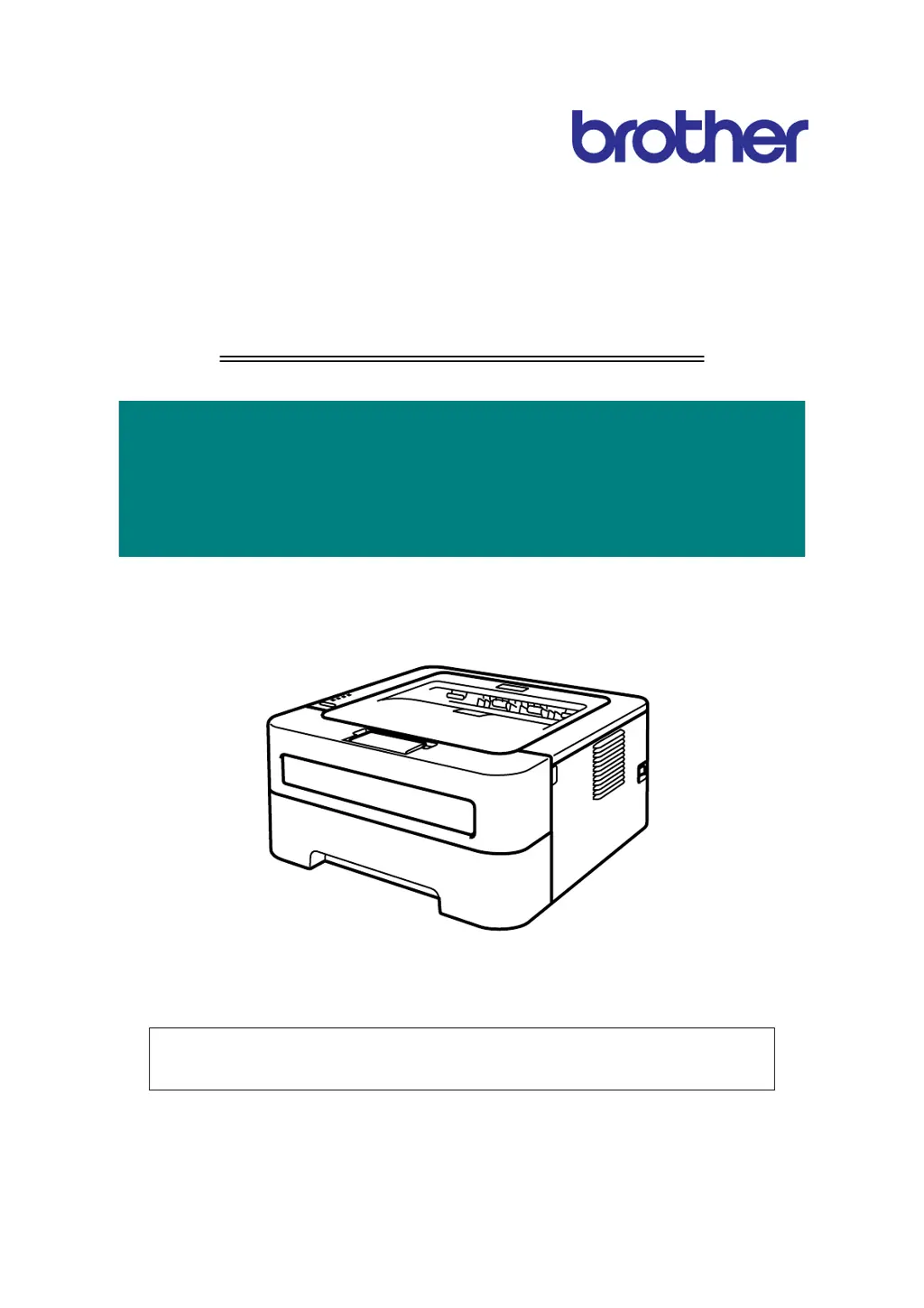
Brother Laser Printer
SERVICE MANUAL
MODEL:
HL- 2130/2135W/2220/2230/2240/
2240D/2250DN/2270DW/2275DW
Read this manual thoroughly before maintenance work.
Keep this manual in a convenient place for quick and easy reference at all times.
September 2010
SM-PRN079
84UC0*
(8)

Table of Contents

Questions and Answers

  • M
    Michelle YoungAug 18, 2025
    What to do if my Brother HL-2230 Printer is not feeding paper?
    • L
      lisa95Aug 19, 2025
      If your Brother printer isn't feeding paper, there are several possible causes and solutions: * The lift arm and pick-up roller holder assembly may not be assembled correctly. In this case, re-assemble the lift arm and pick-up roller holder assembly. * Check the harness connections of the T1 clutch ASSY and the paper edge sensor harness ASSY, and reconnect them if necessary. * The paper feeding roller or the plate-up gear might be faulty, in this case replace the paper feeding kit or the plate-up gear. * The T1 clutch ASSY, panel PCB ASSY, or main PCB might have failed, requiring replacement. * For HL-2250DN/2270DW/2275DW models, check the paper edge sensor performance. If there are any issues, replace the PF frame ASSY.
  • A
    Audrey MillerAug 21, 2025
    What to do if there is a paper jam at the paper tray and front cover section of my Brother HL-2230?
    • J
      juan64Aug 21, 2025
      If you're experiencing paper jams at the paper tray and front cover section of your Brother printer, consider the following: * Ensure that the paper edge actuator (on HL-2250DN/2270DW/2275DW models) or the registration front actuator isn't catching. Correct their positioning if needed. * Check and reconnect the harness connection of the registration front/rear sensor PCB ASSY if it's loose. * If the paper feeding roller is worn out, replace the paper feeding kit. * The low voltage power supply PCB ASSY or the main PCB might be faulty, requiring replacement. * Check the registration front and rear sensor performance. If any problem occurs, replace the regist frame ASSY.
  • A
    Amy NorrisAug 23, 2025
    What to do if my Brother HL-2230 Printer does not feed paper from the manual feed slot?
    • T
      Terry NelsonAug 23, 2025
      If your Brother printer isn't feeding paper from the manual feed slot, try these solutions: * Check the harness connection of the registration front/rear sensor PCB ASSY and reconnect it if necessary. * The low voltage power supply PCB ASSY or the main PCB might be faulty and need replacement. * If the registration front/rear sensor is failing, check the sensor performance. If any problem occurs, replace the regist frame ASSY.
  • M
    Mark HillAug 26, 2025
    How to fix the pickup function of the paper tray on a Brother Printer?
    • J
      Joshua GardnerAug 26, 2025
      If the pickup function of the paper tray on your Brother printer isn't working, consider these potential solutions: * If the link arm or pick-up roller holder assembly is catching, re-assemble them. * Check and reconnect the harness of the main motor if there's a connection failure. * If the plate-up gear (gear Z19M10 or lift gear 46) has failed, replace it. * The main motor, low voltage power supply PCB assembly, or main PCB assembly might need replacement.
  • A
    Angelica DennisAug 28, 2025
    What to do if my Brother HL-2230 cannot detect toner?
    • J
      Jordan DickersonAug 28, 2025
      If your Brother printer can't detect the toner, it might be due to these reasons: * If the power was turned off or the front cover was opened while detecting a new toner cartridge, reset the developing bias voltage and develop roller counter. * If the new toner actuator is loose, re-assemble it. * If the new toner sensor has failed, replace the panel PCB assembly.
  • E
    Elizabeth DavisAug 30, 2025
    How to delete the "Replace Toner" message on a Brother HL-2230 Printer after replacing the toner?
    • B
      Brooke TorresAug 30, 2025
      If you're still seeing the "Replace Toner" message on your Brother printer after replacing the toner, consider the following: * The new toner actuator might be catching; correct its position. * Check and reconnect the harness of the Panel PCB if there's a connection failure. * The Panel PCB assembly or Main PCB assembly might need replacement.
  • G
    gjonesSep 1, 2025
    Why does my Brother Printer only print on one side when duplex printing?
    • C
      Charlene SmallSep 1, 2025
      If your Brother printer is only printing on one side of the paper when duplex printing, consider these potential causes: * Check the harness connection of the paper eject sensor PCB assembly and reconnect it if necessary. * The duplex tray might be faulty and need replacement. * The back cover sensor might be failing, requiring replacement of the paper eject sensor PCB assembly. * The main PCB might also be the cause, requiring replacement. * Damaged DX gears could also be the issue, requiring replacement of the main frame L assembly.
  • C
    Christopher DunnSep 3, 2025
    Why is my Brother HL-2230 Printer double feeding paper?
    • R
      Rachel CarlsonSep 3, 2025
      If your Brother printer is double feeding paper, it's likely due to a failure of the paper feeding roller. Replacing the paper feeding kit should resolve this.
  • L
    Lisa ThompsonSep 6, 2025
    Why is my Brother Printer showing a paper size error?
    • S
      Shannon MaySep 6, 2025
      If your Brother printer is displaying a paper size error, it could be due to: * The registration front actuator catching. Correct its position. * The main PCB might be faulty and need replacement.
  • J
    Julie MitchellSep 8, 2025
    Why is my Brother HL-2230 Printer printing wrinkles or creases on the paper?
    • J
      jgrahamSep 8, 2025
      If your Brother printer is producing wrinkled or creased prints, it could be due to: * A foreign object inside the fuser unit. Remove it. * The fuser unit itself failing, requiring replacement.

Summary

CHAPTER 1 SPECIFICATIONS

1.1 General

Provides general specifications like print method, resolution, speed, warm-up time, CPU, memory, etc.

1.2 Network Connectivity

Details wired and wireless network capabilities for different models.

1.3 Service Information

Information on printer life, MTBF, MTTR, and parts life.

1.4 Supplies

Details toner cartridge and drum unit specifications and yield.

1.5 Paper

Covers paper handling and media specifications for various paper types.

1.6 Printable Area

Shows the non-printable margins for different paper sizes.

CHAPTER 2 TROUBLESHOOTING

1. INTRODUCTION

Introduces troubleshooting procedures and essential precautions for service personnel.

2. OVERVIEW

Provides cross-section drawings, paper feeding paths, and component descriptions.

3. LED ERROR INDICATION AND FAILURES

Explains LED error codes at operator and service calls for fault diagnosis.

4. ERROR SYMPTOM;ERROR CAUSE AND REMEDY

Lists common error symptoms with causes and remedies for troubleshooting.

CHAPTER 3 DISASSEMBLY AND ASSEMBLY

1. SAFETY PRECAUTIONS

Essential safety measures to follow before and during maintenance.

2. PACKING

Illustrates the packing procedure and components for shipping or storage.

3. SCREW CATALOGUE

Lists and illustrates various screw types used in the printer assembly.

4. SCREW TORQUE LIST

Specifies the correct tightening torque for different screws during assembly.

5. LUBRICATION

Details lubrication points and quantities for specific parts.

6. OVERVIEW OF GEARS

Shows diagrams and names of gears in the paper feeder and development parts.

7. HARNESS ROUTING

Illustrates the routing paths for various wire harnesses within the printer.

8. DISASSEMBLY FLOW

Provides a flowchart showing the sequence of disassembly steps.

9. DISASSEMBLY PROCEDURE

Step-by-step instructions for disassembling various printer components.

CHAPTER 4 ADJUSTMENTS AND UPDATING OF SETTINGS, REQUIRED AFTER PARTS REPLACEMENT

1. IF YOU REPLACE THE MAIN PCB ASSY

Procedures for rewriting firmware, setting paper size, and serial number after PCB replacement.

2. IF YOU REPLACE THE LASER UNIT

Instructions for inputting adjusted values after replacing the laser unit.

3. IF YOU REPLACE THE LOW VOLTAGE POWER SUPPLY PCB ASSY

Procedure for resetting the irregular power supply detection counter.

CHAPTER 5 SERVICE FUNCTIONS

1. MAINTENANCE MODE

Explains how to enter and use end-user and service maintenance modes.

2. PRINTER SETTINGS

Details how to print printer configuration and maintenance information.

3. OTHER SERVICE FUNCTIONS

Covers functions like reprint, job cancel, wireless settings, and drum cleaning.

CHAPTER 6 CIRCUIT DIAGRAMS, WIRING DIAGRAM

CHAPTER 7 PERIODICAL MAINTENANCE

1. PERIODICAL REPLACEMENT PARTS

States that there are no parts requiring periodic replacement.

REGULATION

<For USA and Canada>

Federal Communications Commission (FCC) Declaration of Conformity (For USA)

FCC compliance statement for USA regarding radio frequency emissions.

Industry Canada Compliance Statement (For Canada)

Laser Safety (110 to 120 volt model only)

FDA Regulations (110 to 120 volt model only)

SAFETY INFORMATION

Caution for Laser Product (WARNHINWEIS fur Laser drucker)

Warnings and cautions related to laser product safety during servicing.

Additional Information

Important notes on handling the optical system and laser beam safety.

Definitions of Warnings, Cautions, Notes and Memos

Safety Precautions

APPENDIX 1 SERIAL NUMBERING SYSTEM

Serial number labels for the printer itself

Explains how to read and interpret the printer's serial number label.

APPENDIX 2 DELETION OF USER SETTING INFORMATION

APPENDIX 3 INSTALLING THE MAINTENANCE PRINTER DRIVER

APPENDIX 4 HOW TO MAKE PROTECTIVE MATERIAL OF DRUM UNIT

In the case of old type Paper strip

Instructions for creating protective material using old-style paper strips.

In the case of new type Paper strip

Instructions for creating protective material using new-style paper strips.

Brother HL-2230 Specifications

General IconGeneral
Network readyNo
Print technologyLaser
Maximum resolution2400 x 600 DPI
Time to first page (black, normal)8.5 s
Print speed (black, normal quality, A4/US Letter)24 ppm
Printing colorsBlack
Maximum duty cycle- pages per month
Number of print cartridges1
Sound power level (standby)31 dB
Sound pressure level (printing)53 dB
Total input capacity250 sheets
Total output capacity- sheets
Custom media width76.2 - 220 mm
Maximum print size216 x 356 mm
Custom media length116 - 406.4 mm
Paper tray media typesBond paper, Plain paper, Pre-Printed
Paper tray media weight60 - 105 g/m²
Non-ISO print media sizesExecutive (184 x 267mm), Folio (media size), Letter (media size), Legal (media size)
ISO A-series sizes (A0...A9)A4, A5, A6
ISO B-series sizes (B0...B9)B5, B6
Maximum ISO A-series paper sizeA4
Standard interfacesUSB 2.0
Windows operating systems supportedYes
AC input voltage120 V
AC input frequency50 - 60 Hz
Power consumption (off)0.9 W
Power consumption (printing)495 W
Power consumption (PowerSave)65 W
Package weight8000 g
Compatible operating systemsWindows 2000 Professional, XP Home Edition, XP Professional Edition, XP Professional x64 Edition, Server 2003, Server 2003 x64 Edition, Vista, Server 2008, Server 2008 R2, Windows 7 Mac OS X 10.4.11, 10.5.x, 10.6.x
Sustainability certificatesENERGY STAR
Storage temperature (T-T)10 - 32.5 °C
Operating relative humidity (H-H)20 - 80 %
Bundled softwareInteractive Help
Weight and Dimensions IconWeight and Dimensions
Dimensions (WxDxH)368 x 360 x 183 mm

Related product manuals