EasyManua.ls Logo

Brother HL-2220 - User Manual

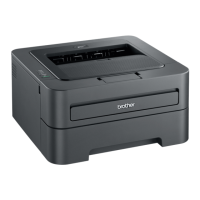
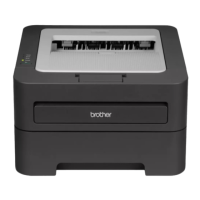
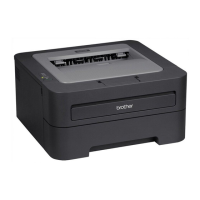
Brother HL-2220
167 pages
Print Icon
To Next Page IconTo Next Page
Loading...
®
Users Guide
Users Guide
PANTONE2728
Advanced User’s Guide
Safety and Legal
Basic User’s Guide

Table of Contents

Other manuals for Brother HL-2220

Questions and Answers

  • J
    Joshua MejiaSep 10, 2025
    What does a 'Fuser Error' mean on my Brother Printer?
    • C
      Crystal MillerSep 10, 2025
      If your Brother printer displays 'Fuser Error', it means the temperature of the fuser unit isn't rising to the correct temperature within the specified time. Turn the power off, wait a few seconds, and then turn it back on. Leave the machine on for 15 minutes.
  • S
    Sheri BurnsAug 22, 2025
    How to fix 'Out of Memory' error on a Brother HL-2220 Printer?
    • P
      Patricia LoganAug 23, 2025
      If your Brother printer displays 'Out of Memory', it means the machine’s memory is full. You can press Start to copy the scanned pages (if a copy operation is in progress). Alternatively, press Stop/Exit, wait for other operations to finish, and then try again. Reducing the print resolution may also help.
  • R
    Reginald JacobsonAug 25, 2025
    What to do if my Brother HL-2220 Printer says 'Cover is Open'?
    • K
      Kurt WilsonAug 25, 2025
      If your Brother printer displays 'Cover is Open', it means the front cover is not completely closed. Ensure that you close the front cover of the machine.
  • C
    Charles ChenAug 26, 2025
    Why does my Brother HL-2220 say 'Cover is Open' when loading a document?
    • J
      Jermaine WilliamsAug 26, 2025
      If your Brother printer displays 'Cover is Open' while loading a document, it means the ADF is open. Close the ADF cover of the machine, then press Stop/Exit.
  • N
    Nicole OwensAug 27, 2025
    What does 'Toner Ended' mean on my Brother Printer?
    • L
      lance07Aug 27, 2025
      If your Brother printer displays 'Toner Ended', it's time to replace the toner cartridge with a new one.
  • A
    Amber RowlandAug 29, 2025
    How to resolve a 'No Toner' error on a Brother Printer?
    • S
      Scott BrownAug 29, 2025
      If your Brother printer shows 'No Toner', the toner cartridge is not installed correctly. Pull out the drum unit, take out the toner cartridge, and then put it back into the drum unit.
  • M
    Mr. Ronald HammondSep 18, 2025
    What does 'Init Unable XX' mean on my Brother HL-2220?
    • D
      destiny41Sep 18, 2025
      If your Brother printer displays 'Init Unable XX', the machine has a mechanical problem. Disconnect the machine from the power for several minutes and then reconnect it.
  • A
    Anthony CurrySep 12, 2025
    Why is Duplex Disabled on my Brother HL-2220?
    • G
      grant57Sep 12, 2025
      If your Brother printer says 'Duplex Disabled', it means the duplex tray is either removed or not installed properly, or the back of the machine is not completely closed. Ensure the duplex tray is correctly inserted until it clicks, and close the back cover completely.
  • J
    Jason ThomasSep 8, 2025
    What to do if Brother HL-2220 says 'Cooling Down Wait for a while'?
    • W
      William AndersonSep 8, 2025
      If your Brother printer displays 'Cooling Down Wait for a while', it means the drum unit or toner cartridge is too hot. Make sure the fan is spinning and the exhaust outlet isn't blocked. If the fan is spinning, clear any obstacles around the outlet and let the machine sit powered on but unused for several minutes. If the fan isn't spinning, disconnect the machine from the AC power outlet for several minutes, then reconnect it.
  • D
    David MatthewsSep 5, 2025
    What to do if my Brother Printer says 'No Paper'?
    • E
      Elizabeth JacksonSep 5, 2025
      If your Brother printer displays 'No Paper', it means the printer is either out of paper or the paper isn't loaded correctly. Refill the paper tray and press Start, or remove the paper and load it again, then press Start. If the problem continues, the paper pick-up roller may need cleaning, so clean it.

Summary

Safety and Legal Information

Documentation Symbols and Conventions

Explains symbols and conventions used throughout the documentation.

Product Safety Guidelines

Crucial safety instructions, warnings, and precautions for operation.

Fire, Electrical, and Hot Surface Hazards

Guidelines for fire prevention, electrical safety, and hot component warnings.

Regulatory Compliance Information

FCC, Industry Canada, and other regional regulatory information.

Laser Safety and FDA Regulations

Safety and regulatory information specific to laser components and FDA.

Device Usage and LAN Connection Precautions

Instructions for device usage, disconnection, and LAN connection precautions.

Brother Product Support

Customer Service and Technical Support

Contact information and resources for customer service and technical support.

Product Registration and Online Resources

Instructions for product registration and access to FAQs and online support.

Ordering Accessories and Supplies

Information on how to order replacement accessories and consumables.

Warranty Information and Disclaimers

Legal disclaimers and details of the product's limited warranty.

BASIC USER’S GUIDE - General Information

Understanding the User Manual

Guidance on using the documentation, symbols, and accessing other guides.

Accessing Brother Support Resources

Information on accessing web support, customer service, and online resources.

BASIC USER’S GUIDE - Loading Paper

Loading Paper and Print Media

Instructions for loading paper and print media into the machine.

Paper Settings and Types

How to configure paper type, size, and handle special paper types.

BASIC USER’S GUIDE - Document Handling

Using the Automatic Document Feeder (ADF)

Instructions for loading documents into the ADF for copying and scanning.

Using the Scanner Glass

Instructions for placing documents directly on the scanner glass.

BASIC USER’S GUIDE - Making Copies

Copy Operations and Settings

How to perform basic copying and adjust copy settings.

Improving Copy Quality and Layouts

Tips to enhance copy quality and use layout features like duplexing.

Duplex Copying Procedures

Instructions for performing two-sided copying (long edge and short edge flip).

BASIC USER’S GUIDE - Routine Maintenance

Replacing Consumable Items

Procedures for replacing toner cartridges and drum units.

Cleaning Procedures

Steps for cleaning the machine, scanner, corona wire, and drum unit.

Machine Packing and Shipping

Guidelines for properly packing and shipping the machine.

BASIC USER’S GUIDE - Troubleshooting

Error and Maintenance Messages

Explains common error messages and their resolutions.

Document and Paper Jams

Procedures for clearing document and paper jams from various locations.

Print Quality Issues

Troubleshooting steps for common print quality problems.

BASIC USER’S GUIDE - Specifications

General and Dimension Specifications

Overview of general machine specs, dimensions, and weight.

Print Media and Copy Capabilities

Details on supported paper types, sizes, and copy functions.

Computer System Requirements

Minimum system requirements for PC software functions.

Brother HL-2220 Specifications

General IconGeneral
Network readyNo
Maximum resolution2400 x 600 DPI
Time to first page (black, normal)10 s
Print speed (black, normal quality, A4/US Letter)21 ppm
Maximum duty cycle8000 pages per month
Number of print cartridges1
Maximum internal memory- MB
Sound power level (standby)31 dB
Sound pressure level (printing)53 dB
Total input capacity250 sheets
Total output capacity100 sheets
Maximum print size-
Paper tray media typesBond paper, Envelopes, Labels, Plain paper
ISO A-series sizes (A0...A9)A4, A5, A6
ISO B-series sizes (B0...B9)B5, B6
Maximum ISO A-series paper sizeA4
Standard interfacesUSB 2.0
AC input voltage110 V
AC input frequency50 - 60 Hz
Power consumption (off)8 W
Power consumption (standby)62 W
Power consumption (printing)421 W
Operating temperature (T-T)10 - 32.5 °C
Operating relative humidity (H-H)20 - 80 %
Mac compatibilityYes
Weight and Dimensions IconWeight and Dimensions
Dimensions (WxDxH)368 x 360 x 182 mm

Related product manuals