EasyManua.ls Logo

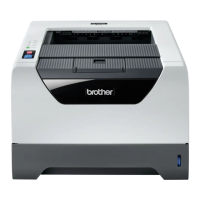
Brother HL-5350DN - User Manual

Brother HL-5350DN
171 pages
Print Icon
To Next Page IconTo Next Page
Loading...
USER’S GUIDE
Brother Laser Printer
HL-5340D
HL-5350DN
HL-5370DW
For visually-impaired users
You can read this manual with Screen
Reader 'text-to-speech' software.
You must set up the hardware and install the driver before you can use the printer.
Please use the Quick Setup Guide to set up the printer. You can find a printed copy in the box.
Please read this User's Guide thoroughly before you use the printer. Keep the CD-ROM in a convenient place so you
can use it quickly if you need to.
You can also read the User's Guide in HTML format by visiting our web site at http://solutions.brother.com/
or
accessing it from the CD-ROM directly.
Please visit us at http://solutions.brother.com/
where you can get product support, the latest driver updates and
utilities, and answers to frequently asked questions (FAQs) and technical questions.
Version 0
UK
Downloaded from ManualsPrinter.com Manuals

Table of Contents

Other manuals for Brother HL-5350DN

Questions and Answers

  • B
    Brittney SmithSep 10, 2025
    How to fix Strage Full error on Brother Printer?
    • T
      Travis PerezSep 10, 2025
      If your Brother printer shows 'Strage Full', the RAMDISK size is set to 0 MB. Increase the RAMDISK size, or delete unnecessary macros or fonts because there is no space to store jobs.
  • S
    Susan YoderAug 22, 2025
    What to do if my Brother HL-5350DN shows a Print Overrun error?
    • M
      Megan RiceAug 22, 2025
      If your Brother printer shows a 'Print Overrun' error, you can press the Go button to print the remaining data in the printer memory, or cancel the print job to delete the remaining data. Alternatively, reduce the complexity of your document or lower the print resolution. Adding more memory may also resolve this issue.
  • T
    Tyler RitterAug 25, 2025
    Why my Brother HL-5350DN cannot print full pages and shows MEMORY FULL error?
    • R
      Rhonda EricksonAug 25, 2025
      If your Brother printer cannot print full pages and shows a 'MEMORY FULL' error, try the following: Press 'Go' to print the remaining data, or cancel the job to clear the memory. Alternatively, reduce the complexity of your document or lower the print resolution. Adding more memory to the printer may also solve the issue.
  • D
    Dakota PetersonAug 26, 2025
    What to do when Brother HL-5350DN cannot print full pages and shows PRINT OVERRUN error?
    • A
      Amanda WalkerAug 26, 2025
      If your Brother printer cannot print full pages and displays a 'PRINT OVERRUN' error, you can try the following: Press the 'Go' button to print the remaining data in the printer memory, or cancel the print job to delete the remaining data. Reducing the complexity of your document or cutting the print resolution may also help. You might also consider adding more memory to the printer.
  • T
    Teresa KennedyAug 27, 2025
    How to fix No Paper error on Brother Printer?
    • C
      Charles MontgomeryAug 27, 2025
      If your Brother printer displays 'No Paper', 'No Paper for Manual Feed', 'No Paper MP or Size Mismatch', 'No Paper in Tray 1 or Size Mismatch', 'No Paper in Tray 2 or Size Mismatch', or 'No Paper in Tray 3 or Size Mismatch', it might be out of paper or the tray isn't properly installed. Add a new stack of paper and press Go. If the problem persists, the paper pick-up roller might be stained and require cleaning. Also, ensure the paper is straight and not curled. Try reducing the amount of paper in the tray or using paper that meets Brother’s specifications. Finally, ensure you've loaded the correct paper size selected in the driver settings.
  • A
    Amy CoffeyAug 29, 2025
    Why is my Brother Printer printing garbage data?
    • C
      Candace WhiteAug 29, 2025
      If your Brother printer is printing unexpectedly or printing garbage data, ensure the printer cable is not too long (ideally under 2 meters), and that it is not damaged. If you're using an interface-switching device, remove it and connect the computer directly to the printer. Check that you have selected the correct printer driver and set it as the default. Also, ensure the printer isn't connected to a port shared with a storage device or scanner. Try turning off the Status Monitor.
  • T
    Timothy JohnsonSep 18, 2025
    What does Drum End Soon mean on my Brother Printer?
    • D
      davisvickiSep 18, 2025
      If your Brother printer displays 'Drum End Soon', the drum unit is near the end of its life. Buy a new drum unit to replace the current one.
  • S
    Scott BuckSep 12, 2025
    Why does my Brother HL-5350DN Printer crease paper when printing?
    • H
      hwilliamsSep 12, 2025
      If you're printing on normal paper and it creases with your Brother printer, change the printer driver setting in Media Type to a thin setting.
  • E
    Elizabeth RamirezSep 8, 2025
    What to do if Fuser Cover is Open on Brother HL-5350DN?
    • A
      Alexander DixonSep 8, 2025
      If your Brother printer displays 'Fuser Cover is Open', close the fuser cover located behind the back cover of the printer.
  • B
    bakerrobertSep 5, 2025
    How to fix Front Cover is Open error on Brother HL-5350DN?
    • J
      joshuacontrerasSep 5, 2025
      If your Brother printer displays 'Front Cover is Open', close the front cover of the printer.

Summary

About this Printer

Carton Components and Interface Cable

Lists all parts included in the printer package and details about required interface cables.

Printer Views and Placement

Identifies external printer parts and provides guidelines for positioning and environment.

Power Supply Requirements

Specifies voltage, electrical requirements, and optimal environmental conditions for printer operation.

Printing Methods

Paper Handling and Types

Details on paper types, sizes, specifications, and unprintable areas for optimal printing.

Printing Procedures for Various Media

Instructions for printing on plain paper, thick paper, labels, and envelopes using different trays.

Duplex and Booklet Printing

Guides on performing automatic and manual duplex printing, and creating booklets.

Driver and Software

Printer Driver Overview and Installation

Explains printer drivers, lists types for Windows, Mac, Linux, and BR-Script installation.

Windows Driver Configuration

Covers basic, advanced settings, accessories, support, and status monitor in the Windows driver.

Macintosh Driver Configuration

Details on page setup, printing options, layout, print settings, and duplex printing for Macintosh.

BR-Script3 Driver Specifics

Configuration details and installation instructions for the BR-Script3 driver on Windows and Mac.

Control Panel

Control Panel Components and Indicators

Explains the function of LEDs, service call indications, and control panel buttons.

Operational Functions

Guides on printing test pages, settings pages, fonts, and resetting default configurations.

Options

Optional Accessories

Details on optional accessories like lower trays and SO-DIMM memory modules.

Memory Installation Guide

Step-by-step instructions for installing SO-DIMM memory modules into the printer.

Routine Maintenance

Consumables and Replacement

Information on consumables, their life, and general replacement procedures for toner and drum.

Toner Cartridge Replacement

Detailed steps for replacing the toner cartridge and handling related messages.

Drum Unit Replacement

Detailed steps for replacing the drum unit and resetting the drum counter.

Printer Cleaning Procedures

Guides for cleaning the printer's outside, inside, paper pick-up rollers, and corona wires.

Troubleshooting

Problem Identification and Basic Checks

Initial checks to diagnose printer issues and steps if the printer does not print.

Error Messages and Status Monitor

Explanation of error messages reported by the status monitor and their solutions.

Paper Jams and Handling

Guidance on paper handling problems, paper jams, and clearing procedures.

Print Quality Troubleshooting

Solutions for various print quality issues like faint print, ghosting, toner specks, and lines.

Appendix

Printer Technical Specifications Overview

Details on engine, controller, software, control panel, paper handling, media, supplies, and dimensions.

Physical and System Requirements

Printer dimensions, weights, power consumption, noise levels, and computer system requirements.

Paper Selection Guidance

Information on choosing paper, including types, weights, grain, pH, print surface, and moisture.

Barcode and Character Set Controls

How to use Web Management for symbol sets and barcode control commands.

Appendix (for Europe and Other Countries)

Brother Contact and Support Information (Europe)

Contact details for technical help, product registration, FAQs, and service centers in Europe.

Appendix (for USA and Canada)

Brother Contact and Support Information (N. America)

Contact details for technical help, registration, FAQs, service centers, and ordering supplies.

Brother HL-5350DN Specifications

General IconGeneral
ColorNo
N-up printing4, 9, 16, 25
Print technologyLaser
Maximum resolution1200 x 1200 DPI
Economical printingYes
Time to first page (black, normal)8.5 s
Print speed (black, normal quality, A4/US Letter)30 ppm
Internal memory32 MB
Processor modelNEC VR5500
Maximum internal memory544 MB
Sound power level (standby)35 dB
Sound pressure level (printing)54 dB
Total input capacity250 sheets
Total output capacity150 sheets
Multi-Purpose tray input capacity50 sheets
Maximum print size216 x 356 mm
Media weight (tray 1)60 - 105 g/m²
Non-ISO print media sizesLetter
ISO A-series sizes (A0...A9)A4, A5, A6
ISO B-series sizes (B0...B9)B5, B6
Maximum ISO A-series paper sizeA4
Multi-Purpose Tray media weight60 - 163 g/m²
Supported network protocols (IPv4)IPv4: ARP, RARP, BOOTP, DHCP, APIPA(Auto IP), WINS/NetBIOS name resolution, DNS Resolver, mDNS, LLMNR responder, LPR/LPD, Custom Raw Port/Port9100, IPP/IPPS, FTP Server, TELNET Server, HTTP/HTTPS server, SSL/TLS, TFTP client and server, SMTP Client, APOP, POP before SMTP, SMTP-AUTH, SNMPv1/v2c/v3, ICMP, LLTD responder, WebServicesPrint, IPv6: NDP, RA, DNS resolver, mDNS, LLMNR responder, LPR/LPD, Custom Raw Port/Port9100, IPP/IPPS, FTP Server, TELNET Server, HTTP/HTTPS server, SSL/TLS, TFTP client and server, SMTP Client, APOP, POP before SMTP, SMTP-AUTH, SNMPv1/v2c/v3, ICMPv6, LLTD responder, WebServicesPrint
Networking features10/100 Base-TX
Power consumption (active)675 W
Compatible operating systemsWindows: Vista, 2000 Prof., XP Home Edition, XP Prof. Edition (32 & 62 bits), Server 2003 (32 & 64 bits), Server 2008. MacIntosh: Mac OS X 10.3.9 + Linux
Power consumption (standby)75 W
Power consumption (PowerSave)6 W
Package weight11500 g
Weight and Dimensions IconWeight and Dimensions
Dimensions (WxDxH)371 x 384 x 246 mm

Related product manuals