EasyManua.ls Logo

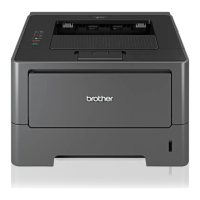
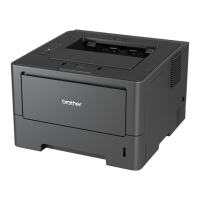
Brother HL-5470DW - User Manual

Brother HL-5470DW
177 pages
Print Icon
To Next Page IconTo Next Page
Loading...
User’s Guide
Brother Laser Printer
HL-5470DW
HL-6180DW
For visually-impaired users
You can read this manual with Screen Reader ‘text-to-speech’ software.
You must set up the hardware and install the driver before you can use the machine.
Please use the Quick Setup Guide to set up the machine. You can find a printed copy in the box.
Please read this User’s Guide thoroughly before you use the machine.
Please visit us at http://solutions.brother.com/
where you can get product support, the latest driver updates and utilities,
and answers to frequently asked questions (FAQs) and technical questions.
Note: Not all models are available in all countries.
Version 0
ARL/ASA/NZ/SAF/GLF

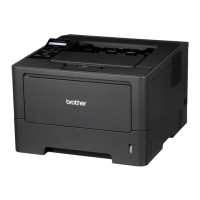
Table of Contents

Other manuals for Brother HL-5470DW

Questions and Answers

  • D
    Dr. David Brooks Jr.Sep 23, 2025
    Why does my Brother HL-5470DW say Access Denied?
    • S
      Sabrina PattersonSep 23, 2025
      If your Brother Printer displays 'Access Denied', the function you want to use is restricted by Secure Function Lock 2.0. Contact your administrator to check your Secure Function Lock Settings.
  • A
    aaronrobertsAug 23, 2025
    What to do if my Brother Printer says 'Connection Fail'?
    • W
      William PowellAug 23, 2025
      If you see a 'Connection Fail' message on your Brother printer, it means the printer and your mobile device aren't communicating properly during setup. To fix this: * Move your mobile device closer to the Brother printer. * Ensure there are no obstructions between the printer and the mobile device. * If using the PIN Method of WPS, verify that you've entered the correct PIN code.
  • C
    Caleb FischerAug 25, 2025
    What to do if my Brother HL-5470DW shows a 'No Device' error?
    • H
      hkaiserAug 26, 2025
      If your Brother printer displays a 'No Device' error, it means the printer can't find your mobile device. Here’s what to do: * Ensure both your printer and mobile device are in Wi-Fi Direct mode. * Move the mobile device closer to the Brother printer. * Remove any obstructions between the devices. * If manually configuring Wi-Fi Direct, verify the password is correct. * If your mobile device requires IP address configuration, ensure it's set to DHCP.
  • B
    bakerangelaAug 27, 2025
    Why does my Brother HL-5470DW Printer show a 'Connection Error'?
    • T
      Tamara CamachoAug 27, 2025
      A 'Connection Error' on your Brother printer indicates that other devices are attempting to connect to the Wi-Fi Direct network simultaneously. To resolve this, ensure no other devices are trying to connect to the Wi-Fi Direct network, and then attempt to configure the Wi-Fi Direct settings again.
  • Z
    Zachary GuzmanAug 27, 2025
    What to do if my Brother HL-5470DW 'Cannot Connect' because a device is already connected?
    • A
      Amanda MirandaAug 27, 2025
      If your Brother printer displays 'Cannot Connect A device is already connected', it means another mobile device is already connected to the Wi-Fi Direct network when the Brother machine is the G/O (Group Owner). Wait for the current connection between your Brother machine and the other mobile device to shut down, and then try configuring the Wi-Fi Direct settings again.
  • A
    Aimee CharlesSep 18, 2025
    What does Drum Stop mean on Brother HL-5470DW?
    • S
      Steven DanielSep 18, 2025
      If your Brother Printer displays 'Drum Stop', it is time to replace the drum unit. Replace the drum unit.
  • M
    Matthew LittleSep 15, 2025
    What to do if my Brother HL-5470DW shows a DIMM Error?
    • J
      Jamie StoutSep 15, 2025
      If your Brother Printer displays 'DIMM Error', it could be caused by several reasons. First, the DIMM is not installed correctly, so turn off the machine and remove the DIMM. Second, the DIMM is broken, so if this error message appears again, replace the DIMM with a new one. Third, the DIMM does not meet the required specifications, so confirm the DIMM meets the required specifications and re-install the DIMM correctly. Wait a few seconds, and then turn it on again.
  • C
    Catherine WardSep 16, 2025
    What does Storage Full mean on Brother Printer?
    • L
      Laura DownsSep 16, 2025
      If your Brother Printer displays 'Storage Full', there is no space on the ROM. Press Cancel or Go. Delete unnecessary macros or fonts.
  • J
    Joshua JohnsonSep 6, 2025
    What to do if my Brother Printer says Cover is Open?
    • D
      davismarySep 7, 2025
      If your Brother Printer displays 'Cover is Open', it means the front cover is not closed completely. Close the front cover of the machine. It can also mean the fuser cover is not closed completely or paper was jammed in the back of the machine when you turned on the power. Close the fuser cover of the machine. Make sure paper is not jammed inside the back of the machine, and then close the fuser cover and press Go.
  • K
    Karen Perez MDSep 3, 2025
    Why does my Brother Printer say Out of Memory Add more Memory?
    • K
      Kristen HernandezSep 4, 2025
      If your Brother Printer displays 'Out of Memory Add more Memory', the machine’s memory is full. Reduce the complexity of your document or reduce the print resolution. Add more memory.

Summary

Printing Methods

Driver and Software

General Information

Routine Maintenance

Replacing consumable items

Identifies replaceable items like toner and drum units and their approximate life.

Replacing the toner cartridge

Detailed procedure for replacing the toner cartridge.

Replacing the drum unit

Detailed procedure for replacing the drum unit.

Troubleshooting

Identifying your problem

Initial checks for diagnosing printer issues, covering no print, paper jams, and quality problems.

Error and maintenance messages

Explains common error messages, their causes, and recommended actions.

Paper jams

Instructions for clearing paper jams from various printer locations like MP tray, Duplex tray.

Improving the print quality

Tips and solutions for common print quality issues like faint print, ghosting, or lines.

Brother HL-5470DW Specifications

General IconGeneral
ColorNo
N-up printing2, 4, 9, 16, 25
Duplex printingYes
Print technologyLaser
Maximum resolution2400 x 600 DPI
Time to first page (black, normal)8.5 s
Print speed (black, normal quality, A4/US Letter)38 ppm
Duplex print speed (black, normal quality, A4/US Letter)9 ppm
Wi-Fi standards802.11b, 802.11g, Wi-Fi 4 (802.11n)
Security algorithms128-bit WEP, 64-bit WEP, EAP-TLS, EAP-TTLS, LEAP, WPA, WPA-AES, WPA-PSK, WPA-TKIP, WPA2, WPA2-PSK
Maximum duty cycle- pages per month
Recommended duty cycle1000 - 3500 pages per month
Number of print cartridges1
Memory typeDDR2
Processor familyStar Sapphire
Maximum internal memory384 MB
Sound power level (standby)34 dB
Sound pressure level (printing)59 dB
Sound pressure level (quiet mode)54 dB
DisplayLCD
Total input capacity250 sheets
Total output capacity150 sheets
Maximum input capacity800 sheets
Total number of input trays2
Multi-Purpose tray input capacity50 sheets
Custom media width76.2 - 215.9 mm
Maximum print size216 x 356 mm
Custom media length127 - 355.6 mm
Paper tray media typesPlain paper, Recycled paper
Paper tray media weight60 - 105 g/m²
Non-ISO print media sizesLetter
ISO A-series sizes (A0...A9)A4, A5, A6
ISO B-series sizes (B0...B9)B5, B6
Multi-purpose tray media typesBond paper, Envelopes, Heavyweight paper, Labels, Plain paper, Recycled paper
Maximum ISO A-series paper sizeA4
Multi-Purpose Tray media weight60 - 163 g/m²
Standard interfacesEthernet, USB 2.0, Wireless LAN
USB 2.0 ports quantityUSB 2.0 ports have a data transmission speed of 480 Mbps, and are backwards compatible with USB 1.1 ports. You can connect all kinds of peripheral devices to them.
AC input voltage220 - 240 V
AC input frequency50 - 60 Hz
Power consumption (off)0.5 W
Power consumption (standby)4.7 W
Power consumption (printing)665 W
Power consumption (PowerSave)0.7 W
Package weight11.900 g
Sustainability certificatesENERGY STAR
Weight and Dimensions IconWeight and Dimensions
Dimensions (WxDxH)371 x 384 x 257 mm

Related product manuals