Scanning
18
3
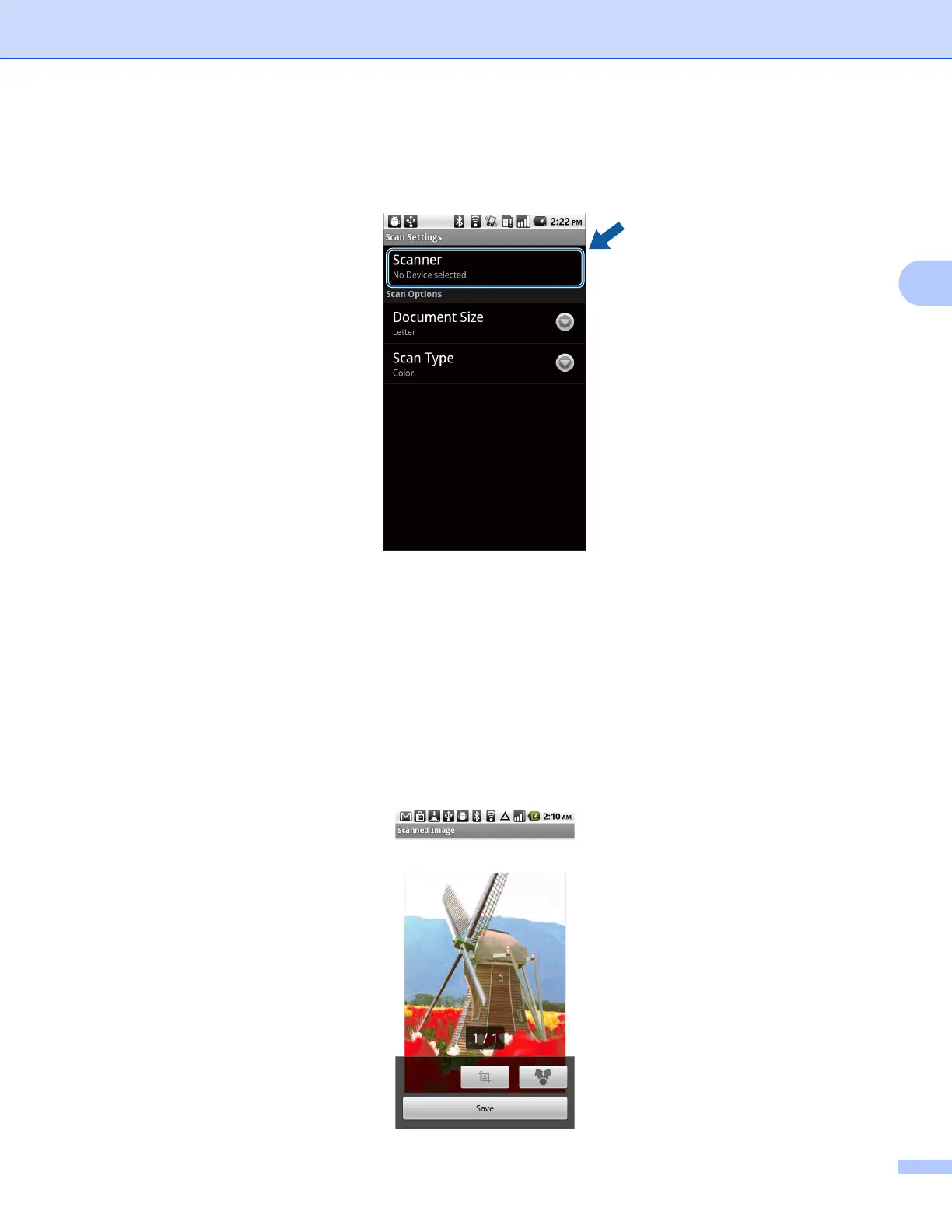
g Make sure your machine is selected.
If a different machine is selected or if No Device selected is displayed, make sure your machine is
turned on and then tap Scanner.
h The application will search your network and display a list of available machines. Tap your machine from
the list.
i Do one of the following:
If you want to change other scan settings, see Scan Settings uu page 20. After changing the settings,
go to step j.
If you do not want to change any settings, press the Back button and go to step j.
j Tap Scan.
The machine will start to scan the document. The scanned image will then be displayed on the screen.
Confirm the scanned image.







 To Next Page