Printing from Android™ Devices
17
4
Connecting the P-touch labeler to Your Android™ Device 4
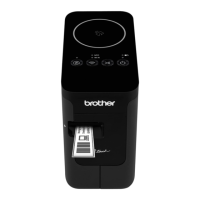
Use Wireless Direct to connect the P-touch labeler to your Android™ device. The P-touch labeler serves also
as a wireless network access point.
When Your Android™ Device Supports NFC (Near Field Communication) 4
a If the Wi-Fi lamp is not lit, press and hold the Wireless Mode button for one second to turn on the wireless
LAN function.
After the Wi-Fi lamp is lit, release the button. The Wi-Fi lamp flashes.
b For Windows
®
Start the Printer Setting Tool on your computer, and click the [Communication settings] button. Confirm
that the [Enable Wireless Direct when Wireless LAN is turned on] checkbox is selected in the [General]
tab of the Communication settings.
(This is selected as the factory default.)
See Using the Communication Settings on page 19 for details on the Communication settings.
For Macintosh
Start the P-touch Utility with your computer, and confirm that [Wireless Direct] is set to [ON] in the
[Wireless Direct] tab.
See Brother P-touch Utility (for Macintosh) on page 35 for details on the P-touch Utility.
c Activate the NFC function of your Android™ device, and touch it to the NFC mark on the P-touch labeler.
If a dedicated application is not installed on your device, the Google Play homepage will be displayed on
the device.
If this occurs, install a dedicated application, and then continue the procedure from step c. See Available
Applications for Use with Android™ Devices on page 16.
d When your Android™ device is detected, the NFC lamp on the P-touch labeler goes off for a moment
and then is lit again.


 To Next Page
 Loading...