EasyManua.ls Logo

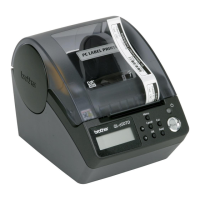
Brother P-Touch QL-500 - User Manual

Brother P-Touch QL-500
76 pages
Print Icon
To Next Page IconTo Next Page
Loading...
www.brother.com

Table of Contents

Other manuals for Brother P-Touch QL-500

Questions and Answers

  • E
    Elizabeth GreenAug 15, 2025
    What to do if my Brother P-Touch QL-500 is not printing?
    • M
      Mark PrestonAug 15, 2025
      If your Brother Label Maker QL-500/550 is not printing or you're getting a printing error, make sure the USB cable is correctly connected. Also, check that the DK Rolls are properly installed and that there's enough roll remaining. Ensure the DK Roll compartment cover is closed securely.
  • J
    Jordan HuangAug 18, 2025
    Why are labels jamming in my Brother P-Touch QL-500 Label Maker?
    • P
      patrick40Aug 19, 2025
      If labels are jammed in the cutter or not ejecting correctly after printing with your Brother Label Maker, the edge of the cutter unit might have lost its sharpness, in which case you should replace the cutter. Also, dirt or lint on the roller may prevent it from rolling freely. Try cleaning the roller using a Cleaning Sheet.
  • L
    Lisa SanchezAug 21, 2025
    Why won't my Brother P-Touch QL-500 Label Maker turn on?
    • J
      Jennifer LaraAug 21, 2025
      If the power button on your Brother Label Maker doesn't light up or flash, ensure the power supply cord is properly connected and plugged in. Try connecting it to another electrical outlet. If the power button still doesn't light up or flash, contact Brother Customer Service at 1-877-4-P-touch.
  • J
    john96Aug 25, 2025
    What to do if my Brother P-Touch QL-500 QL-500/550 does not print?
    • Z
      zvazquezAug 25, 2025
      If your Brother Label Maker QL-500/550 isn't printing or you're getting a printing error, first ensure the USB cable is properly connected. Next, remove and reinstall the DK Rolls. Also, confirm that enough roll remains and the DK Roll compartment cover is securely closed.
  • D
    davislarryAug 27, 2025
    Why are labels jammed in the cutter of my Brother P-Touch QL-500?
    • J
      Joseph CruzAug 27, 2025
      If labels are jamming in the cutter or not ejecting correctly from your Brother Label Maker after printing, consider these points: * If the cutter unit's edge seems dull, replace the cutter. * If dirt or lint is preventing the roller from rolling smoothly, use a Cleaning Sheet to clean the roller.
  • T
    Tonya HawkinsAug 30, 2025
    Why does the power button not light up on my Brother P-Touch QL-500 Label Maker?
    • P
      paige46Aug 31, 2025
      If the power button on your Brother Label Maker doesn't light up or flash, check that the power supply cord is properly connected and plugged into the outlet. If it's connected correctly, try plugging it into a different electrical outlet. If the issue persists, contact Brother Customer Service at 1-877-4-P-touch.
  • L
    Luke RomeroSep 2, 2025
    How to fix poor print quality on Brother Label Maker?
    • M
      Michele MilesSep 3, 2025
      If your Brother Label Maker is producing labels with streaks or poor quality characters, or if the label isn't feeding correctly, the print head or roller might be dirty. If this occurs, clean the roller.
  • I
    idaySep 5, 2025
    What to do if a data transmission error appears when using my Brother Label Maker?
    • R
      Robert SuarezSep 6, 2025
      If you see a data transmission error on your computer when using the Brother Label Maker, make sure the correct port is selected in the 'Print to the following port' list within the Printer Properties dialog box. Also, wait for the LED lamp to stop flashing before attempting to print again.
  • K
    Kimberly YoungSep 8, 2025
    What to do if data transmission error appears with Brother P-Touch QL-500?
    • S
      Scott WilliamsSep 8, 2025
      If a data transmission error appears on your computer when using the Brother Label Maker, ensure the correct port is selected from the 'Print to the following port' list in the Printer Properties dialog box. Also, if the QL-500/550 is in cooling mode (the LED lamp is flashing slowly), wait until the LED lamp stops flashing and then try printing again.
  • A
    angela14Sep 12, 2025
    How to fix streaks on labels printed by my Brother P-Touch QL-500?
    • J
      Jennifer HaynesSep 12, 2025
      If your printed labels from the Brother Label Maker have streaks, poor character quality, or aren't feeding correctly, clean the roller.

Summary

INTRODUCTION

General Precautions and Safety Warnings

Provides essential safety guidelines for operating the label printer, handling consumables, and avoiding damage or injury.

GETTING STARTED

Printer Setup and Power Connection

Explains how to connect the label printer to a power source and the initial setup steps before software installation.

INSTALLING SOFTWARE

Software Installation Precautions and Procedures

Outlines essential precautions and the step-by-step process for installing the printer driver and P-touch Editor software.

CREATING LABELS

Designing Various Label Types

Demonstrates creating different label types like address labels, barcode labels, and custom labels using P-touch Editor features.

Printing and Saving Created Labels

Explains how to print labels, manage print options, and save label layouts for future use.

Integrating with External Applications

Covers using P-touch Add-ins with Word, Excel, Outlook, and connecting to databases for label creation.

APPENDIX

Troubleshooting Common Printer Issues

Offers solutions for common problems such as printing errors, power issues, poor print quality, and jams.

Brother P-Touch QL-500 Specifications

General IconGeneral
Tape size12 mm
Network readyNo
Print previewYes
Dimensions (WxDxH)146 x 196 x 152 mm
Product colorBlue
Tape typeDK
Tape cuttingManual
Standard interfacesUSB
Print technologyDirect thermal
Bundled softwareP-Touch Editor 4.2 for Windows P-Touch Editor 3.2 for MAC
Maximum label length1 m
Package depth310 mm
Package width195 mm
Package height265 mm
Weight and Dimensions IconWeight and Dimensions
Weight1300 g

Related product manuals