EasyManua.ls Logo

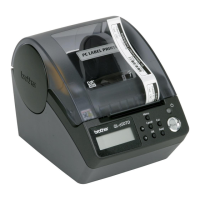
Brother P-Touch QL-570 - User Manual

Brother P-Touch QL-570
122 pages
Print Icon
To Next Page IconTo Next Page
Loading...
P-touch
SERVICE MANUAL
MODEL: QL-570

Table of Contents

Questions and Answers

  • A
    albert84Aug 19, 2025
    Why won't the tape feed in my Brother P-Touch QL-570 Label Maker?
    • S
      Shawn NelsonAug 19, 2025
      If the tape won't feed in your Brother P-touch Label Maker: * First, check to make sure that the tape is not empty. * Install a new roll of labels or tape. * Ensure the tape is loaded correctly and that the label path is not blocked.
  • J
    Joshua DavisAug 22, 2025
    What to do if my Brother P-Touch QL-570 ran out of tape?
    • J
      James ThomasAug 22, 2025
      If your Brother P-touch Label Maker is out of tape, install a new roll and then click on the monitor.
  • M
    morganjeremiahAug 25, 2025
    What to do if the tape cutter isn't working on my Brother Label Maker?
    • A
      Anthony BeanAug 25, 2025
      If the tape cutter on your Brother P-touch Label Maker is not operating: * Turn off the P-touch before removing any jammed labels. * After removing any jammed labels, retry the print, being careful not to injure your hands on the tape cutter.
  • C
    Connie CraigAug 26, 2025
    What to do if there is a communication error between my PC and Brother P-Touch QL-570?
    • S
      Steven SimonAug 26, 2025
      If you experience a communication error between your PC and the Brother P-touch Label Maker: * Ensure the P-touch is connected to your computer using the USB interface cable that came with it, and check for any weak connections. * Verify that the P-touch is turned on. If a communication error has occurred, try turning the P-touch off and then on again.
  • F
    floydjoyAug 27, 2025
    What if the tape in my Brother Label Maker doesn't match the application?
    • O
      ocharlesAug 27, 2025
      If the roll of labels or tape inside the Brother P-touch Label Maker does not match the one selected in the application: * Install the correct roll of labels or tape into the machine and then click on the monitor. * Click to cancel the print job. * Go to the Page Properties in the P-touch Editor and change the selection of the supply roll so that it matches the one inside the machine. * Try printing the label again.
  • A
    Ana WiseAug 30, 2025
    What to do if I cannot change the tape while printing with my Brother Label Maker?
    • M
      Michael ClarkAug 30, 2025
      If you cannot change the roll of labels or tape while printing with the Brother P-touch Label Maker, turn the P-touch off and then on. Click on the monitor.
  • J
    Judith HowardAug 31, 2025
    What to do if my Brother P-Touch QL-570 has invalid data in memory?
    • E
      Eduardo LewisSep 1, 2025
      If your Brother P-touch Label Maker may have invalid data in memory, turn the P-touch off and then on.
  • A
    andrew38Sep 3, 2025
    What to do if I get a buffer full error on my Brother P-Touch QL-570 Label Maker?
    • L
      Lucas DillonSep 3, 2025
      If you get a buffer full error on your Brother P-touch Label Maker, turn the P-touch off and then on. Click on the monitor.
  • B
    Brian RobbinsSep 4, 2025
    What to do if the cover of my Brother P-Touch QL-570 is open?
    • K
      krystal95Sep 5, 2025
      If the cover of your Brother P-touch Label Maker is open, close the cover.
  • M
    Michael ShafferSep 6, 2025
    What if my connected Brother P-Touch QL-570 Label Maker is not QL-570?
    • B
      barnesstephanieSep 6, 2025
      If the connected Brother P-touch Label Maker is not QL-570, change the model to the correct one.

Summary

Brother P-touch QL-570 Service Manual

Printing Mechanism and Speed

Explains the direct thermal printing method and print head specifications.

Theory of Operation: Mechanisms and Electronics

Outline of Mechanisms

Provides an overview of the printer's mechanical components and their functions.

Print Mechanism Explained

Explains the direct thermal printing system and thermal head operation.

Tape Feed Mechanism Operation

Explains how the tape is fed through the printer using a step motor and gears.

Automatic Tape Cutter Mechanism

Describes the mechanism for automatically cutting the tape using a moving cutter blade.

Outline of Control Electronics

Details the control electronics and their constituent components.

Main PCB Components Overview

Details the components and block diagram of the main PCB.

Disassembly and Reassembly Procedures

Safety Precautions for Service

Lists essential safety precautions to be followed during disassembly and reassembly.

Tightening Torque Lists

Provides a list of specific tightening torque values for various screws.

Disassembly Steps

Outlines the step-by-step procedure for disassembling the printer.

Removing the Top Cover and Thermal Tape

Step-by-step guide to remove the top cover and thermal tape from the printer.

Removing the Front Cover and Tray S

Step-by-step guide to remove the front cover and tray S.

Reassembly Procedures

Details the step-by-step procedure for reassembling the printer.

Troubleshooting and Error Messages

Troubleshooting Precautions

Lists precautions to prevent secondary problems during troubleshooting.

LED Status and Error Countermeasures

Explains LED states for different situations and error countermeasures.

Printer Error Messages

Lists error messages and their corresponding advice for resolution.

Troubleshooting Flows

Provides diagnostic flowcharts for common printer issues.

Printing with Missing Dots

Troubleshooting flowchart for issues with missing dots during printing.

Tape Not Detected Correctly

Troubleshooting flowchart for incorrect tape detection.

LED Does Not Turn On

Troubleshooting flowchart for when the LED does not turn on.

No Printing Performed

Troubleshooting flowchart for when no printing is performed.

Interface Malfunction Troubleshooting

Troubleshooting flowchart for interface malfunctions.

Tape Not Cut Correctly

Troubleshooting flowchart for when the tape is not cut.

Tape Not Fed Correctly

Troubleshooting flowchart for incorrect tape feeding.

Brother P-Touch QL-570 Specifications

General IconGeneral
Print TechnologyDirect Thermal
CutterAutomatic
InterfaceUSB
Operating System CompatibilityWindows, Mac
Label Types SupportedDie-cut, Continuous
Power SourceAC Adapter
Max Print Width2.3 inches
Maximum Label Length3 feet
Print Speed68 labels/min
Label WidthUp to 2.4"

Related product manuals