EasyManua.ls Logo

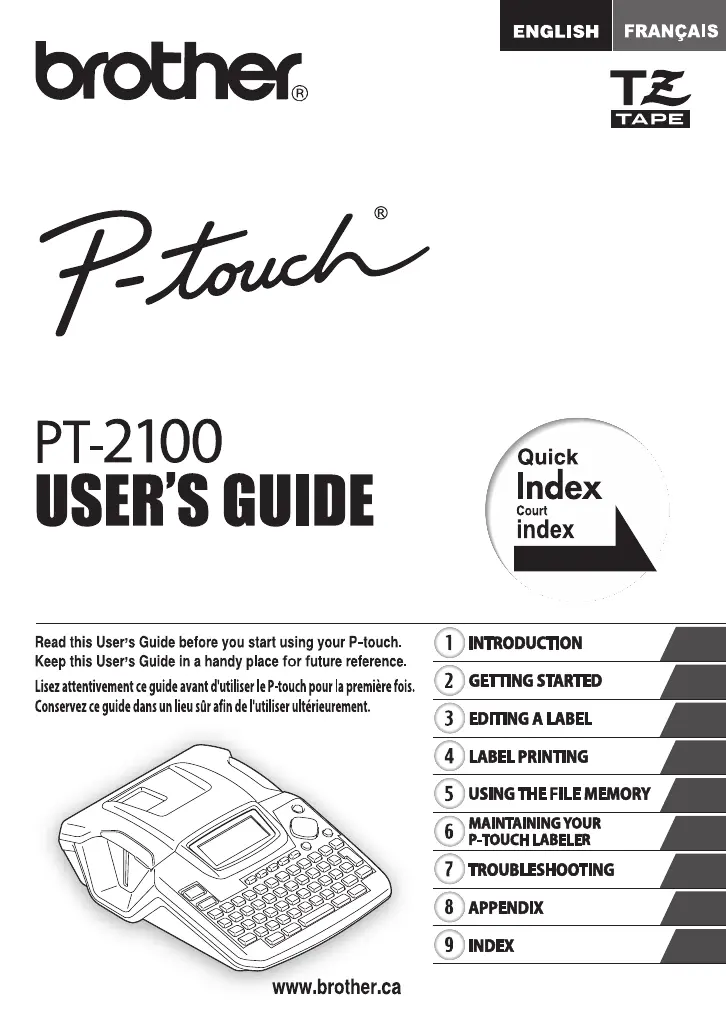
Brother PT-2100 - User Manual

Brother PT-2100
159 pages
Print Icon
To Next Page IconTo Next Page
Loading...
GUIDE DE L'UTILISATEUR
ELECTRONIC LABELING SYSTEMELECTRONIC L ABELING SYSTEMELECTRONIC LABELING SYSTEM
P. 11
P. 4
P. 12
P. 25
P. 49
P. 56
P. 60
P. 62
P. 68
P. 74

Table of Contents

Questions and Answers

  • G
    George BlairJul 31, 2025
    What to do if my Brother PT-2100 Label Maker is not printing?
    • R
      Robert BrownJul 31, 2025
      If your Brother Label Maker isn't printing after pressing the print key, there might be a few reasons: * Check if you've entered any text because it won't print if there's no text. * Confirm that the tape cassette is correctly installed and has enough tape. * If the tape end is bent, cut the bent section and thread the tape correctly. * For a jammed tape, remove the cassette, carefully pull out the tape, cut it, and ensure the tape end passes through the guide before reinstalling. * Also, make sure the tape compartment cover is closed properly.
  • D
    David DeckerAug 4, 2025
    Why is my Brother PT-2100 not printing correctly?
    • M
      michael07Aug 4, 2025
      If your Brother Label Maker isn't printing labels correctly, consider these points: * Ensure the tape cassette is installed correctly by pressing firmly until it clicks. * Clean the print head with a cotton swab or optional print head cleaning cassette (TZ-CL4) if it's dirty. * Check the Cut Option setting because if it is set to Chain or No Cut, the tape won't feed after printing. Adjust the setting or hold the key and press the key to feed and cut the tape.
  • B
    Billy RileyAug 8, 2025
    Why is my Brother PT-2100 not cutting automatically?
    • A
      Anthony NunezAug 8, 2025
      If your Brother Label Maker isn't cutting labels automatically, here’s what to check: * Verify the Cut Option setting. If it's set to Chain or No Cut, the tape won't feed for automatic cutting. Change the setting or manually feed and cut the tape. * If you're using Fabric Iron-On or Extra Strength Adhesive Tapes, you'll need to use scissors to cut the tape. * Ensure the tape compartment cover is properly closed.
  • J
    James WilliamsAug 12, 2025
    What to do if my Brother PT-2100 freezes?
    • K
      Katelyn KennedyAug 12, 2025
      If the screen of your Brother Label Maker locks up, freezes, or doesn't respond normally, reset the internal memory to the initial settings. If that doesn't solve the problem, disconnect the AC adapter and remove the batteries for more than 10 minutes.
  • R
    Richard BeardAug 16, 2025
    What to do if the display on my Brother Label Maker remains blank?
    • M
      Mark TaylorAug 17, 2025
      If the display on your Brother Label Maker remains blank after turning it on, here are a few things to check: * Make sure the AC adapter is connected correctly. * Verify that you're using the correct AC adapter (Brother AD-24). Using the wrong one can cause damage. * Try removing and reinstalling the batteries to ensure they are properly seated.
  • J
    Jonathan BrayAug 21, 2025
    Why does my Brother Label Maker stop while printing a label?
    • M
      Meredith WilsonAug 21, 2025
      If your Brother Label Maker stops while printing, consider the following: * Check if there's enough tape remaining in the cassette. The striped tape indicates the end of the roll, so replace the cassette when you see it. * Ensure that the batteries aren't weak and that the AC adapter (Brother AD-24) is connected properly. Replace weak batteries or connect the AC adapter directly.
  • H
    hortizAug 26, 2025
    Why are my saved label files empty on my Brother PT-2100 Label Maker?
    • T
      tsaundersAug 26, 2025
      If your saved label files are now empty on your Brother Label Maker, it could be due to: * Disconnecting the batteries and AC adapter for more than two minutes, which causes data loss. * Batteries being completely empty, which also results in data loss. * Using the Reset function, which clears all stored data, including label files.

Summary

Introduction

Safety Precautions

Essential safety warnings and guidelines to prevent injury and damage.

General Precautions

Important operational guidelines and warnings for using the P-touch labeler.

Getting Started

Unpacking Your P-touch Labeler

Lists the items included in the product package.

Power Supply

Instructions for installing batteries and connecting the AC adapter.

Inserting a Tape Cassette

Step-by-step guide on how to load a tape cassette into the labeler.

Key Names and Functions

Explains the purpose and operation of each key on the labeler's control panel.

Editing a Label

Entering and Editing Text

Covers basic text input, new lines, blocks, and cursor movement.

Setting Character Attributes

Adjusting font, size, width, style, line, and alignment for labels.

Using Auto-Format Layouts

Quickly create labels using pre-defined templates or block layouts.

Using Block Layouts

Guide to creating labels using predefined block layout structures.

Creating a Bar Code Label

Instructions for generating one-dimensional bar codes for various applications.

Setting Label Attributes

Configuring frame, label length, and tab length for custom labels.

Using Templates - Example Creating an Asset Tag

Step-by-step process for creating an asset tag using a template.

Setting Bar Code Parameters

Configuration options for bar code protocols, width, and check digits.

Label Printing

Using the File Memory

Maintaining Your P-touch Labeler

Resetting the P-touch Labeler

Restores the labeler to factory default settings by clearing internal memory.

Troubleshooting

What to do when...

A guide to diagnosing and resolving common operational problems.

Error Messages

Explanations of on-screen error messages and their remedies.

Brother PT-2100 Specifications

General IconGeneral
BrandBrother
ModelPT-2100
CategoryLabel Maker
LanguageEnglish

Related product manuals