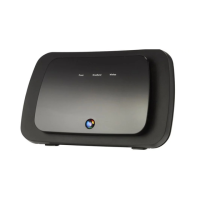
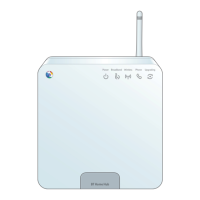
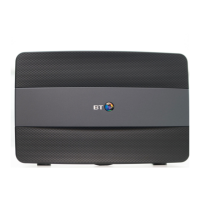
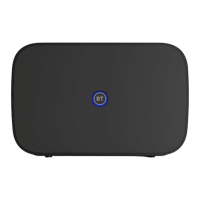
No light Green Flashing orange Flashing purple
Orange Red Blue White WPSbuttonashing
What’s happening
The power is o or
you’ve turned the
light o
What’s happening
The Hub is starting up
What’s happening
The Hub is connecting
to broadband
What’s happening
The Hub is working but
your broadband isn’t
connected
What’s happening
The Hub is working
but isn’t connected
to the internet
What’s happening
There’s a problem
somewhere
What’s happening
The Hub is working ne
What’s happening
Your Hub is connected
in bridge mode
What to do
If it’s ashing blue, it’s waiting for you to
press the WPS button on your computer
or device (you’ve got two minutes).
If it’s ashing red, it didn’t connect
– give it a couple of minutes and
try again. No light means that it’s
connected successfully
What to do
If you haven’t turned
the light o, check that
the Hub’s power button
is on, its power cable is
plugged in correctly at
the mains and power is
turned on.
If there’s still no light, call
us on 0800 800 154
What to do
Wait a couple of
minutes for it to start
What to do
Give it a minute or two
to connect. The light
will turn blue when
your Hub is ready
What to do
Make sure your
broadband has been
activated (you should
have received a text
or email).
It could take up to
midnight for it
to connect for the
rst time
What to do
Connect a device to
your Hub using a cable
or wi-. Open a new
web browser window
and follow the on-
screen help wizard to
get connected
What to do
Using the power
button, turn your Hub
o and on again.
If the light still doesn’t
turn blue, use a paper
clip (or something
similar) to press your
Hub’s Factory Reset
button.
If this doesn’t x it, call
us on 0800 800 154.
Have your Hub and a
computer or device
close to hand
What to do
If you can’t get online,
there might be a
problem with your
computer, tablet or
mobile device. Turn it
o and then on and
try again.
If you’ve still got a
problem, get some help
from the manufacturer
or supplier
What to do
Your Hub is connected
and working ne but
as a modem only. Wi-
is o in this mode and
you’ll need to connect
another router to use
as an access point. You
can switch o bridge
mode in Hub Manager,
if needed
Connect to your
Hub’s Wireless:
Select your Wireless Network:
BTBHub6-ABCD
1
Enter your Wireless
Password/key:
8888wwwwwWWW
2
Admin Password for
Hub Manager:
8888WWWW
Power
On | Off
Power
Factory
Reset
USB Gig Ethernet
1 2 3 4
Broadband
9 For more help, go to bt.com/business/hubhelp
4005 BTB Smart Hub User Guide-FTTP v4 [3].indd 9 26/01/2018 16:09



 To Next Page
 Loading...