Proxy Server
If you place the LinkStation on a network that passes through a proxy server, configuring the proxy server settings is
recommended. Unless you configure the proxy settings, firmware updates in Settings will not work. To configure the
settings, follow the procedure below.
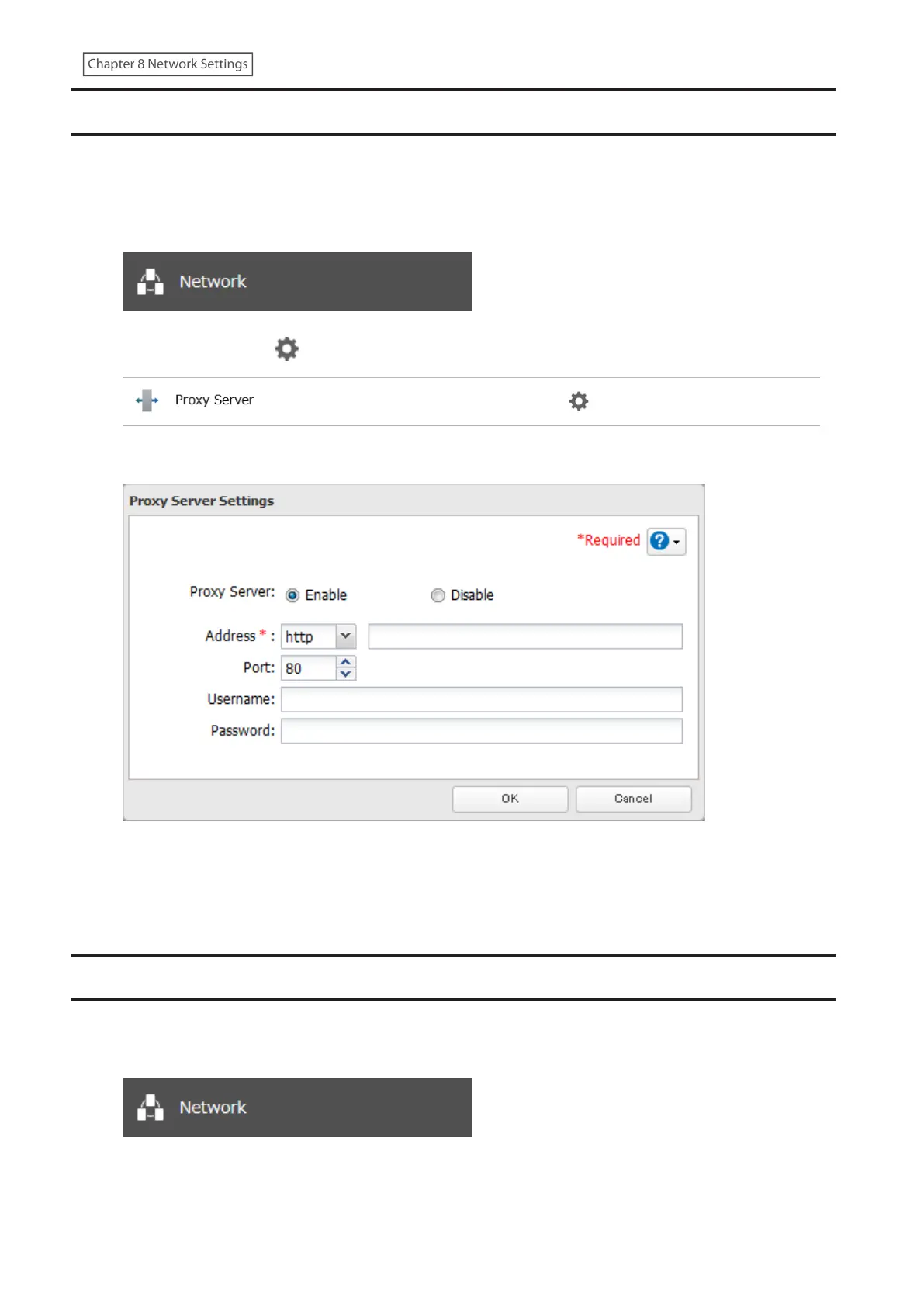
1 From Settings, click Network.
2 Click the settings icon ( ) to the right of “Proxy Server”.
3 Enable “Proxy Server”.
4 Enter the proxy server IP address or hostname, port number, username and password, then click OK.
Once you configure the proxy server settings, you may use the settings for cloud storage services such as Dropbox,
Microsoft Azure, and Microsoft OneDrive by selecting the “Configured settings” option on each settings page.
Jumbo Frames
If your other network devices support jumbo frames, you may be able to improve network performance.
1 From Settings, click Network.
161
Chapter 8 Network Settings









 To Next Page