18
If you require any technical guidance or find that your product is not operating as intended, a simple solution can often be found in the
Troubleshooting
19
section of these instructions, or online at www.bush-support.com If you still require further assistance, call one of our experts on 0345 600 3021.
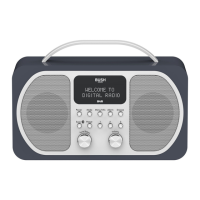
Getting to know your Stereo DAB/FM Radio
You’ll be up and running in no time
6. Set date is displayed and the day will flash. Use the Tune/Select control, to scroll and
select to confirm the day, month and year, using the same method as you used to set
the time.
When you confirm the correct date. ‘Time Saved’ is displayed and the display returns
to <Set Time/Date>.
You can now use the Tune/Select control to scroll and select, as you did to set the
time and date to change the settings for:
12/24 hour clock display, the date format, DD-MM-YYYY or MM-DD-YYYY and to auto
update the time from the DAB signal, FM signal, DAB or FM signal or no update.
7. Short press the Menu button until you exit the Menu options.
Change the mode
Short press the Mode button to change between DAB, FM and Bluetooth modes. Please
check the display, which will confirm the mode.
Using headphones
You can connect headphones with a 3.5mm plug (not included) to your radio. The
headphone socket can be found on the back of the radio at the bottom. When you
have headphones connected the radio speakers are switched off and all sound is via the
headphones.
Note: Always keep the volume within reasonable limits.
Connect to a Bluetooth device
Check that your radio is in Bluetooth mode. If you are not already in Bluetooth mode,
Short press the Mode button until you are in Bluetooth mode (check the display). Your
radio will begin to search for Bluetooth devices.
In Bluetooth Mode:
1. Your radio will search for Bluetooth devices.
2. On the device that you would like to connect to your radio (e.g. iPhone/iPad/Android/
other phone/Tablet/Computer), turn on Bluetooth connectivity and ensure that it is
‘discoverable’.
Note: If necessary, refer to the instructions for your device to add or set up Bluetooth.
3. Select to ‘Add new device’, if necessary.
Note: Some products will automatically search for a new device and so the ‘Add new
device’ option is not available.
4. When found, your radio will be displayed as ‘BUSH BD-1807’. Select the device name
to begin pairing.
5. When pairing is complete ‘Connected’ will be displayed and there will also be an audio
confirmation.
6. Now that you have paired your device with the radio, it will connect to it when it is
within range, which is about 10 metres or less (33 feet or less), line of sight.
7. Your device will remain paired with the radio unless you decide to disconnect or
‘unpair’ it.
Note: You can long press the Scan button for 3 seconds to unpair your current device
and search for new devices.
Getting to know your Stereo DAB/FMRadio with Bluetooth
Getting to know your Stereo DAB/FMRadio with Bluetooth
Getting to know your Stereo DAB/FM Radio
You’ll be up and running in no time


 To Next Page