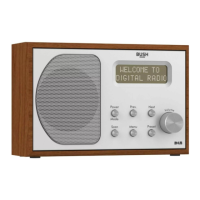
Using your Stereo DAB/FM Radio with Bluetooth
Using your Stereo DAB/FM Radio with Bluetooth
28
29
section of these instructions, or online at www.bush-support.com If you still require further assistance, call one of our experts on 0345 600 3021.
If you require any technical guidance or find that your product is not operating as intended, a simple solution can often be found in the
Troubleshooting
Using your Stereo DAB/FM Radio
Let’s get started
Using your Stereo DAB/FM Radio
Let’s get started
Storing an FM station preset
Your radio can store up to 10 FM stations in its preset memories for instant access to your
favourite stations.
Note: When you store FM radio station presets, these do not overwrite your DAB
station presets.
1. Tune the Radio to the FM radio station that you wish to preset.
2. Long press the Preset button for approximately 2 seconds until Preset Store
<1:(Empty)> is displayed.
3. Use the Tune/Select control to move to the preset location that you would like to
store the radio station to (1-10).
Note: When you store a radio station to Preset location 1, 2 or 3, this will also be saved
under the number ‘1’, ‘2’ and ‘3’ buttons on the front of your radio.
4. Press the Tune/Select control to Select, the display will confirm Preset X stored, where
‘X’ is the number of the preset (1-10).
Note: If there is already an existing FM station stored under a preset, it will be over
written when you store the new station.
Tune to an FM preset station
In FM mode:
Note: To quickly access the radio stations stored under Preset locations 1, 2 or 3, you
can just short press the ‘1’, ‘2’ or ‘3’ button, as appropriate, on the front of your radio.
1. Short press the Preset button. Preset Recall <1:> is displayed together with the name or
frequency of the station stored there, or (Empty) if no previous station has been stored.
2. Use the Tune/Select control to move to the Preset location and station that you would
like to listen to (1-10).
3. Press the Tune/Select control to Select. The radio will instantly tune to that station and
begin to play.
Note: If no FM station has been stored under the preset button, ‘Preset Empty’ will be
displayed, then the radio will revert to the previously selected radio station.
FM display information
When listening to an FM station you can change the information that will appear on the
second line of the display.
• Radiotext (RT) - This is scrolling text information supplied by the broadcaster.
Information could be the name of an artist or music title, DJ’s name, contact details
for the radio station etc.
• Program Type (PTY) - Such as ‘Rock’, ‘Pop‘, Talk’ or ‘News’
• Station name or frequency - Such as BBC R4 or 93.30MHz
• Audio mode – Stereo or Mono
• Time and date - Supplied by the broadcaster.
1. Repeatedly Short press the Menu/Info button to cycle through the different
information options.
Bluetooth mode
Check that your radio is in Bluetooth mode. If you are not already in Bluetooth mode,
short press the Mode button until you are in Bluetooth mode (check the display). Your
radio will begin to search for Bluetooth devices.
In Bluetooth Mode:
1. Your radio will search for Bluetooth devices..
2. On the device that you would like to connect to your radio (e.g. iPhone/iPad/Android/
other phone/Tablet/Computer), turn on Bluetooth connectivity and ensure that it is
‘discoverable’.


 To Next Page