7
Click to Return to the Table of Contents
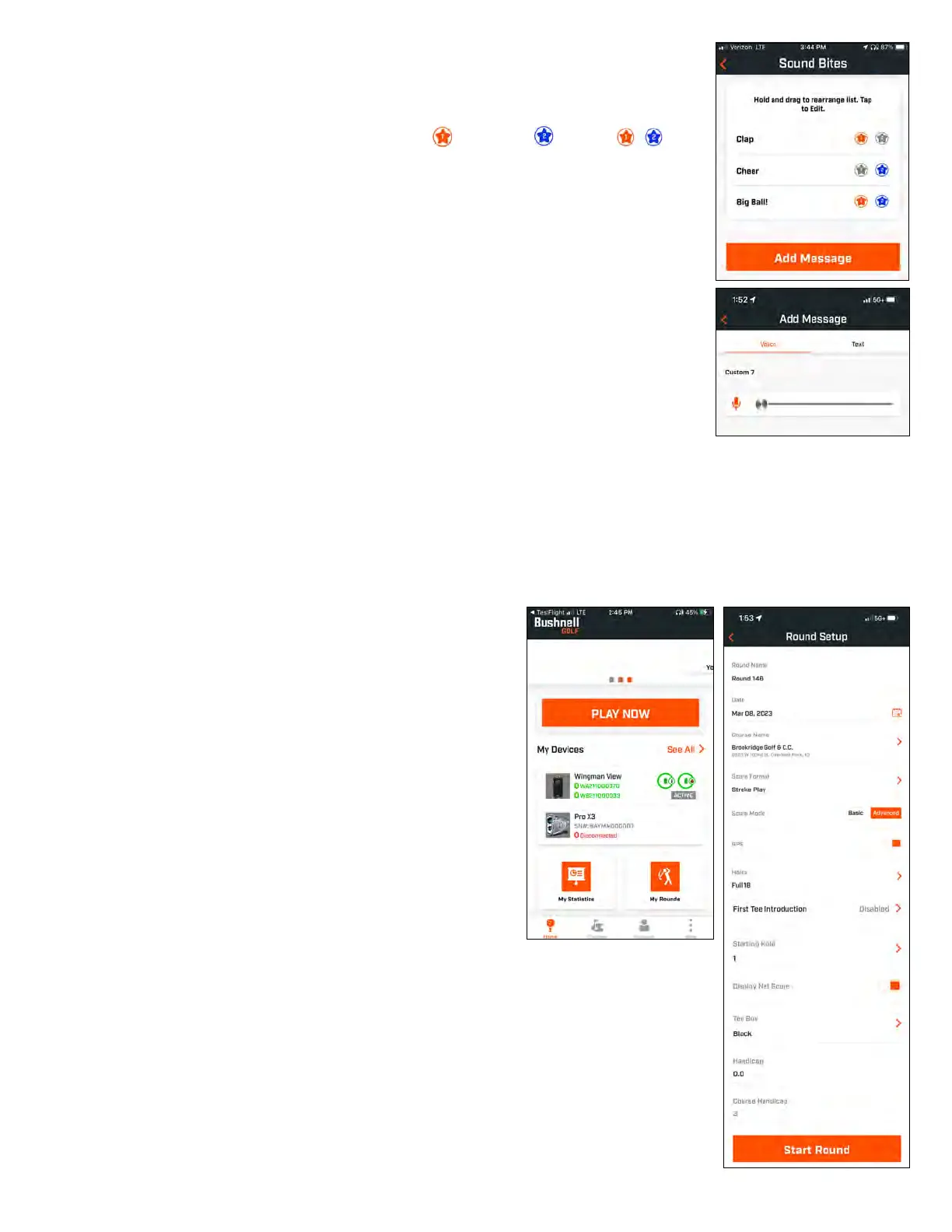
SOUND BITES
A. Sound Bite List:
— Two default Sound Bites: Clap and Cheer
— Up to Ten custom Sound Bites
— Any Sound Bite can be added as a Favorite 1 , Favorite 2 , or both .
will be randomly selected to play when the Favorite 1 command is given from the remote
(double click Bushnell Button on the remote).
B. Add Message
1. Tap Add Message to create Custom Sound Bite
2. Voice:
b. Tap microphone to end recording
c. Select Favorite One, Favorite Two or both. This will assign the button command
that this Sound Bite will be associated with.
d. Tap “Custom #” in the title bar to rename the Sound Bite.
e. Press Save.
3. Text:
a. Write text to be read as a Custom Sound Bite.
b. Tap “Custom #” in the title bar to rename the Sound Bite.
c. Press Save.
PLAY NOW - ROUND SETUP
Return to the Bushnell Golf Mobile App home page and select
“Play Now” to Start Round.
Choose a course from a list of Recent, Nearby, or Open courses.
If you are continuing a game, choose “Continue Round”.
• Round Name: The round can be given a custom name.
Click “Round #” and type what name you would prefer.
• Date: The current day is the default “date”, but changing
the date of the game can be done by clicking on the
calendar icon.
• Course Name: Choose a course from a list of Recent,
Nearby or Open courses.
• Score Format: Choose Stroke Play or Stableford.
• Score Mode: Choose Basic or Advanced.
• GPS: GPS must be enabled to 2 the hole layout.
• Holes: Choose Front 9, Full 18 or Back 9.
• First Tee Introduction: Default is Off. Turn On and add players’ names.
• Starting Hole: Choose the hole you are starting the round on.
• Display Net Score: On or Off.
• Tee Box: Tee Box information is available if net scoring is turned On.
• Handicap: Enter personal handicap.
• Course Handicap


 To Next Page