Introduction 5
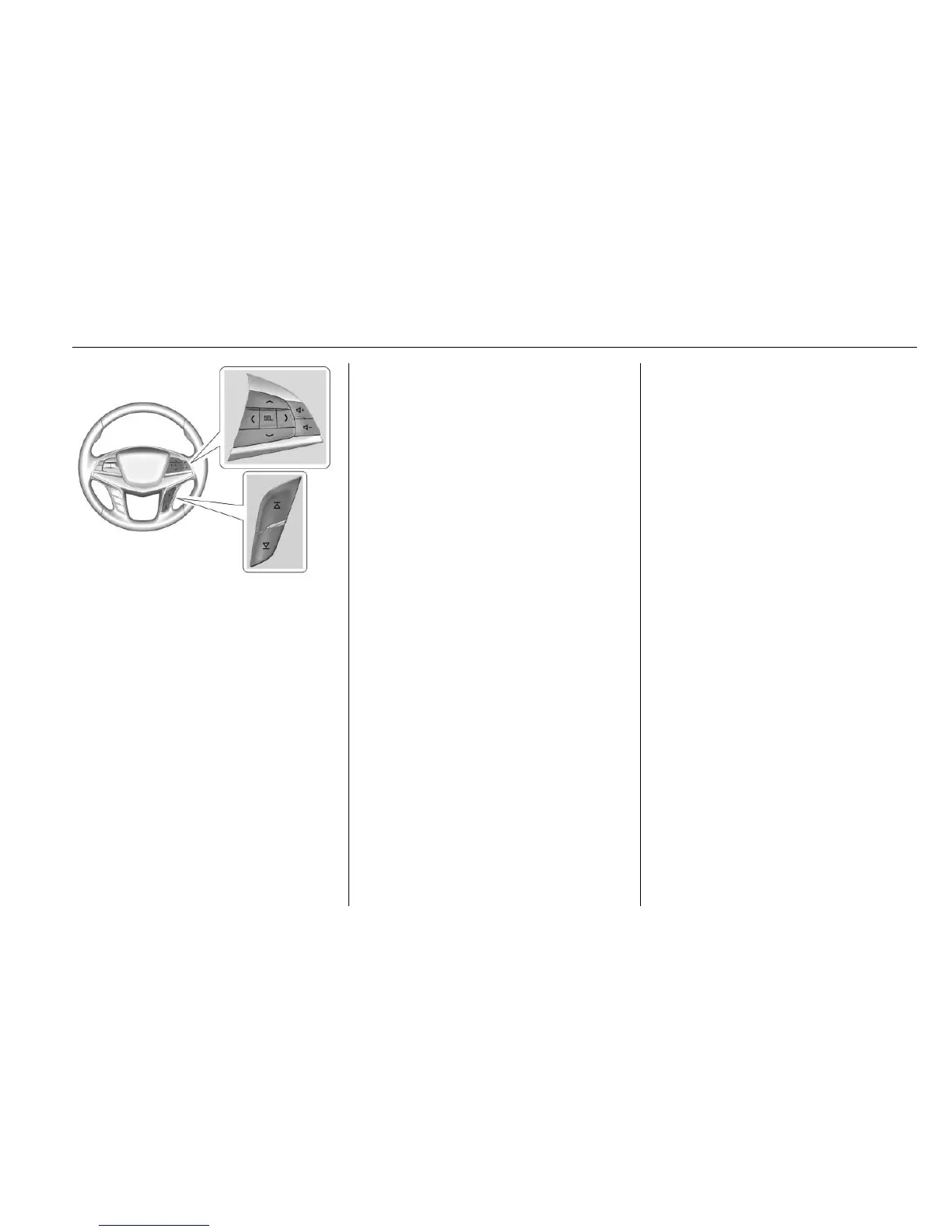
S or T : Press the five-way control
to the left or right to go to the
previous or next area in the display
or to the previous or next menu.
y or z : Press the five-way
control up or down to go up or down
in a list or page.
SEL : Press to select a highlighted
menu item.
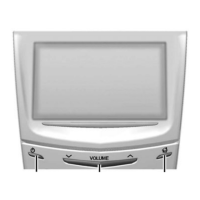
x + or x − (Volume) : Press to
increase or decrease volume.
C or B (Next or Previous
Favorite) : Press to go to the next
or previous favorite when listening
to the radio. Press to go to the next
or previous track when listening to a
media source.
Using the System
Touchscreen Buttons
Touchscreen buttons show on the
screen when available. When a
function is unavailable, the button
may gray out. When a function is
selected, the button may highlight.
Home Page Features
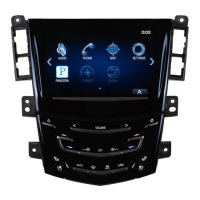
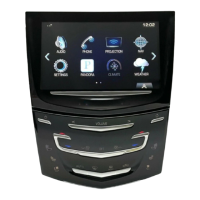
Touch the icons on the Home Page
screen to launch an application.
Audio
If equipped, Touch the AUDIO icon
to display the active audio source
page. Available sources are AM,
FM, SXM, My Media, USB,
Bluetooth, and AUX Input.
Phone
Touch the PHONE icon to display
the Phone main page. See
Bluetooth (Overview) 0 93
or Bluetooth (Infotainment Controls)
0 94 or Bluetooth (Voice
Recognition) 0 97.
Traffic
Touch TRAFFIC icon to access the
traffic information directly from the
Home Page.
Front Camera
Touch the FRONT/CAMERA icon to
display the Front Camera + 360°
Camera screen. See “Driver
Assistance Systems” in the owner
manual.
NAV/ OnStar NAV
Touch the NAV icon to display the
navigation map or OnStar
®
Turn-by-Turn Navigation. See Using
the Navigation System 0 53 or
“OnStar Navigation” in the owner
manual.





 To Next Page