4 Introduction
Home Page
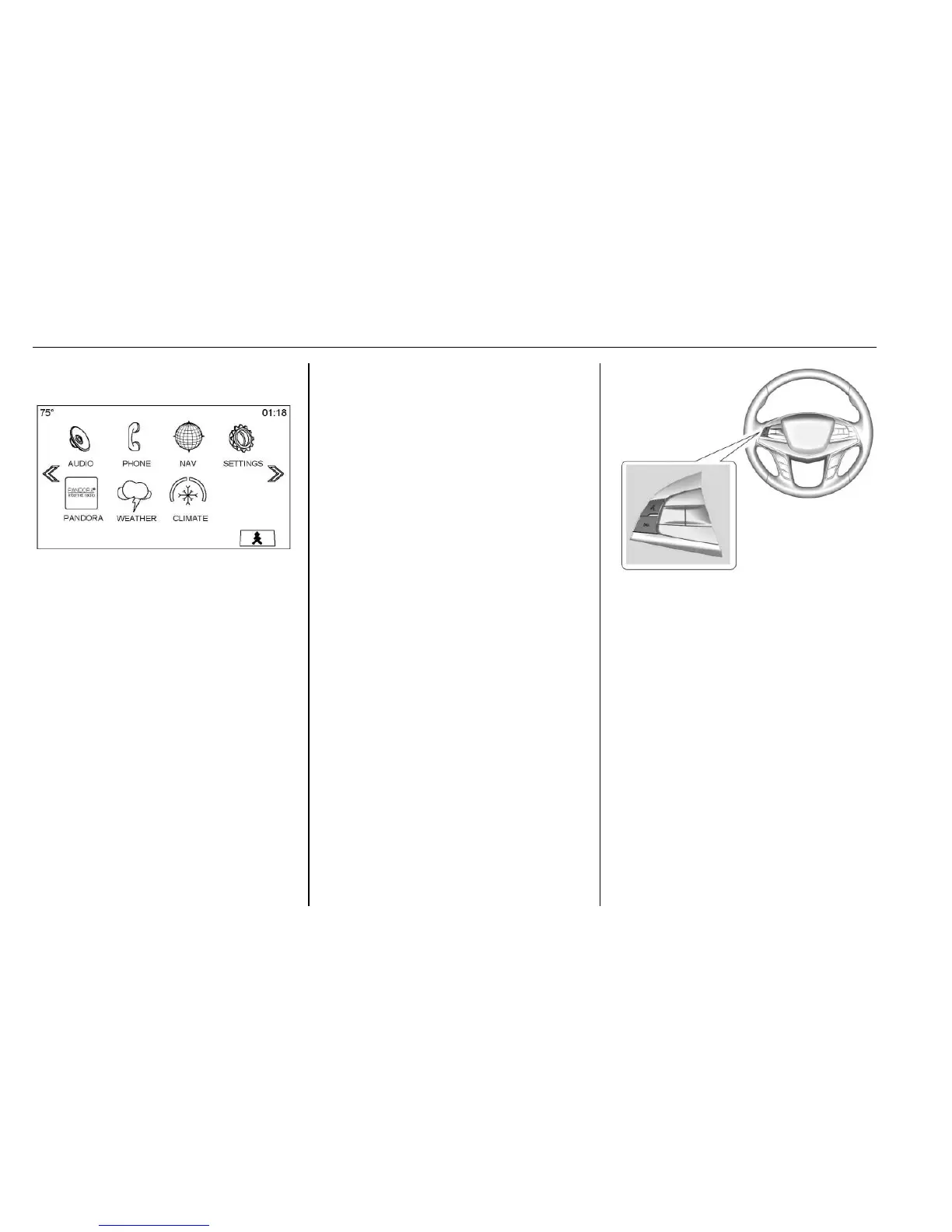
The Home Page is where
application icons are accessed.
Some features are disabled when
the vehicle is moving.
The Home Page can be set up to
have up to 10 icons per page.
Touch
u or v, or slide a finger left/
right across the screen to access
the pages of icons.
v (Next) : Touch to go to the next
Home Page.
u (Previous) : Touch to go to the
previous Home Page.
k (Interaction Selector) : Touch to
display the favorites list.
Touch and hold a location within the
favorites area to begin the process
of saving a favorite application.
Touch the application icon to store
as a favorite, and the name of the
application will be shown in
favorites.
Managing Home Page Icons
1. Touch and hold any of the
Home Page icons to edit
that icon.
2. Drag the icon to a new location
on the Home Page or to save it
to the applications tray.
3. Press
{ to exit edit mode.
Steering Wheel Controls
The infotainment steering wheel
controls can be used to control the
infotainment features displayed in
the instrument cluster.
When in Valet Mode (if equipped),
access to the infotainment functions
is disabled. See Settings 0 101.
g (Press to Talk) : Press to answer
an incoming call or to start a voice
recognition. See Bluetooth
(Overview) 0 93 or Bluetooth
(Infotainment Controls) 0 94
or Bluetooth (Voice Recognition)
0 97 and “OnStar Overview” in the
owner manual.
c (End Call) : Press to decline an
incoming call, or end a current call.
Press to mute or unmute the
infotainment system when not on
a call.





 To Next Page