Navigation 81
Settings
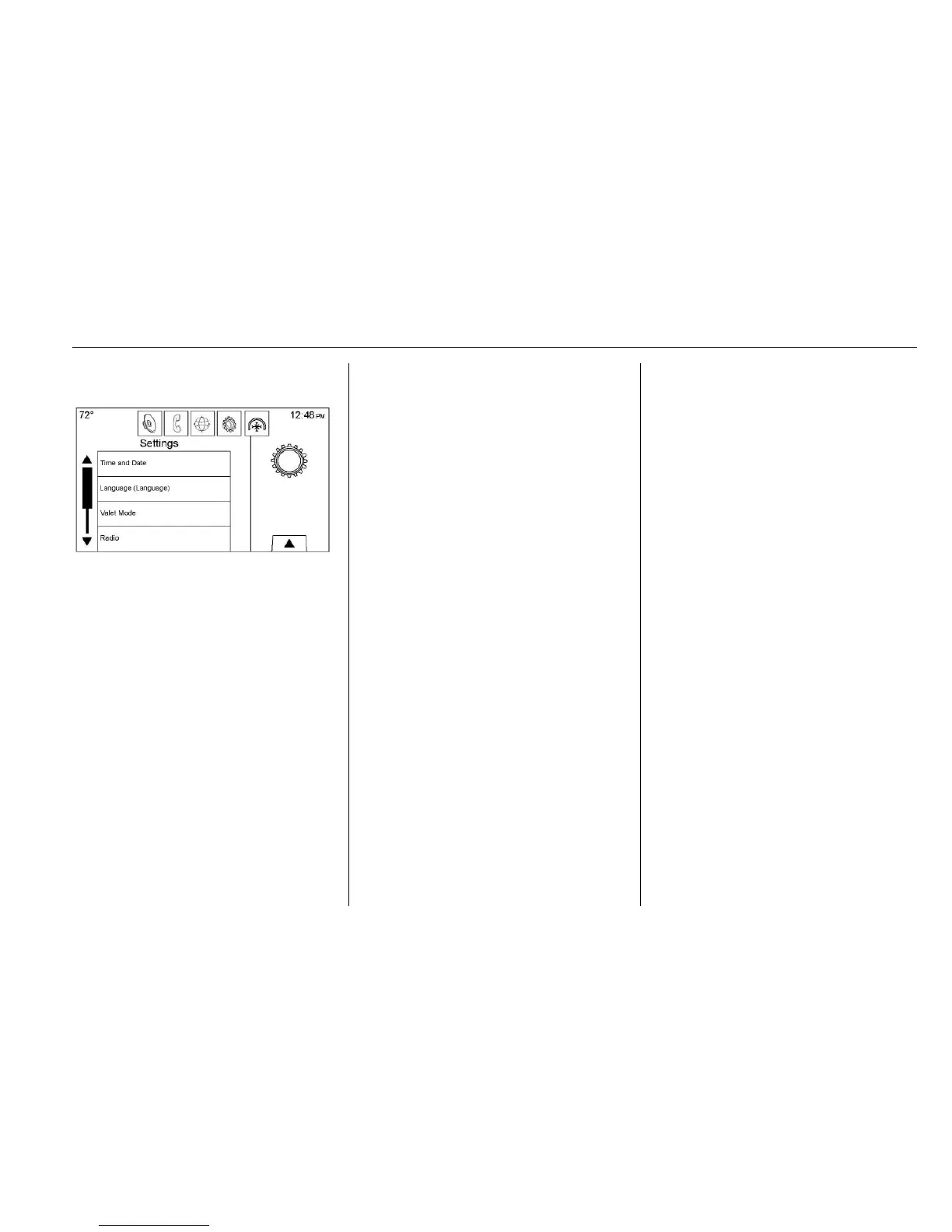
Touch SETTINGS on the Home
Page to adjust features and
preferences, such as Time and
Date, Driving Mode, Language,
Valet Mode, or Radio. For setting
options, see Settings 0 101.
A few of the setting options change
the way the navigation system
displays or reacts while in use.
1. Touch the SETTINGS screen
button on the Home Page.
2. Touch the scroll bar until the
desired option displays. Select
the desired settings to change.
Driving Mode
If equipped, touch the Driving/Mode
Home Page icon to access the
Driving Mode visualization screen.
From the visualization screen,
Driving Mode shows the current
driving configuration. See “Driving
Mode” in the owner manual.
Voice
Voice recognition allows for
hands-free operation within the
navigation, audio, phone, and
weather applications. See Voice
Recognition 0 85.
Touch the voice screen button to
display the Voice menu.
Confidence Threshold : Touch to
change the sensitivity of the voice
recognition system.
Prompt Length : Touch to change
the prompt length to Short or Long.
Audio Feedback Speed : Touch to
change the audio feedback speed to
Slow, Medium, or Fast.
Display
Touch Display to access display
options:
Proximity Sensing : Touch
Proximity Sensing to turn the
sensing On and Off, or to turn
sensing On for Map Only.
.
Touch the Calibrate Touchscreen
setting adjusts the calibration of
the touchscreen.
.
Touch the Turn Display Off to
turn the display option off.
Calibrate Touchscreen : Touch to
display the Touchscreen Calibration
Screen.
Turn Display Off : Touch to turn the
Display option off.
Rear Camera
Touch to access the rear camera
options:
.
Guidance Lines – Touch to turn
the guidance lines option On
or Off.
.
Rear Park Assist Symbols –
Touch to turn the rear park assist
symbols option On or Off.





 To Next Page