124
Using a Memory Card
E
Setting the Print Style
Card Photo Printer:
Bubble Jet Printer:
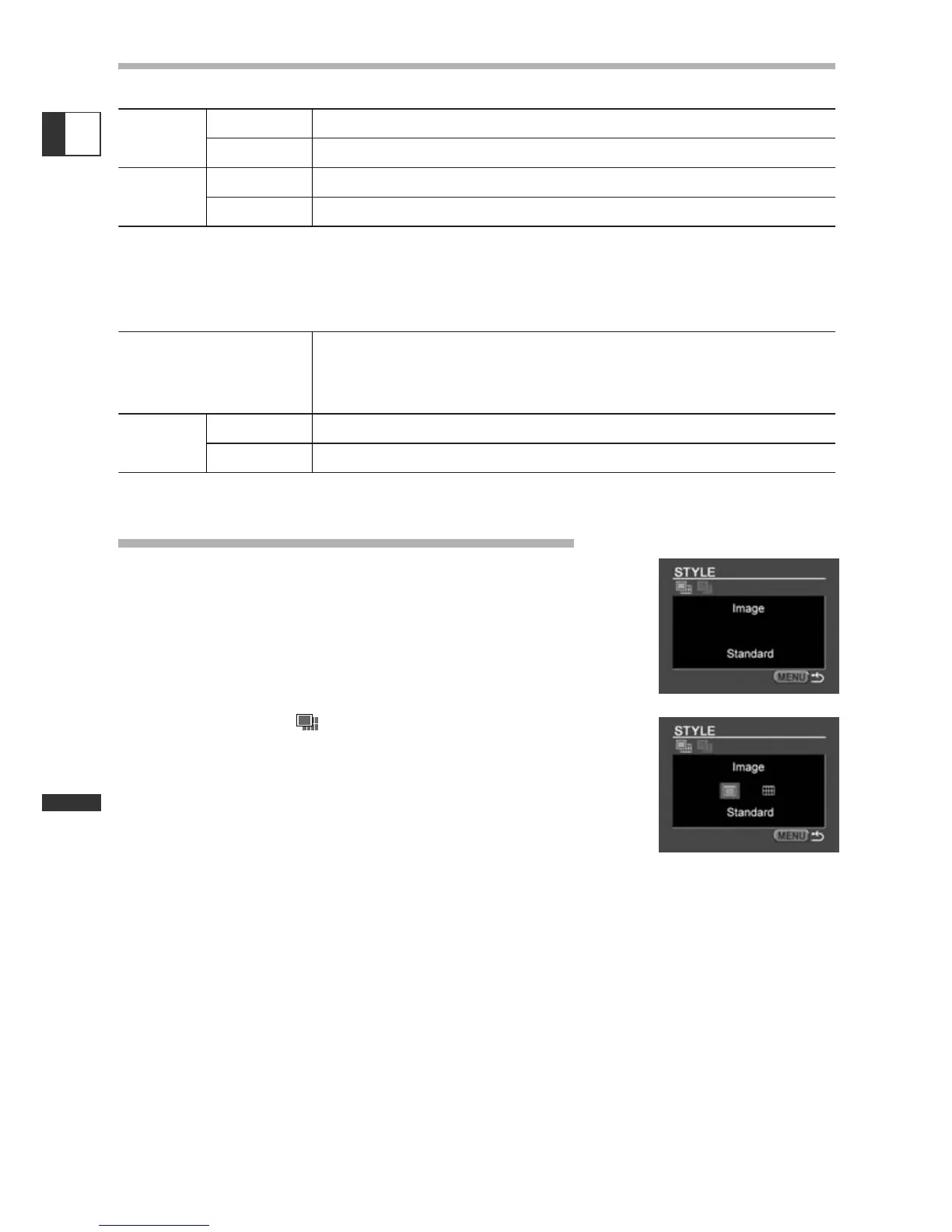
Card Photo Printer: Selecting the Image Style
1. In the print setting menu, turn the selector dial to
select [Style] and press the selector dial.
2. Make sure that is selected and press the selector
dial.
3. Turn the selector dial to select the image style and press the selector
dial.
4. Press the MENU button.
You return to the print setting menu.
Image Standard Prints 1 still image per page.
Multiple Prints 8 copies of the same still image on one page.
Borders Borderless Prints right to the edges of the page.
Bordered Prints with a border.
• [Multiple] can only be selected when printing on card size paper.
• [Borders] can only be selected when [Image] is set to [Standard].
Paper Size Card #1*, Card #2*, Card #3*, LTR, A4
For details on paper type, refer to the Bubble Jet Printer User
Guide.
Borders Borderless Prints right to the edges of the page.
Bordered Prints with a border.
* Recommended paper size


 To Next Page