84
imagePRESS C850/C750/C650/C65
84
4
Print another test page and hold it up to a light to see if the (register marks) are in the same
position on both sides of the paper�
5
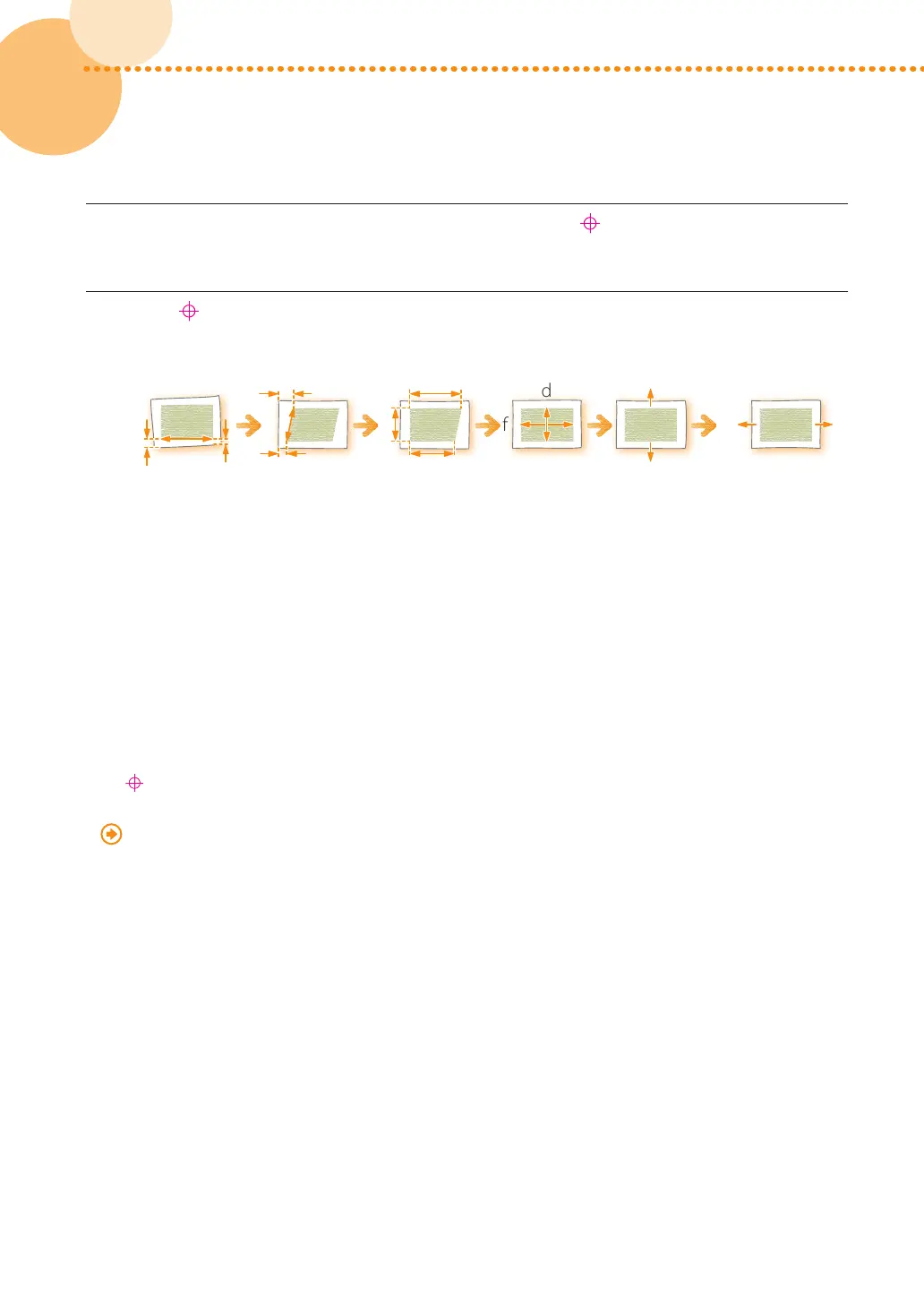
If the (register marks) are not aligned, adjust the position of the image again in the sequence
shown below�
i
i
e
+
-
-
j
f
d
h
g
a
c
h
b
c
Correct Image
Skew
Correct
Parallelogram
Distortion
Correct
Trapezoid
Distortion
Adjust Zoom
Ratio
Adjust Position
of Left Edge
Register
Adjust Position
of Leading Edge
Register
•
Print about ten copies of the test page, and then measure the final page that is printed� This is done to improve
accuracy, because the position of the images that are printed first is inconsistent� If the humidity is high, print about
30 copies of the test page and measure the final page�
•
If you are adjusting the position of the image on coated paper or heavy paper that is more than 250 g/m
2
(66 lb
bond), print three to five test pages and use the average value� This is done because the position of the image on
heavy or coated paper is inconsistent�
•
Use the marks for each paper size when checking for misalignment of images� For example, if the test page is A3, use
the
A3
register mark to check for misalignment�
•
If you change the value in [Adj� Secondary Transfer Volt�], be sure to adjust the zoom ratio of the image�
"Paper Type Management" > "Adjusting the Image Position" in the User's Guide





 To Next Page